


The Pages fragment exists to let you add additional content pages to your CincoTube site, such as “About Us”, “Pricing”, or “Terms”, and make them accessible from any section you choose. It also simplifies page management by removing the need for backend changes or developer assistance, allowing you to define new pages by referencing any publicly accessible webpage, for example, one hosted on Wix, Instapage, HubSpot, or Blogspot. CT then maps a route (such as /page/my-new-page) to that external URL and displays it inside an iframe within the CincoTube environment.
This works well for hosting externally built marketing or campaign pages under the CincoTube domain, displaying help articles, blogs, or contact pages from third-party platforms, and integrating custom dashboards or micro-frontends hosted on services like Vercel or Netlify. It provides a straightforward way to maintain these additional pages while keeping everything accessible from within CincoTube.
How It Works
A fragment in CincoTube serves as a configuration file that controls how specific parts of the system behave dynamically. The Pages fragment extends this concept by introducing a mapping system that connects CincoTube page routes to external URLs. Each line in the fragment defines how CincoTube should handle a particular route and what content it should load when that route is accessed.
The process follows as:
1. Fragment Configuration: Each page is represented as a single line inside the Pages fragment, written in the format:
iframe,<ct_path>,<external_url>,<json_config>
- The first value (iframe) specifies that the page will be rendered using an embedded iframe.
- The second value defines the CincoTube path (e.g., /page/my-blog) that users will visit.
- The third value provides the external page URL that CincoTube should load.
- The fourth value is an optional JSON object used for additional settings or layout parameters.
2. Route Matching: When a visitor accesses a CincoTube path (for example, /page/my-blog), CincoTube first checks whether this path is listed in the Pages fragment. If a matching entry is found, CincoTube retrieves the corresponding configuration line to understand what external content needs to be displayed.
3. Page Assembly: Once the configuration is found, CincoTube prepares a standard page container within its environment. Inside this container, it creates an iframe element that points to the specified external URL. The iframe inherits the CincoTube environment’s styling and layout rules, allowing the external content to appear as part of the same interface.
4. Rendering the External Content: The iframe then loads the remote webpage directly from the provided URL. CincoTube does not store or replicate this content; it simply displays it live from the external host. The result is a seamless viewing experience; users see a CincoTube page, but the content is actually coming from an external website.
5. Optional JSON Parameters: The optional JSON object at the end of the line (for example, {} or {“workspace”:”hide”}) can be used to modify behavior in future releases. These parameters may control aspects like hiding workspace elements, customizing layout behavior, or injecting contextual variables into the iframe.
Fragment Structure
Each line in the Pages fragment has four comma-separated values:
iframe,<ct_path>,<external_url>,<json_config>
Where
Steps to Create a Custom Page
Step 1: Prepare your external page. Create or host your page on any public platform, such as Wix, HubSpot, Instapage, Blogspot, or Vercel. Once published, copy its public URL (it must be accessible without authentication).
Step 2: Open CincoTube Settings → Fragments, Navigate to Settings in the left sidebar → scroll to the Fragments section. Locate and expand the Pages (1) fragment as shown in the screenshot.
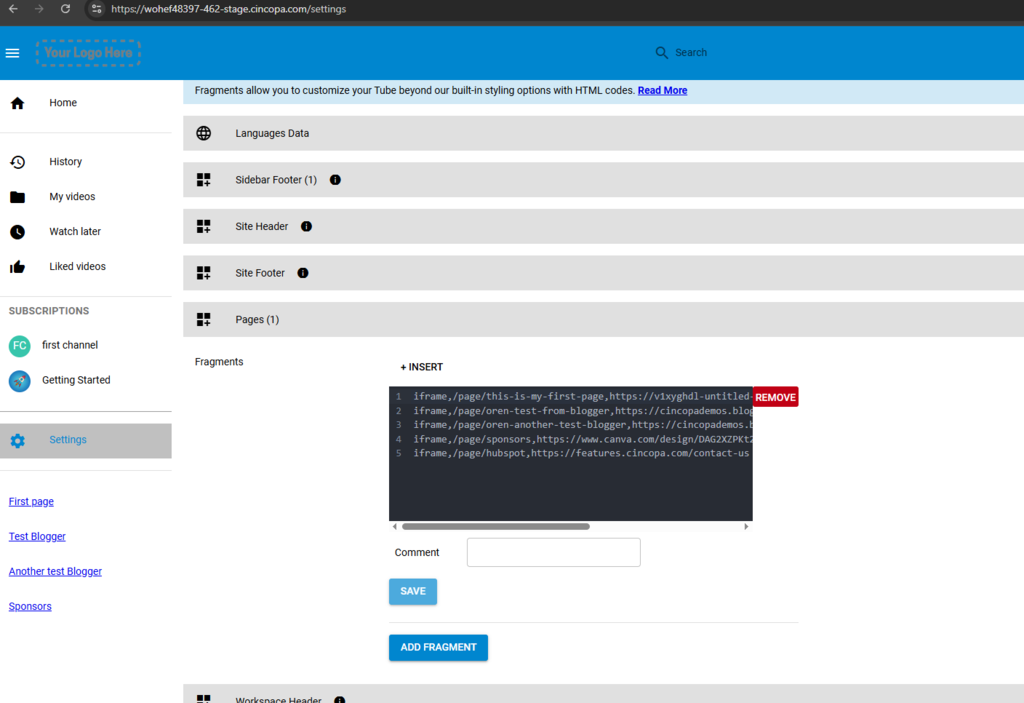
Step 3: Insert a new line for your page. Inside the fragment editor, click + INSERT (if needed) and add a new entry in the following format:
iframe,/page/<your-page>,<external-url>,{}
Step 4: Save your changes. After adding the line, click SAVE to apply the configuration.
Step 5:Reload CincoTube: Refresh the CincoTube page to ensure the fragment updates are applied.
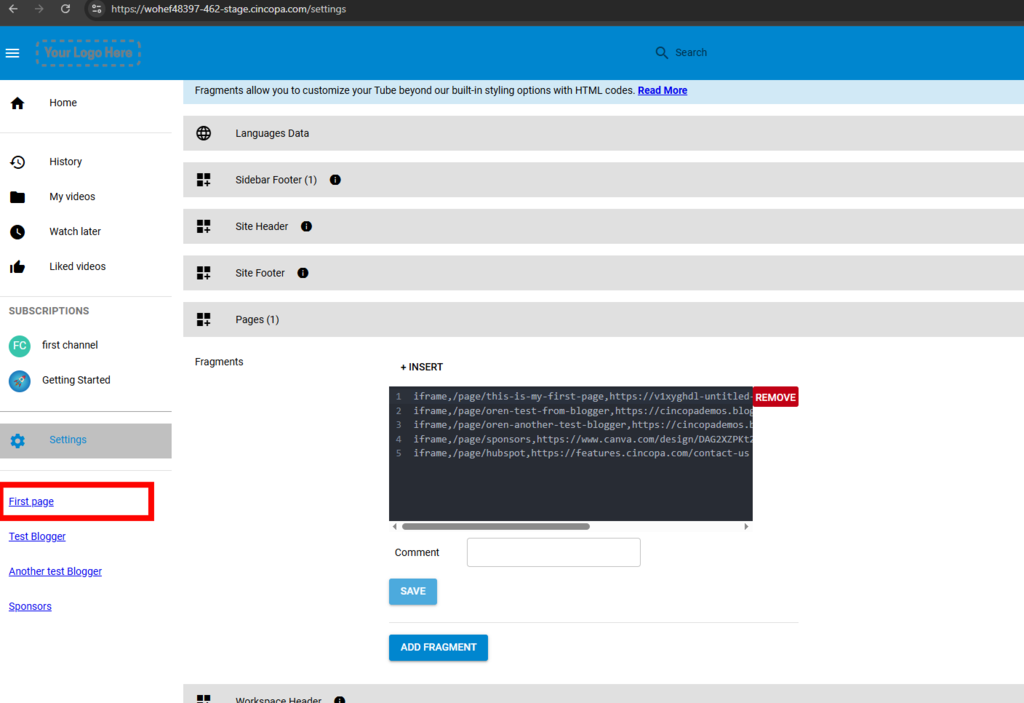
Step 6: Access your custom page. Open the defined path in your CincoTube environment, for example: First Page
Benefits
This removes developer dependency, allowing new pages to be added without code changes or deployments. Pages publish instantly as soon as the fragment is updated and work across any public site or content host. It also keeps a consistent CincoTube domain without external redirects. Additionally, the JSON structure provides flexibility for future options, such as hiding the workspace or adjusting visual parameters.