


Managing many embeds across your CMS becomes messy because each one needs to be styled and updated separately. Cincopa allows you to create a reusable layout so all embeds across all pages follow a single unified design. Any future style or branding change is done once in the template; there is no need to re-embed anything. This keeps every page consistent, scalable, and easy to maintain.

What Is a Layout Template?
A Layout Template is a saved set of display settings that defines how an asset or gallery appears when embedded. Even when embedding a single item, a template allows the asset to automatically follow predefined design and behavior rules instead of being styled manually each time.
Using layout templates avoids repetitive manual embedding. Without templates, each media file requires its own embed code, size adjustments, alignment changes, and styling updates. This process becomes time-consuming as the number of embeds increases and often results in small inconsistencies across pages, such as mismatched fonts or layout differences.
Layout templates solve these issues by centralizing layout and styling settings. As your media library grows, templates provide a consistent and scalable way to manage embeds, ensuring all assets follow the same structure and design without repeated edits.
Cincopa’s Predefined Templates Solve This
Predefined Templates for Different Media Types
Cincopa provides predefined templates that offer a structured layout for every type of media you work with. Whether it’s a video gallery, an audio playlist, a document viewer, or an image gallery, you can choose a Cincopa template designed specifically for that media format.
The selected Cincopa template becomes the base layout for everything you embed on your site.
Customize Once, Apply Everywhere
Cincopa allows you to customize each template to match your branding or layout requirements. Typical adjustments include:
- Font size
- Branding with your logo
- Player controls
- Password protection or access rules
- Advanced custom CSS
Once the template is customized, any media item you embed using that Cincopa template will automatically follow the same layout. You no longer need to individually edit or restyle each embed.
Centralized Updates
One major advantage of using Cincopa’s templates is centralized control. If you later update your font size, brand colors, or player design, you simply modify the template once, and the changes instantly apply across all pages that use it.
This central management removes the need for page-by-page edits and ensures consistent design across your entire site.
Step-by-Step Workflow in Cincopa
Step 1: Log in to your Cincopa account and click View All Templates.
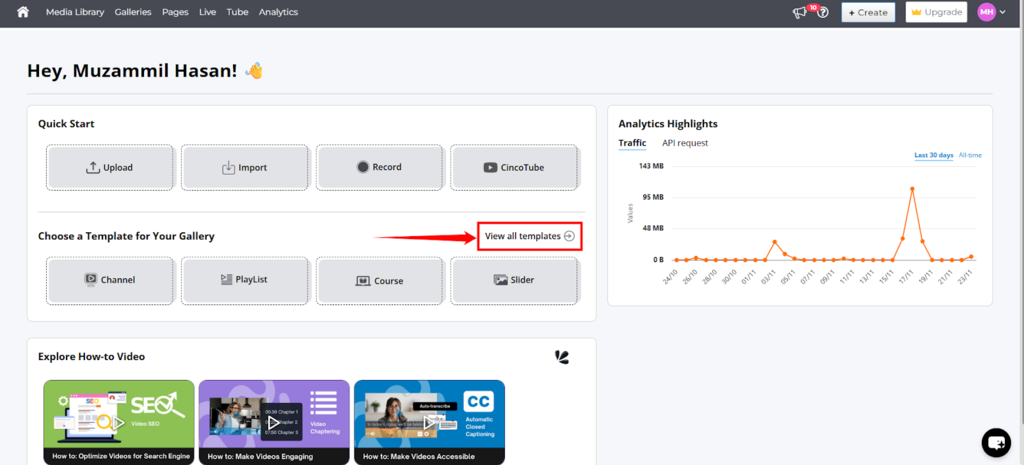
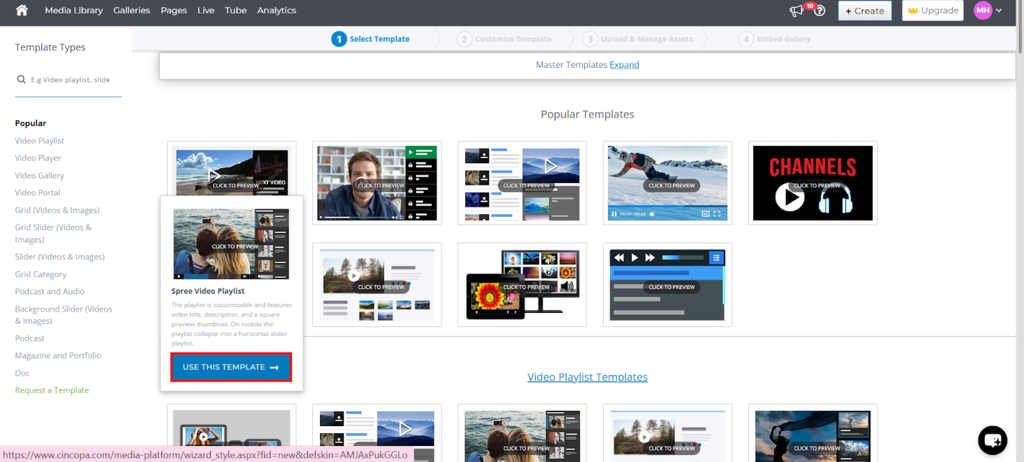
Step 2: Browse the available templates and select the one that fits your media type.
For example, choose a video template for video content. Click “Use This Template” to proceed.
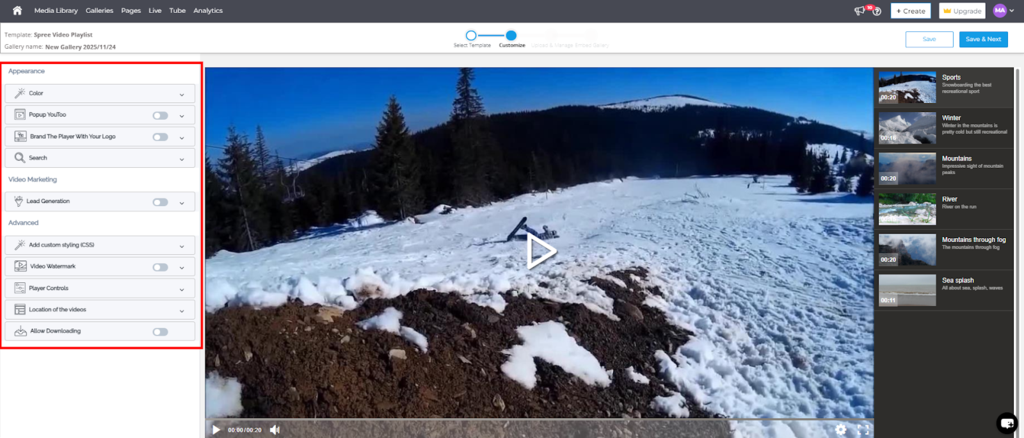
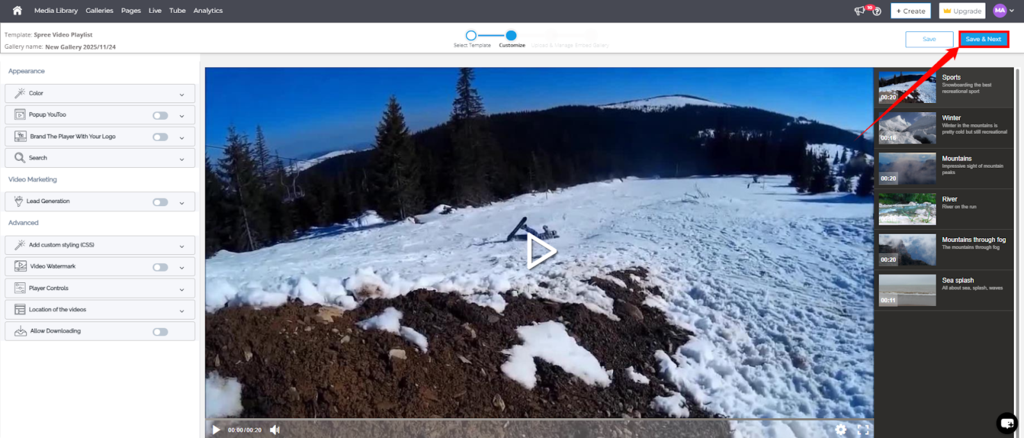
Step 3: Customize the template according to your needs. The left-side panel will display options such as:
- color
- Branding with your logo
- Popup behavior
- Search options
- Lead Generation
- Advanced custom CSS
- Player control
- Video watermark
- Download permissions
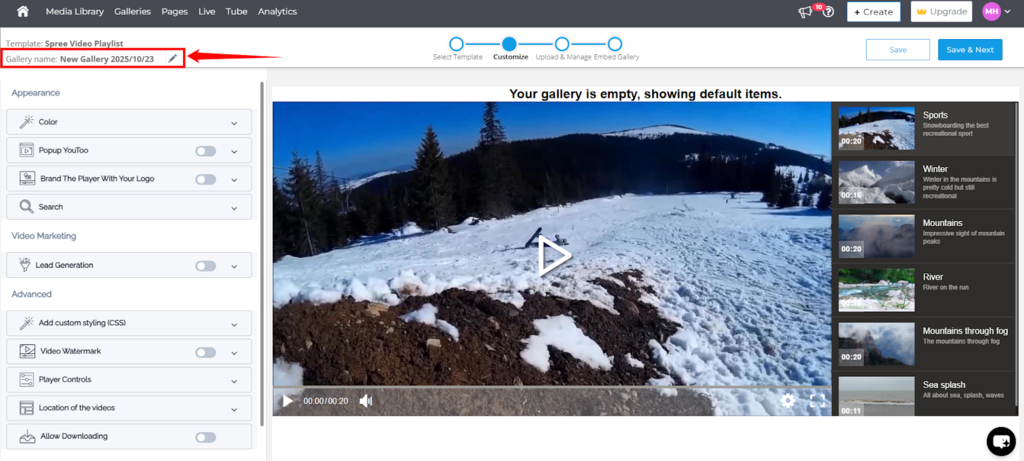
Step 4: Give a name to your gallery so you can manage your galleries easily.
Step 5: After customizing, click “Save & Next” to move to the Upload & Manage step.
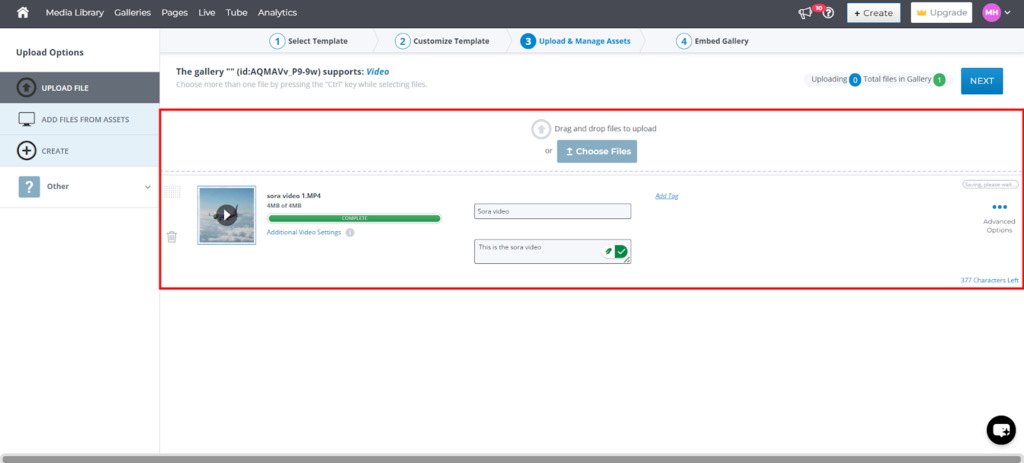
Step 6: Upload your media and add details like the title, description, and tags.
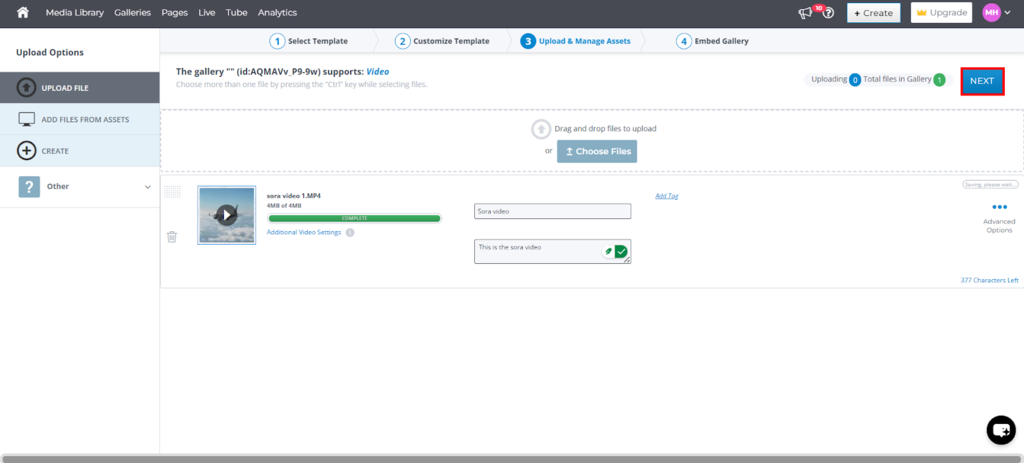
Step 7: Once your media is uploaded, click “Next” to access the embed options.
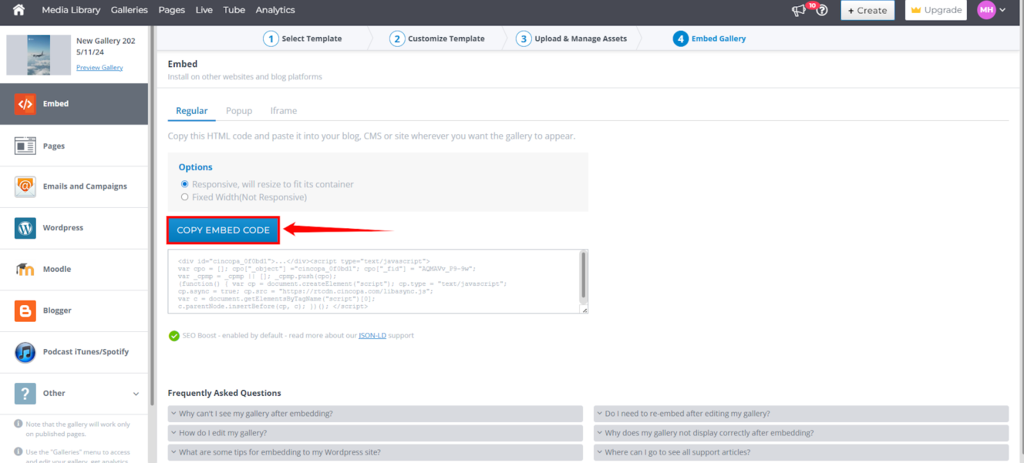
Step 8: Choose your embed format based on how you want the media to appear on your site:
- Regular – Standard HTML embed code
- Popup – Opens the media in an overlay window
- Iframe – For CMS platforms that do not support JavaScript
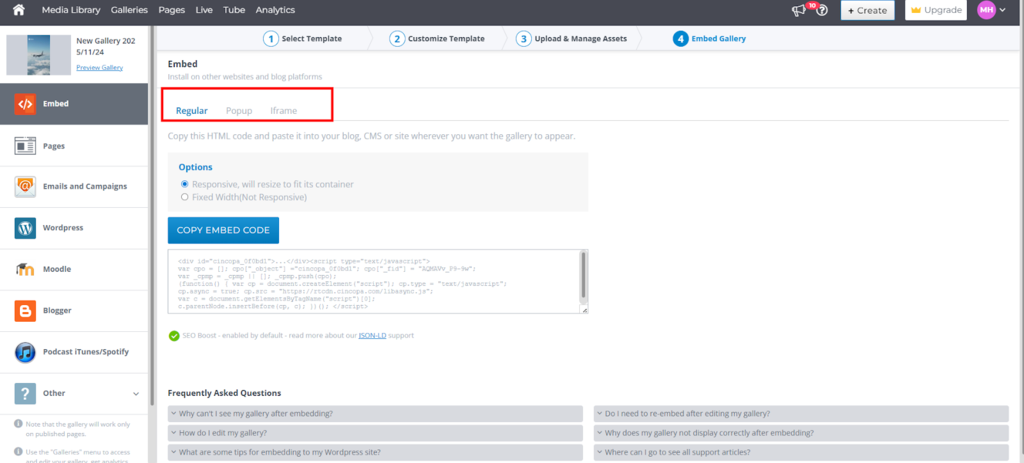
Step 9: Copy the embed code and paste it into your website wherever you want the gallery or player to appear.
 How to Apply a Layout Template to a Single Embedded Asset


Step 1: Click on Media Library from the top left menu to access all the assets.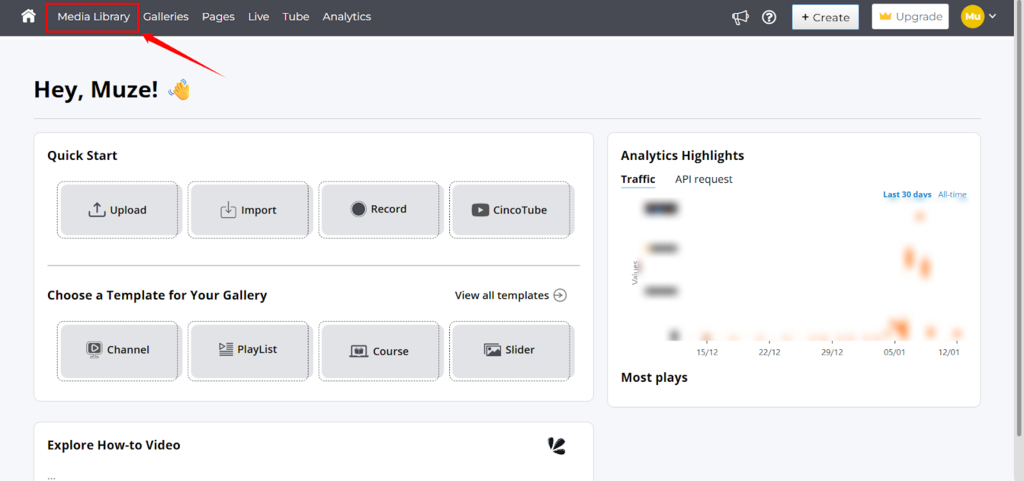
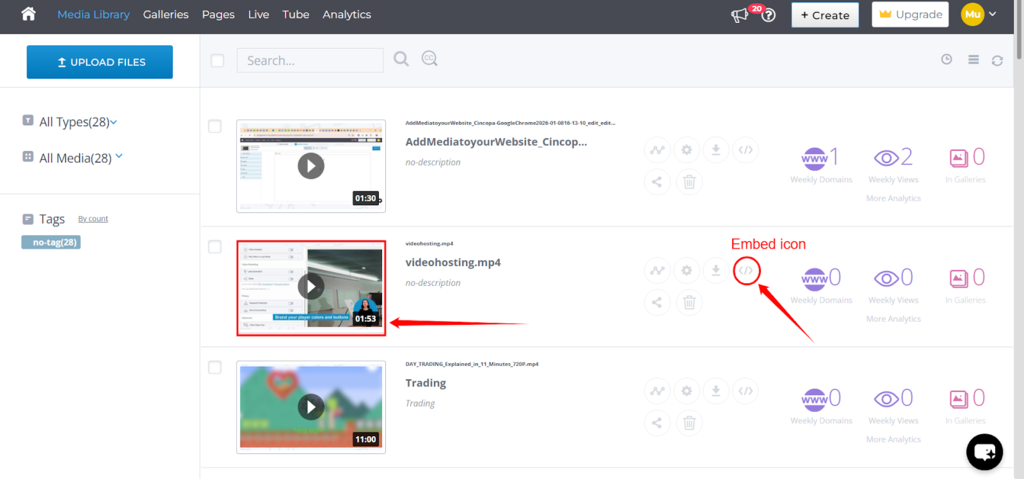
Step 2: Open the asset you want to embed by clicking on the asset thumbnail or you can click on the Embed icon to directly open the embed-code panel.
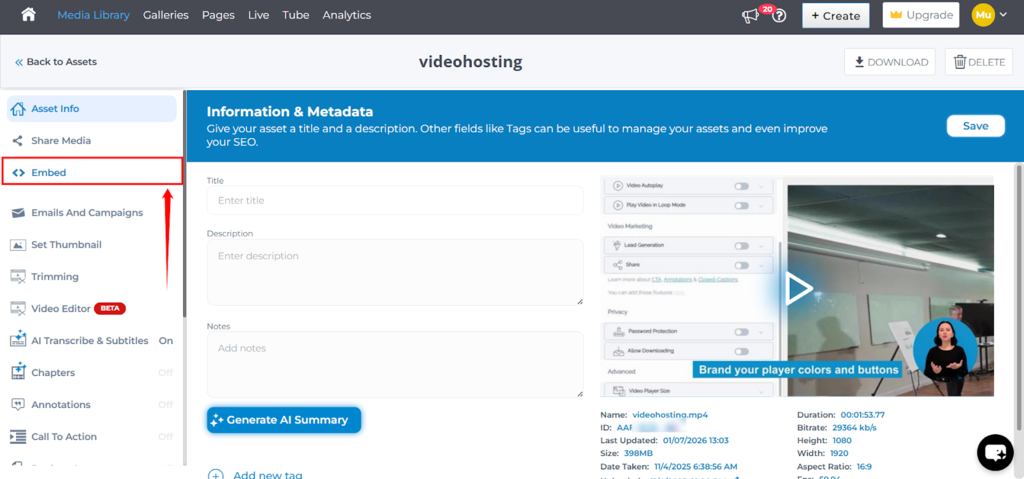
Step 3: On the Asset page, click on Embed to open the embed-code panel.
Step 4: In the embed panel, go to Options.
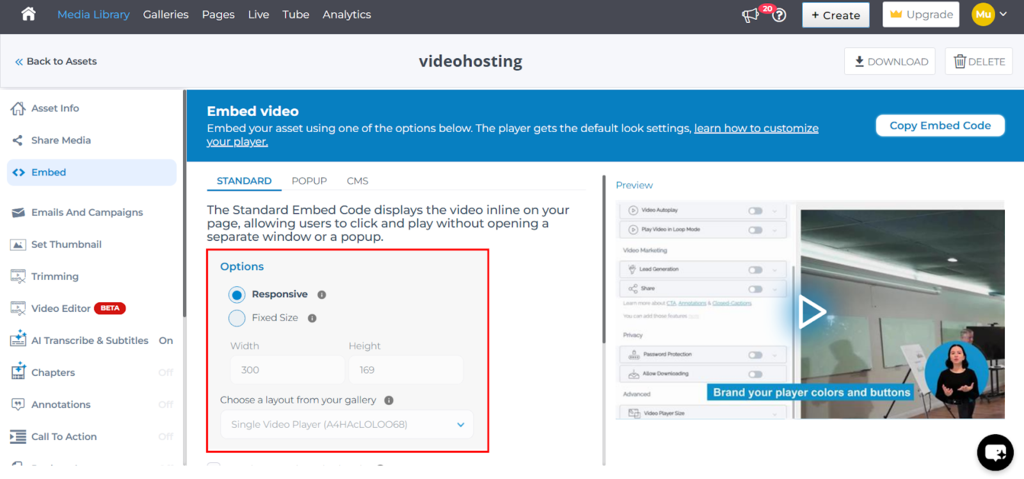
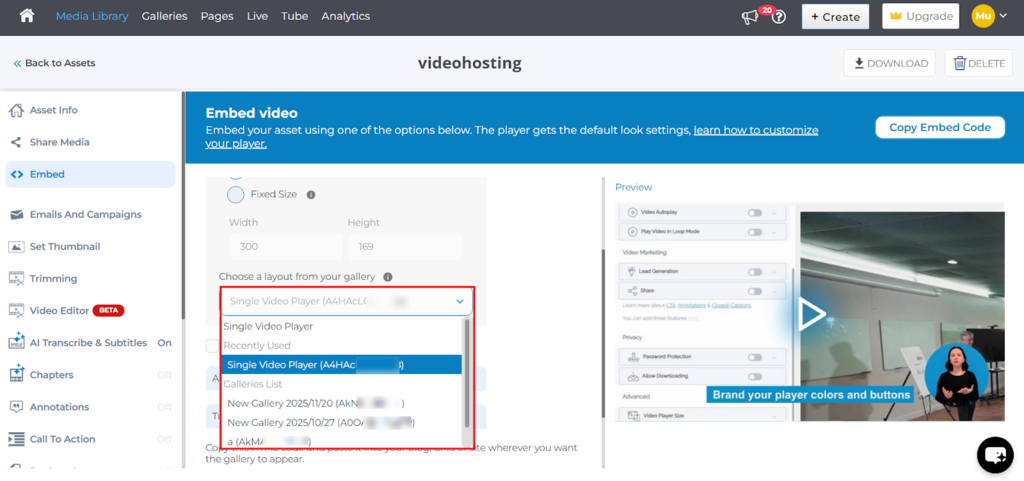
Step 5: Locate the Choose your layout from a gallery dropdown and select the Gallery Template you want to apply.
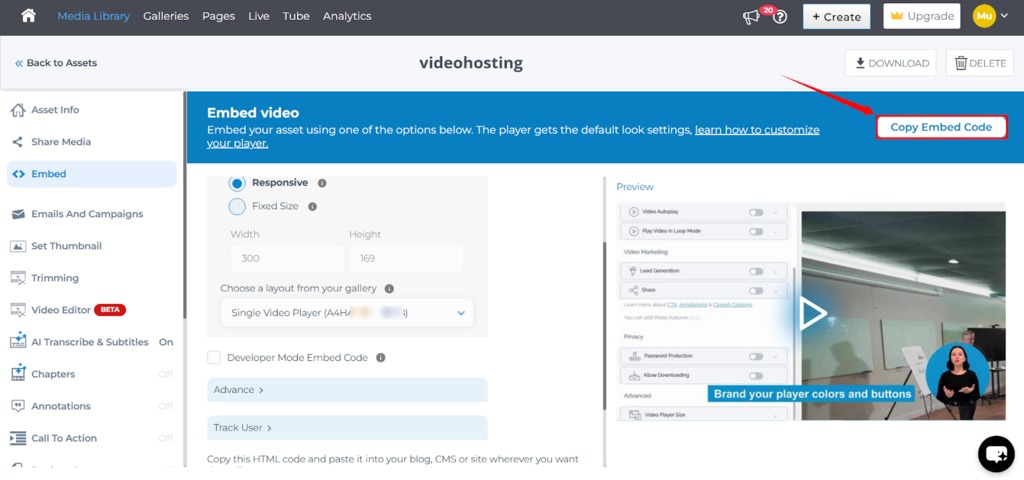
Step 6: Copy the automatically updated embed code by clicking on the Copy Embed Code button.
Step 7: Paste the code into your website or application.
Your embedded asset will now display using the styles and behaviors defined in the selected template.
Example: Updating Caption Font and Background
If you need to customize caption fonts, background colors, or similar styling for single-asset embeds:
-
Create or edit a Layout Template in Cincopa.
-
Add your custom CSS (e.g., font family, text color, background styles) under Edit CSS in the template settings.
.mejs-layers .mejs-captions-layer .mejs-captions-position .mejs-captions-text {
  font-family: Roboto, sans-serif;
  color: #fff;
  background: rgba(0, 0, 0, 0.75);
  font-size: 100%;
}
-
Save the custom CSS and save the updated template.
-
When embedding any asset, select this template in the embed panel.


Once applied, every asset embedded using this template will use the updated caption styling—no additional edits required.
Benefits of Using Layout Templates for Single Assets
-
Consistency: Ensure all embedded assets share the same branding and styling.
-
Efficiency: Avoid reapplying CSS or editing embed codes manually.
-
Scalability: Update the template once and apply changes across all future embeds.
-
Flexibility: Create multiple templates for different brands, themes, or layout needs.
Quick Template Preview
Cincopa provides a wide range of templates for different media types—video, audio, images, and documents. Each category includes several variations, and it’s common for users to feel unsure about which template will look best on their site.
The usual approach is to test templates manually, one by one, which can be time-consuming.
To avoid this, Cincopa allows you to preview any template instantly using the template’s FID and your asset’s RID.
You can also preview any gallery you created earlier by using the gallery’s FID with a different template FID.
This gives you a quick way to compare layouts and choose the right one without recreating your gallery repeatedly.