CincoTube

Configure a robots.txt fragment in CincoTube

Use a robots.txt fragment to provide crawl instructions for your CincoTube site's supported search-engine crawlers.

Add or edit the fragment

  • Sign in with permission to change the CincoTube site's settings.
  • Open Settings from the sidebar or profile menu.
  • Select Fragments, then Robots.txt.
  • Choose Add Fragment if a fragment does not already exist.
  • Enter the robots.txt rules you intend to use and click Save Fragment.
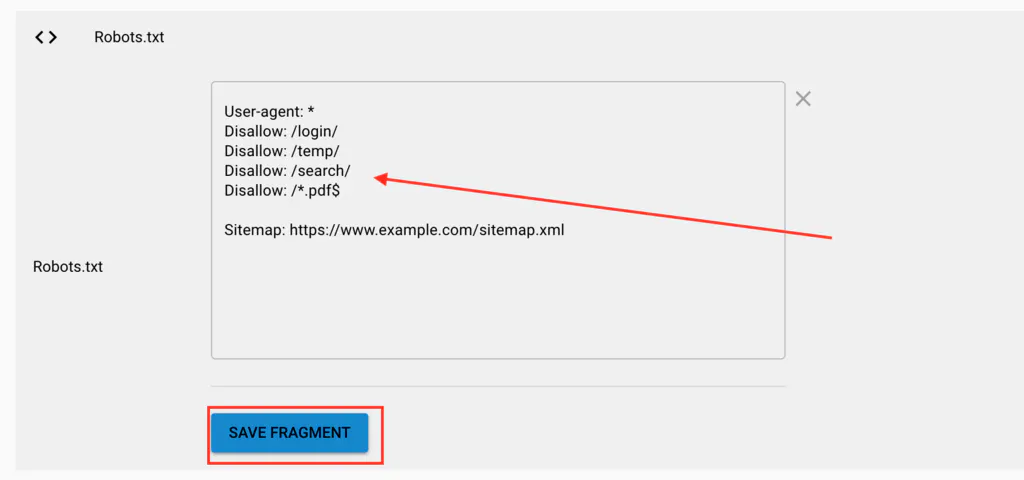
CincoTube Robots.txt fragment editor and Save Fragment control

Check the served file

After saving, open /robots.txt on the actual Tube hostname and check the result. Use the production hostname, including a custom domain if configured, rather than assuming that a rule on one domain applies to another.

Back up existing rules before replacing them. Review each path and crawler group carefully: a broad disallow rule can prevent search engines from crawling public content you want discovered.

Separate crawling, indexing, and access

Robots.txt controls crawler requests. It does not authenticate viewers or make a page private. A disallowed URL can still appear in search results if a search engine learns about it elsewhere.

Use the site's supported indexing controls for search visibility, and login or access restrictions for private content. A crawler must be able to fetch a page to see its noindex instruction, so do not combine rules blindly.

Google explains these distinctions in its robots.txt guide and noindex documentation.

Review before a public launch

Test the served file, the intended public pages, and viewer permissions separately. Recheck the rules after changing domains or moving content. See the CincoTube help category for related site configuration and Cincopa security for access considerations.