How to Embed YouTube Videos Without Showing Controls

To embed a YouTube video without controls, add controls=0 to the iframe URL. This hides the standard playback controls, but it does not remove all YouTube branding, channel information, or recommended videos. This guide covers current YouTube embed options, explains which older parameters no longer work, and shows when a video knowledge platform is a better fit.

Originally written by Austin Jesse Mitchell. Published April 2, 2020. Updated September 28, 2026.

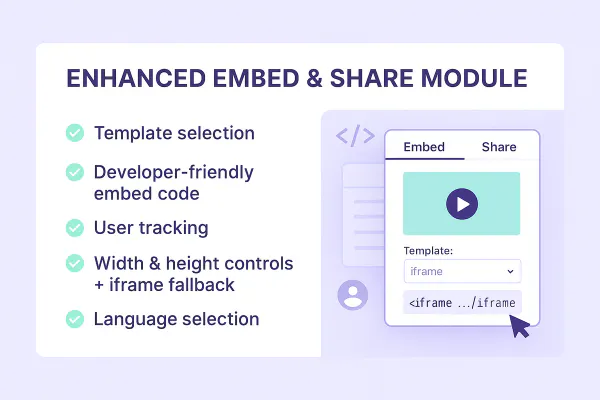
Video embed and sharing controls for a hosted website video

How to Embed a YouTube Video Without Controls: Copy-and-Paste Code

If you need a YouTube embed with no controls, or want to hide YouTube iframe controls, add controls=0 to the video URL inside the iframe. This is the supported way to hide or remove the standard controls from an embedded YouTube player. Replace VIDEO_ID with the ID from your YouTube URL.

The controls=0 parameter is still supported in YouTube's official player-parameter documentation. It hides the standard controls, not the entire YouTube interface.

Before: the standard YouTube player controls

This animation from the original article shows an embedded YouTube player before the controls parameter is changed.

Embedded YouTube video before hiding the standard player controls
Original comparison: the embedded YouTube player with its standard controls visible.

After: the YouTube embed with controls hidden

This original animation shows the result after controls=0 is added. YouTube's interface has changed since it was recorded, so current branding and overlays may look different.

Embedded YouTube video after hiding the standard player controls
Original comparison: controls=0 hides the standard playback controls, but does not guarantee a completely unbranded player.

How to Find and Edit the YouTube Embed Code

Use these steps to embed the YouTube player on your website and change its iframe settings:

  • Open the video on YouTube.
  • Select Share, then Embed.
  • Copy the iframe code into the HTML or custom-code view of your website editor.
  • Find the URL in the iframe's src attribute.
  • Add ?controls=0 if it is the first parameter. If the URL already has a question mark, add &controls=0 instead.
  • Test the embed on desktop and mobile, including keyboard navigation and captions.

URL parameters are separated with ampersands, not semicolons. In HTML markup, write an ampersand as &. Replace the iframe title with a concise description of the actual video.

Keep an HTTP Referer on the request. A no-referrer or noreferrer policy can suppress information YouTube requires and cause playback error 153. The example's strict-origin-when-cross-origin policy preserves the origin for the cross-site request.

If you control the player with JavaScript, add enablejsapi=1 and an origin value, then follow YouTube's IFrame Player API reference.

YouTube Embed Options and Player Parameters That Still Work

Current behavior at a glance

These YouTube embed options let you customize a simple iframe player. The limitations matter as much as the settings themselves.

Parameter
What it does
Important limitation
controls=0
Hides the standard playback controls
Does not remove all YouTube UI or branding
autoplay=1
Requests autoplay
Browsers can block it, and it starts playback-data sharing on page load
loop=1&playlist=VIDEO_ID
Repeats one video
The playlist value is required for a single-video loop
rel=0
Limits recommendations to the same channel
Does not disable related videos
playsinline=1
Keeps playback inline on iOS
Does not hide controls by itself
cc_load_policy=1
Shows captions by default
Captions must be available for the video
controls=0
What it does
Hides the standard playback controls
Important limitation
Does not remove all YouTube UI or branding
autoplay=1
What it does
Requests autoplay
Important limitation
Browsers can block it, and it starts playback-data sharing on page load
loop=1&playlist=VIDEO_ID
What it does
Repeats one video
Important limitation
The playlist value is required for a single-video loop
rel=0
What it does
Limits recommendations to the same channel
Important limitation
Does not disable related videos
playsinline=1
What it does
Keeps playback inline on iOS
Important limitation
Does not hide controls by itself
cc_load_policy=1
What it does
Shows captions by default
Important limitation
Captions must be available for the video

Hide controls with controls=0

controls=0 hides YouTube's standard playback controls. YouTube may still show overlays or identity elements before playback, while paused, or after playback.

If viewers need to pause, seek, change volume, enable captions, or adjust playback speed, keep the controls visible unless you provide accessible equivalents.

Request autoplay with autoplay=1

autoplay=1 asks the browser to start playback when the player loads, but browsers commonly block unmuted autoplay. YouTube also states that autoplay causes playback data collection and sharing when the page loads, so consider consent and privacy requirements before enabling it.

autoplay=0 is the default. It leaves playback stopped until the viewer starts the video.

Loop one video with loop=1

For a single video, use both loop=1 and playlist=VIDEO_ID.

Using loop=1 alone is not sufficient for a reliable single-video loop in an iframe.

Limit related videos with rel=0

rel=0 no longer turns recommendations off. It tells YouTube to select post-play recommendations from the same channel as the embedded video.

Keep mobile playback inline and show captions

Use playsinline=1 when you want playback to remain in the page on iOS instead of automatically entering full screen. Use cc_load_policy=1 to show captions by default when captions are available.

Can a YouTube Embed Hide the Title, Logo, Branding, and Related Videos?

YouTube branding

You cannot completely remove YouTube branding from an embedded video. You can hide the standard controls, but YouTube may still display its logo or other identity elements.

The old modestbranding parameter was deprecated in August 2023 and now has no effect. There is no supported parameter that guarantees a completely unbranded YouTube player.

Do not crop the player, cover interface elements with overlays, or otherwise obscure required YouTube UI. YouTube's required-minimum-functionality rules allow only documented player modifications.

Video and channel information

The old showinfo parameter is obsolete. Depending on the player state and device, YouTube can show the video title, channel identity, or other interface elements.

Related videos, More videos, Watch next, and Watch on YouTube

You cannot reliably remove the Watch on YouTube button, More videos overlay, or Watch next recommendations. These elements may appear based on the player state and device. rel=0 only limits post-play recommendations to videos from the same channel.

How to Use YouTube Privacy-Enhanced Mode

In YouTube's embed dialog, enable Privacy Enhanced Mode, or replace www.youtube.com with www.youtube-nocookie.com in the iframe URL. YouTube's embedding guidance explains the current privacy-enhanced behavior.

Privacy Enhanced Mode prevents embed views from personalizing the viewer's YouTube experience. If ads appear, they are non-personalized. It is not a promise of zero data processing or automatic legal compliance. Review the implementation with your privacy team.

Should You Hide Video Controls?

Hide YouTube's standard controls only when your implementation supplies equivalent keyboard-accessible controls outside the unobscured player through the documented IFrame Player API.

For tutorials, product education, training, and support, visible controls are usually the better choice. Viewers often need to pause, replay a step, turn on captions, change volume, adjust speed, or jump to a specific moment.

When YouTube Embedding Is Not Enough

The controls=0 parameter solves one presentation detail. YouTube supports public, unlisted, and private video settings, but it is not designed for granular business permissions, a first-party player experience, or video knowledge workflows.

Controlled and branded playback

For customer training, internal knowledge, and support content, Cincopa's video knowledge platform gives you more control over the player experience, access, captions, and analytics without sending viewers into a public recommendation system. If you are evaluating alternatives, compare video hosting platforms by player control, permissions, analytics, and knowledge workflows.

Private libraries and permissions

Cincopa lets teams organize approved videos and supporting documents into reusable Galleries, hosted Pages, and portal-style Tube environments. The same governed collection can support a website, help center, training portal, or internal knowledge hub.

Ask YouTube and private video knowledge

YouTube now offers Ask YouTube on select videos on the YouTube watch page, where eligible signed-in viewers can ask questions about what they are watching. This signals a broader change: people increasingly expect to question a video instead of scrubbing through it for an answer.

Ask YouTube is controlled by YouTube and is not a supported iframe player parameter, so a website owner cannot enable or configure it through standard embed code. Organizations that need conversational video inside their own website or private portal need control over the approved sources, user access, question history, and analytics.

Cincopa VideoGPT provides that knowledge layer across an approved collection of videos and supporting content, including PDFs. Viewers can receive grounded answers and jump to the relevant moment, while teams can see what people ask and identify missing or unclear knowledge. Learn how to build a private Ask YouTube-style experience for your organization.

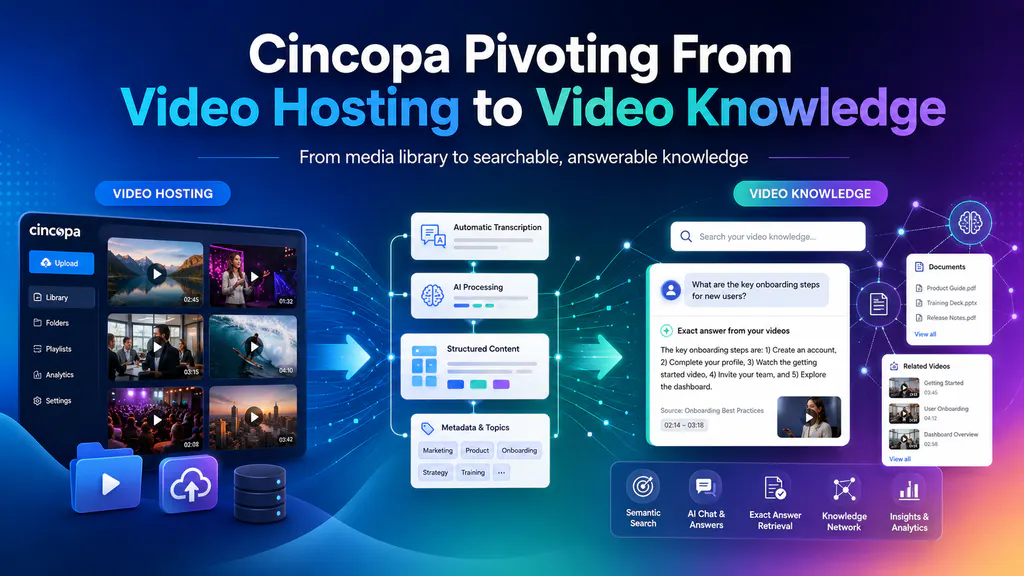
Cincopa capabilities connecting video hosting, access control, Galleries, Pages, documents, analytics, and VideoGPT
Cincopa connects hosted video, access control, reusable publishing surfaces, analytics, and VideoGPT in one video knowledge layer.

Frequently Asked Questions

Can I hide controls on an embedded YouTube video?

Yes. Add controls=0 to the iframe URL. YouTube may still show branding, titles, channel information, and recommendations.

Can I remove the YouTube logo and branding?

No supported parameter guarantees a fully unbranded player. modestbranding is deprecated and has no effect.

Can I turn off related videos?

No. rel=0 limits recommendations to videos from the same channel, but it does not remove recommendations.

How do I loop one embedded YouTube video?

Use loop=1&playlist=VIDEO_ID. The playlist value must repeat the same video ID for a single-video loop.

Does youtube-nocookie.com mean no data is collected?

No. Privacy Enhanced Mode reduces personalization, but it does not guarantee zero data processing or make an embed automatically compliant with every privacy rule.

Should I hide controls on training or support videos?

Usually not. Learners need pause, seek, caption, volume, and playback-speed controls. If you need a cleaner branded player without losing those capabilities, use a business video platform designed for training and support.

Can I embed a YouTube video without ads?

You cannot guarantee a YouTube embed without ads. YouTube controls whether ads appear. Privacy Enhanced Mode uses non-personalized ads if ads are served, but it is not an ad-blocking option.

Can I embed a video without YouTube?

Yes. You can host the video on a business video platform and embed that player instead. Cincopa's video hosting gives you a first-party player experience plus business access, analytics, captions, and knowledge features.

Can I embed a YouTube video without an iframe?

An iframe is YouTube's standard website embed. A content management system may let you paste a normal YouTube URL, but it usually generates the iframe behind the scenes. The JavaScript IFrame Player API also creates or controls an iframe player.

Can I mute an embedded YouTube video with mute=1?

mute=1 is not listed as a supported YouTube URL parameter. If you use the documented IFrame Player API, call player.mute() after the player is ready.

Choose the Right Player for the Job

YouTube is a practical choice for public discovery and simple embeds. Use controls=0 only when viewers still have an accessible way to control playback.

For private, branded, or searchable video knowledge, use a platform designed to manage the player, permissions, content structure, transcripts, and answers together.

NEXT STEP

Start with one product area, one support library, or one training flow

Need more control than a YouTube iframe can provide? Host videos in Cincopa to manage the player experience, access, captions, analytics, and reusable knowledge experiences across embedded pages, portals, and support workflows.