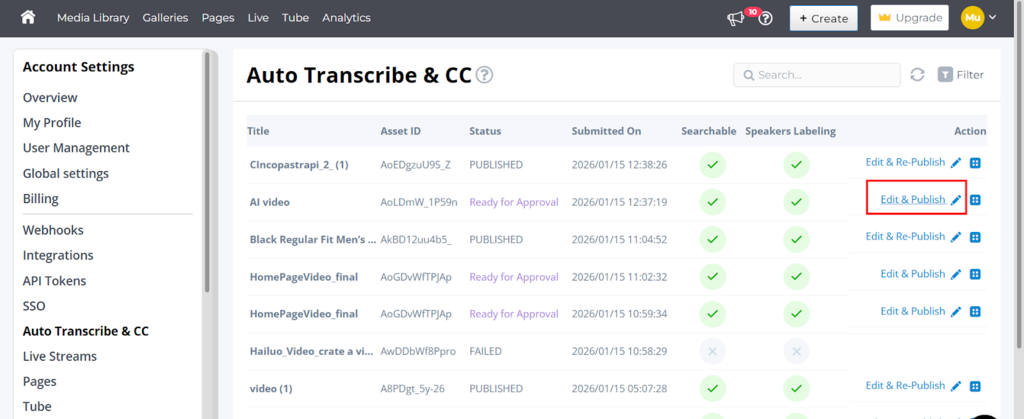


When videos are uploaded to a Cincopa account, transcripts and captions can be generated automatically from the global settings if enabled. This helps streamline the workflow and save time, but auto-generated transcripts are not always fully accurate. Names, technical terms, accents, or background noise can lead to small errors that need manual correction.
Editing transcripts directly from each individual video can quickly become inefficient, especially when managing many assets. Opening every video one by one just to fix captions or text is time-consuming and difficult to track within a larger workflow.
To make this easier, Cincopa provides a centralized Auto Transcribe & CC section under Account Settings. This view lists all videos in one place and allows transcripts to be reviewed, edited, approved, or republished without navigating into each asset separately.
This guide explains how to use the Auto Transcribe & CC section to manage and edit transcripts for all videos from a single location, making transcript maintenance simpler and more organized.
| Note: You can download the SRT file, edit it in your preferred text editor, and re-upload it instead of using the Cincopa SRT Editor. This approach works best when you only need spell-checking and minor edits, rather than significant changes. |
Why AI Transcriptions and Subtitles Are Needed
AI transcriptions and subtitles help make video content easier to understand, search, and manage. Transcripts improve accessibility for viewers who prefer reading or cannot play audio. Subtitles help viewers follow along in noisy environments or when watching videos on mute.
- SEO: Captioned videos perform better in search engines because the transcript text is automatically injected into the page header. This makes video content readable by search engines and helps improve overall SEO visibility.
- Accessibility: Transcripts and captions support web accessibility requirements. Providing accurate subtitles helps ensure videos meet ADA and Section 508 compliance standards, which are required by law in many regions.
- Engagement: Subtitles make autoplay and muted videos more effective. Viewers can understand the message without sound, which helps reduce drop-offs and keeps users engaged when audio is disabled or unavailable.
- AI / VideoGPT Support: Transcripts allow video content to be indexed and used by VideoGPT. This enables AI-driven answers based on video content and improves the accuracy of responses generated from videos.
- Smart In-video Search: Transcripts make it possible to search across your entire video library using spoken keywords. If you remember a word or phrase from a video, you can enter it in the search bar, select the CC option, and quickly locate videos where that keyword appears in the transcript. This makes managing large video libraries faster and more efficient.
Steps to Manage AIl Transcript
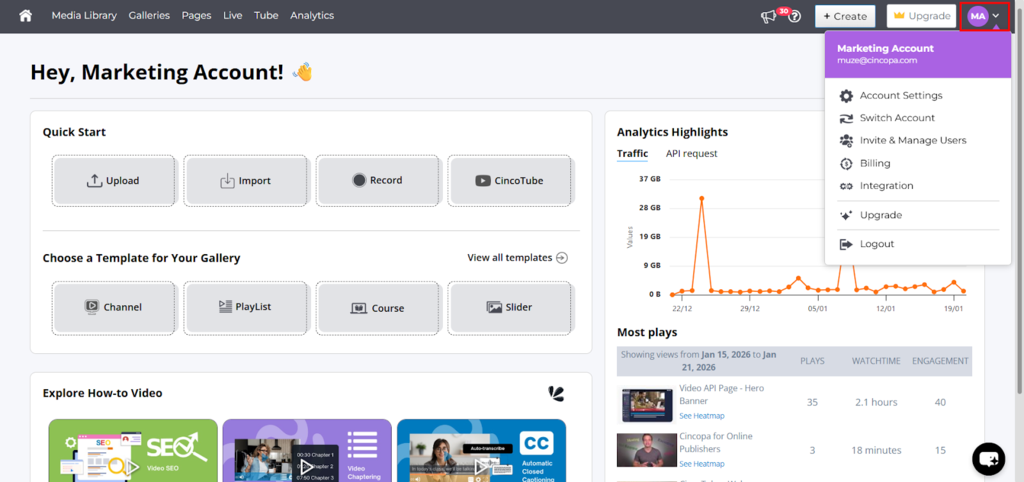
Step 1: Log in to your Cincopa account, navigate to the profile section, and click on the drop-down menu.
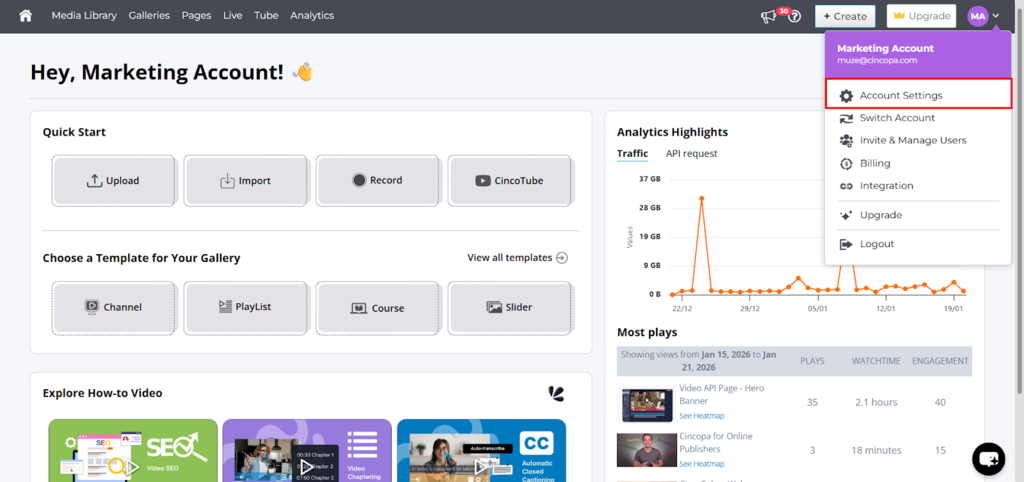
Step 2: From the dropdown, select the Account Settings.
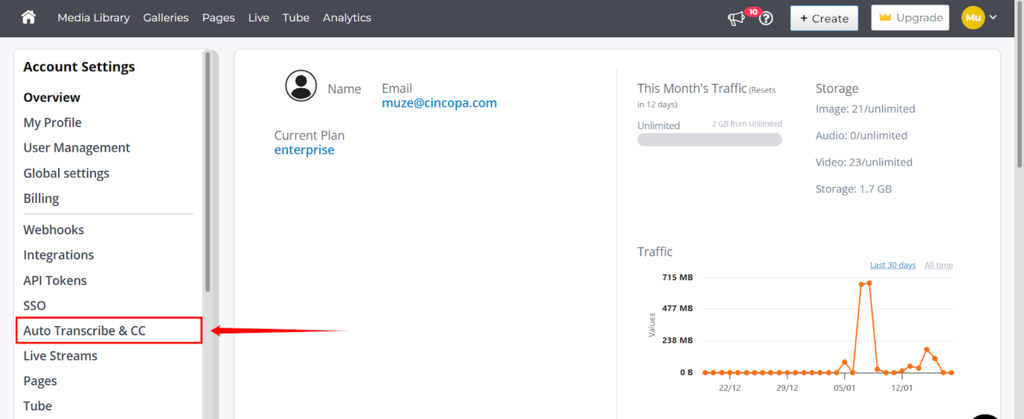
Step 3: In the Account Settings page, click on the Auto Transcribe & CC from the left-hand sidebar.
Step 4: After clicking on the Auto Transcribe & CC, you will see a list of all videos for which transcripts have already been generated.
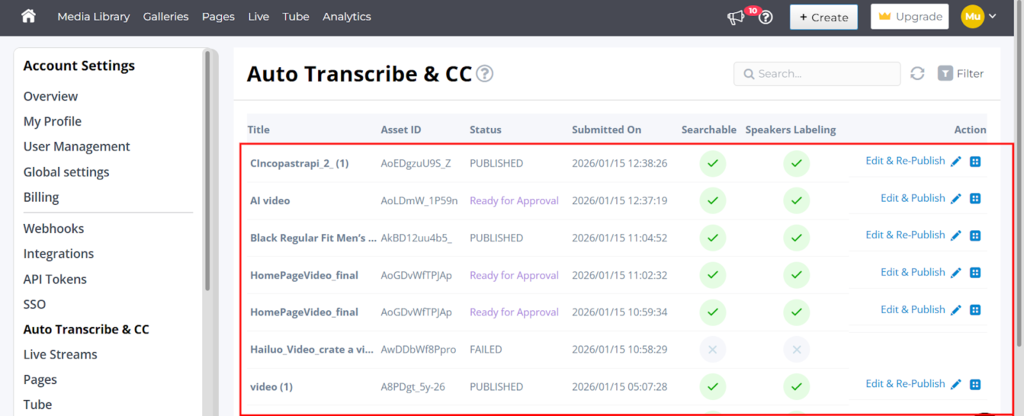
Step 5: Find the video whose transcript you want to fix and click on the Edit & Publish (pencil icon) option.