Plugins and Integrations

Embed Content in WordPress using HTML

Learn more about Embed Content in WordPress using HTML in Cincopa.

This article describes how to use a Cincopa Gallery on a WordPress site without installing the Cincopa WordPress Plugin. If you do not wish to install the Cincopa WordPress Plugin or have a WordPress site hosted at WordPress.com and cannot install plugins, you may use the steps here to use Cincopa with your WordPress site.

This article assumes that you have already created and populated a gallery in your Cincopa Account. If you haven't done so, please read Step 1 and Step 2 (do not do Step 3) in the Getting Started Guide before continuing.
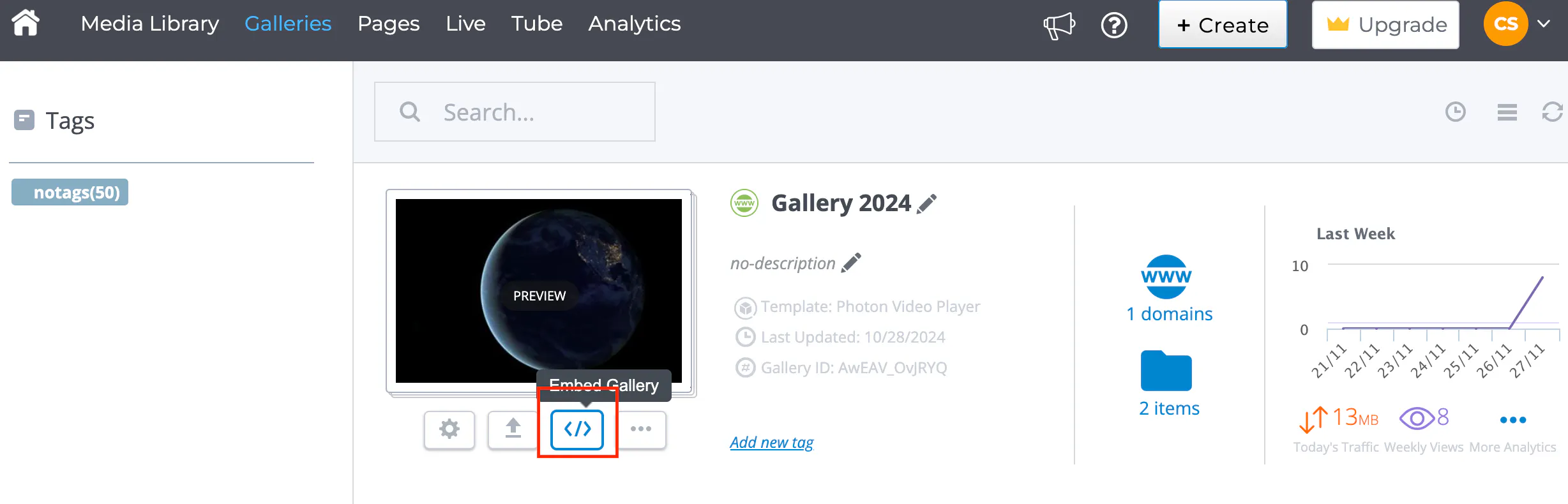
Step 1: Getting the Gallery Code

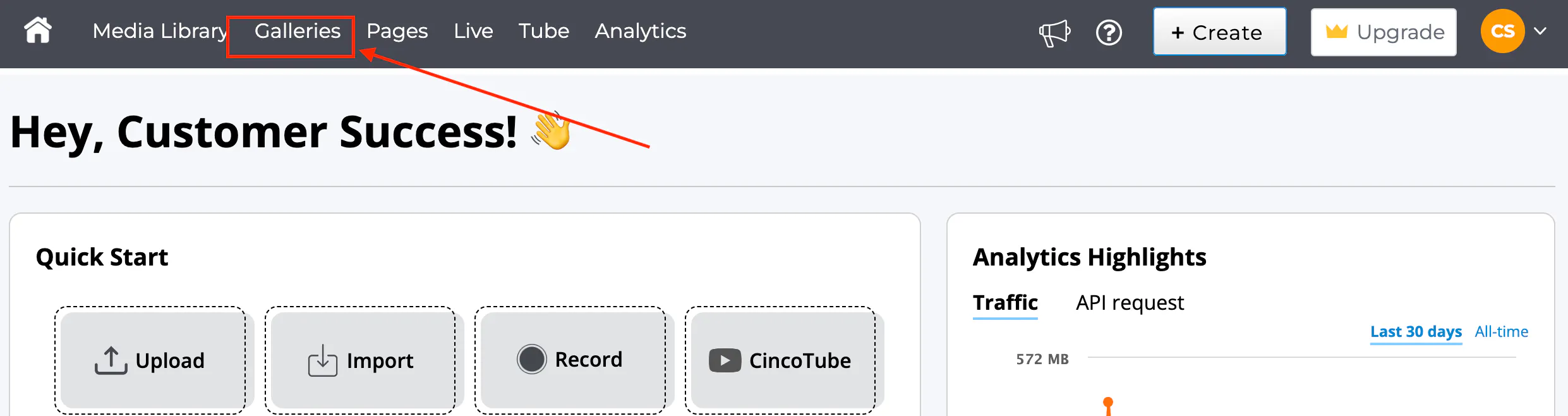
  • Login to your Cincopa Account and click on Galleries.
  • Choose the gallery you want to share and then click on the Embed option.
Embed Content in WordPress using HTML
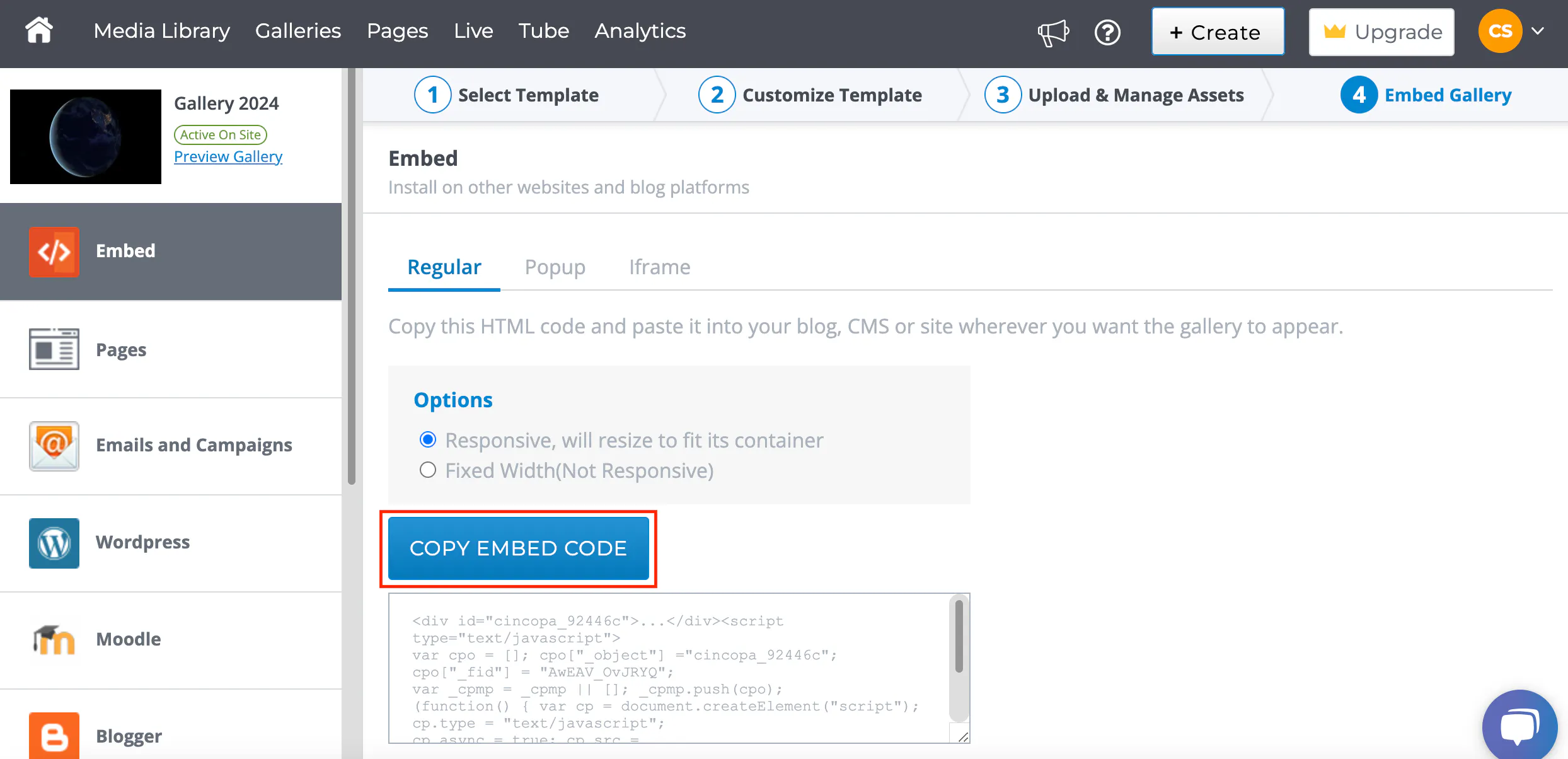
  • Click on the Copy Embed Code button. Do not click the WordPress option.
Embed Content in WordPress using HTML

Step 2: Pasting the Code into a Post or Page

  • Log in to your WordPress Dashboard.
  • Click Posts or Pages, depending on where you want your gallery displayed.
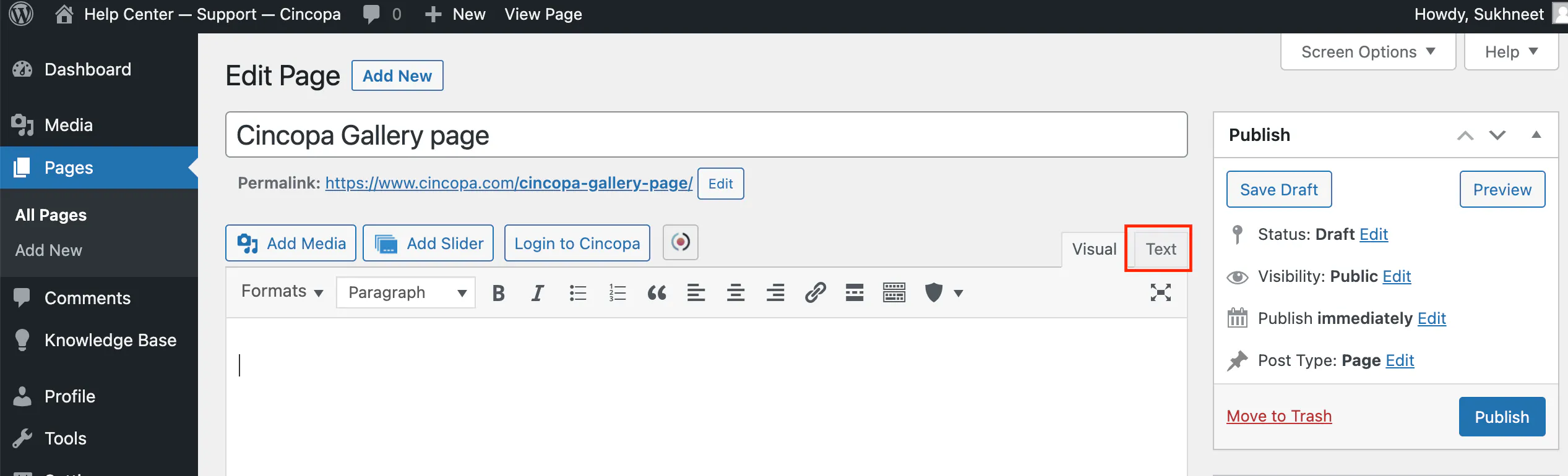
  • In the editor, click Text to switch from the Visual editor to the Text editor.
Embed Content in WordPress using HTML
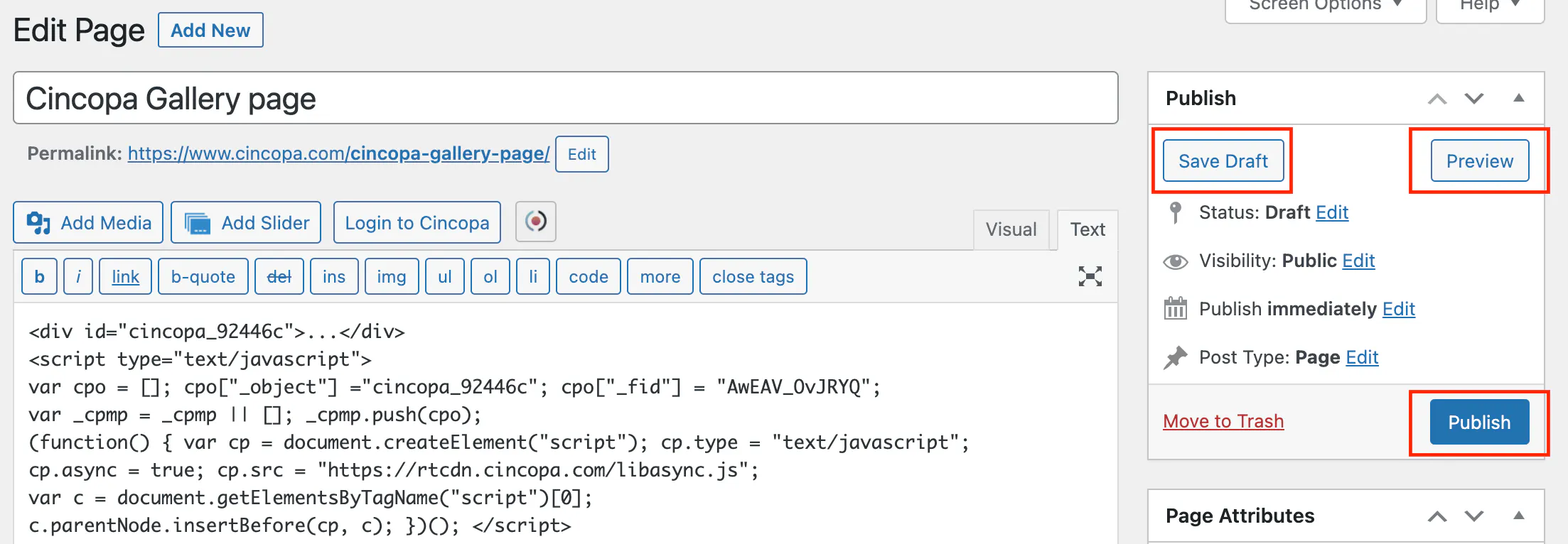
  • In the content box, paste the code from the Cincopa site that you copied.
Embed Content in WordPress using HTML
  • Click Publish, Preview or Save Draft based on what you want to do with the post/page.


    Your Cincopa Gallery will now appear on your page or in your post on your WordPress site!
Embed Content in WordPress using HTML