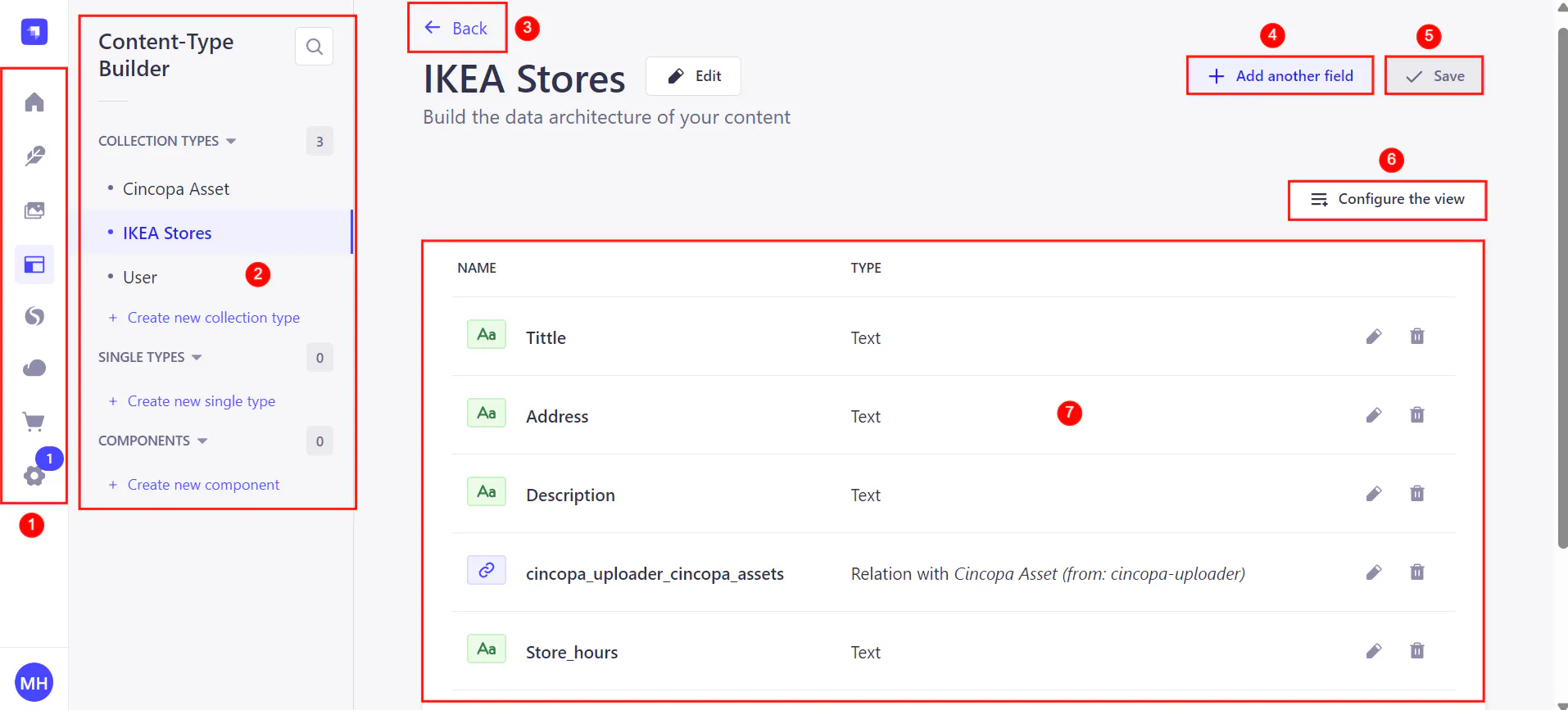
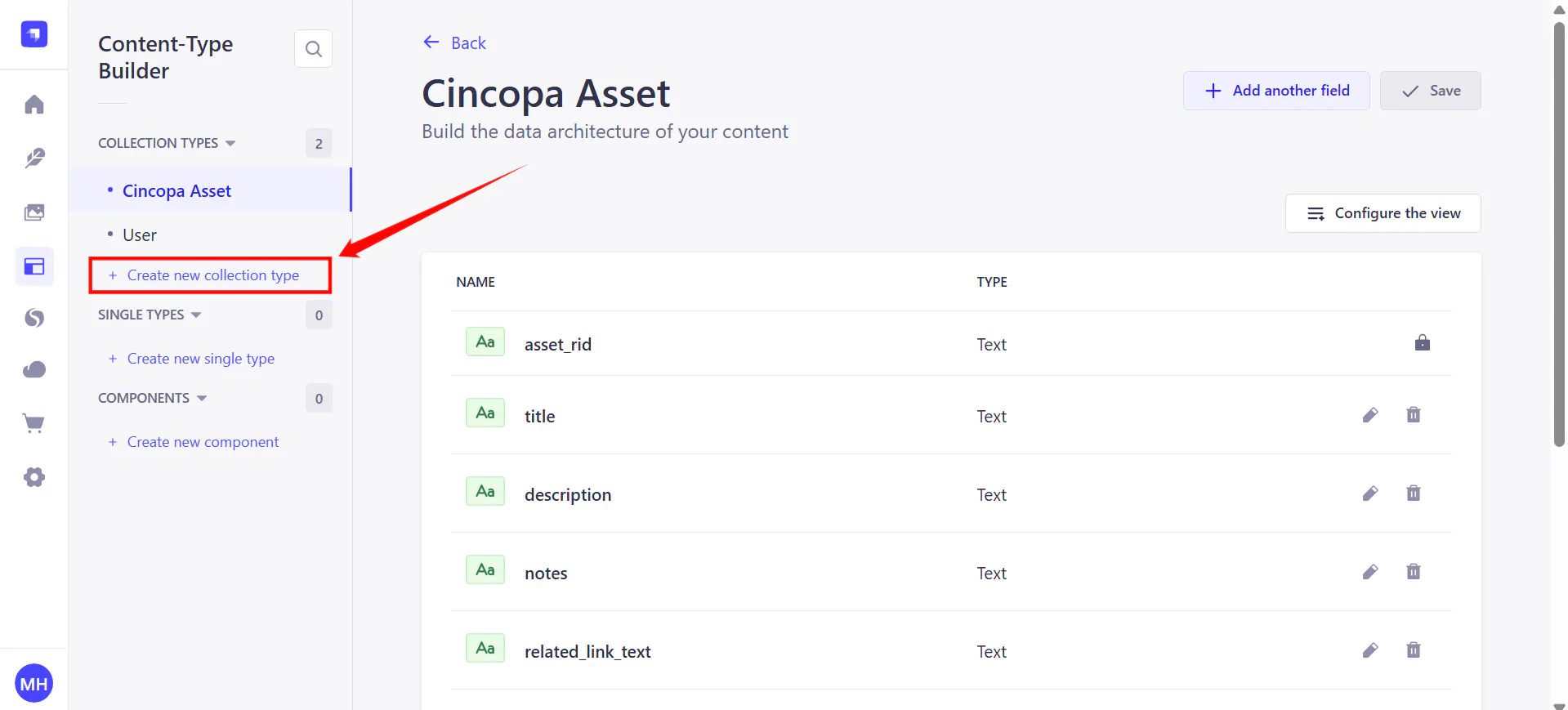
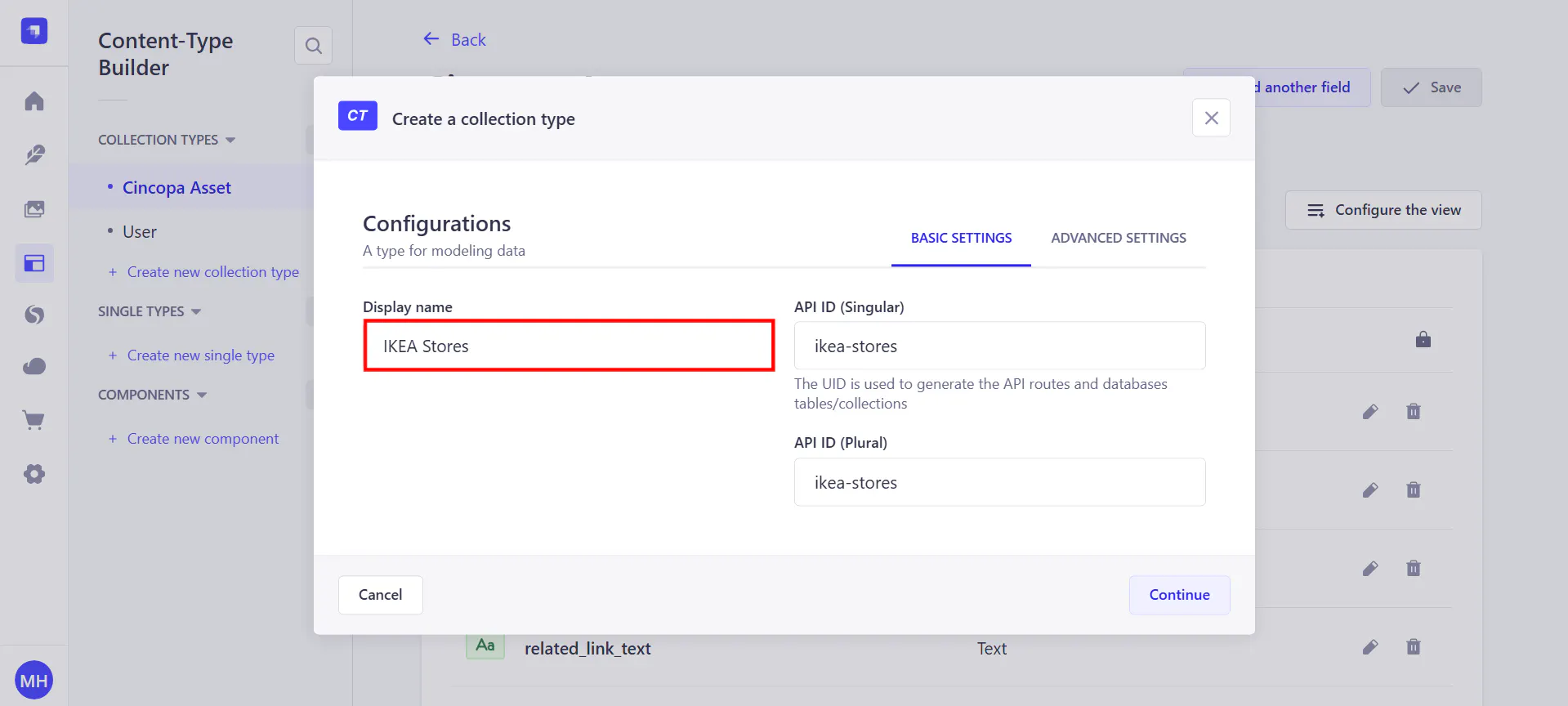
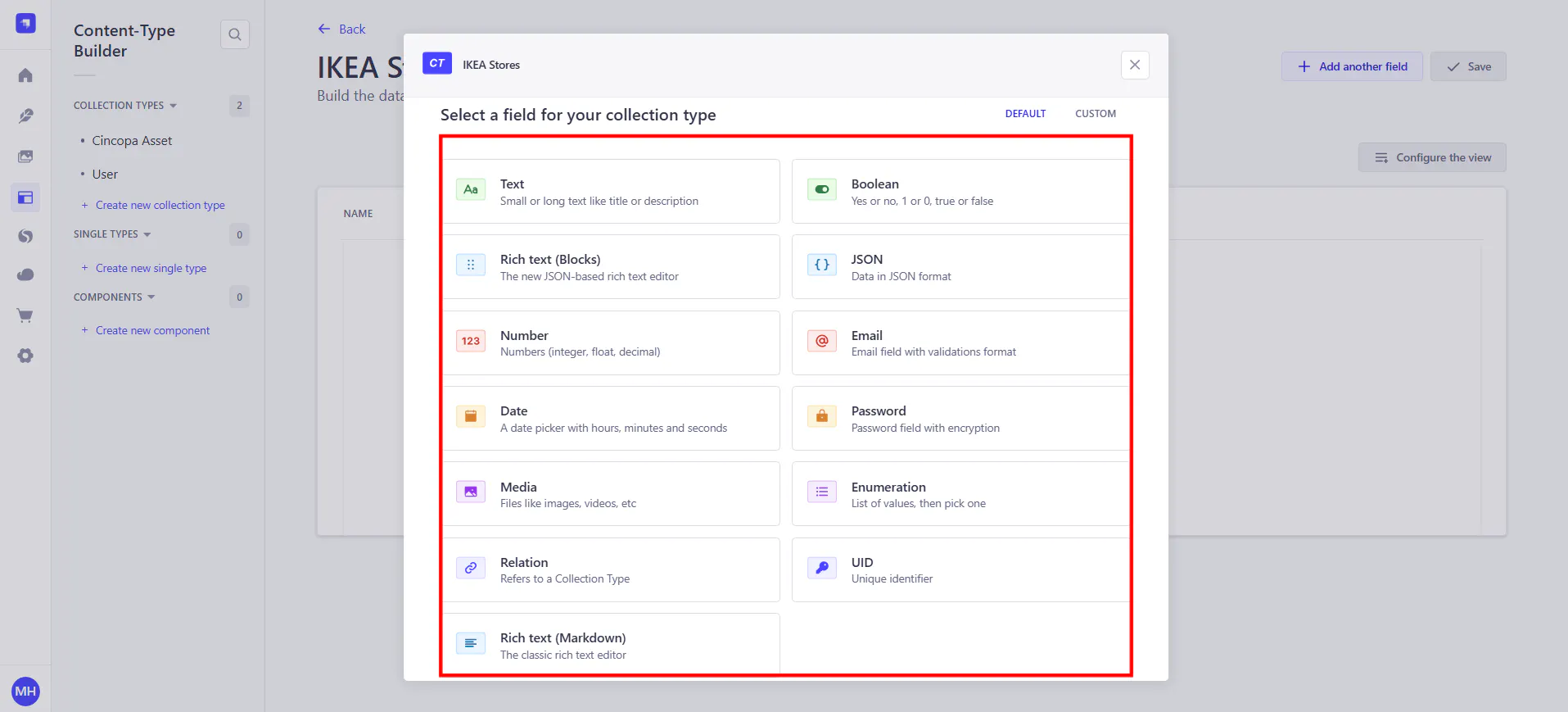
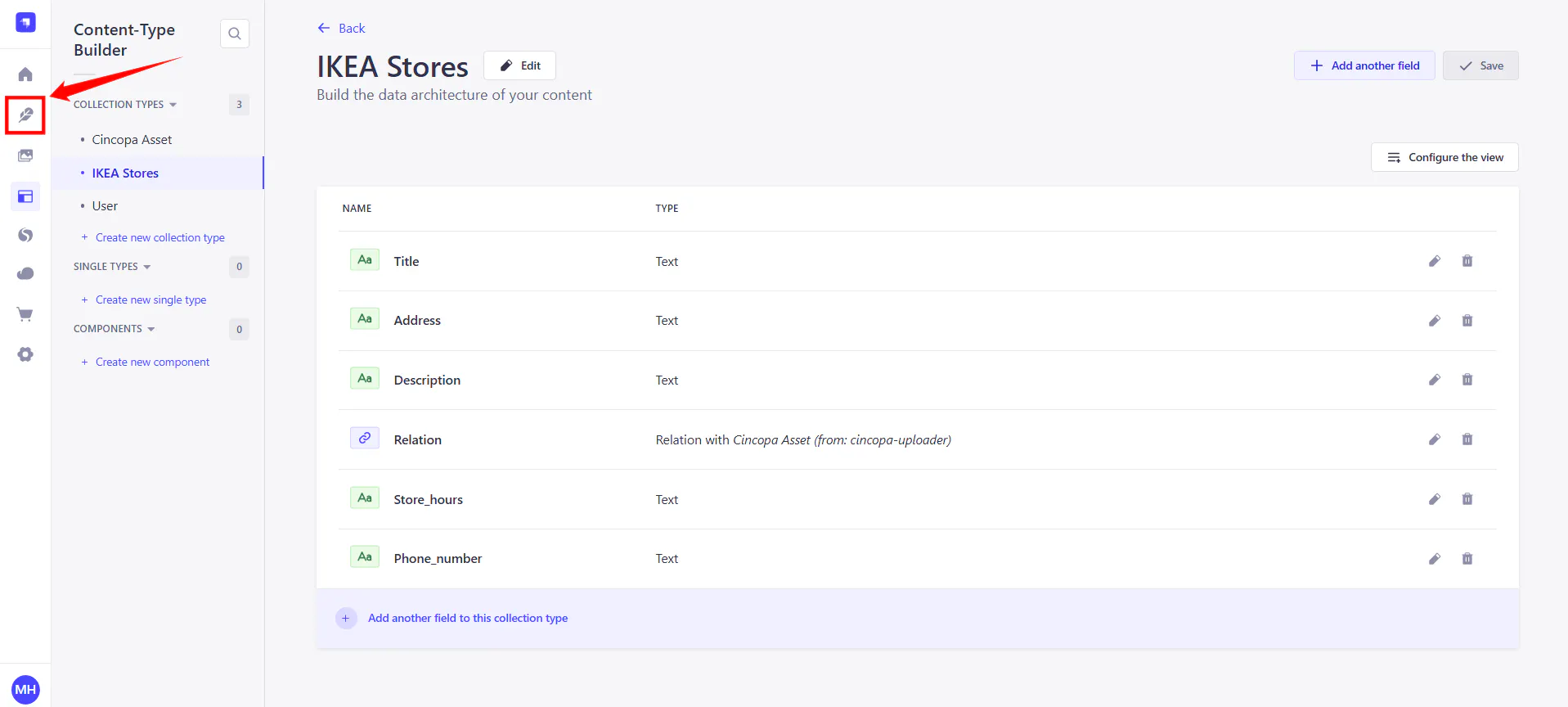
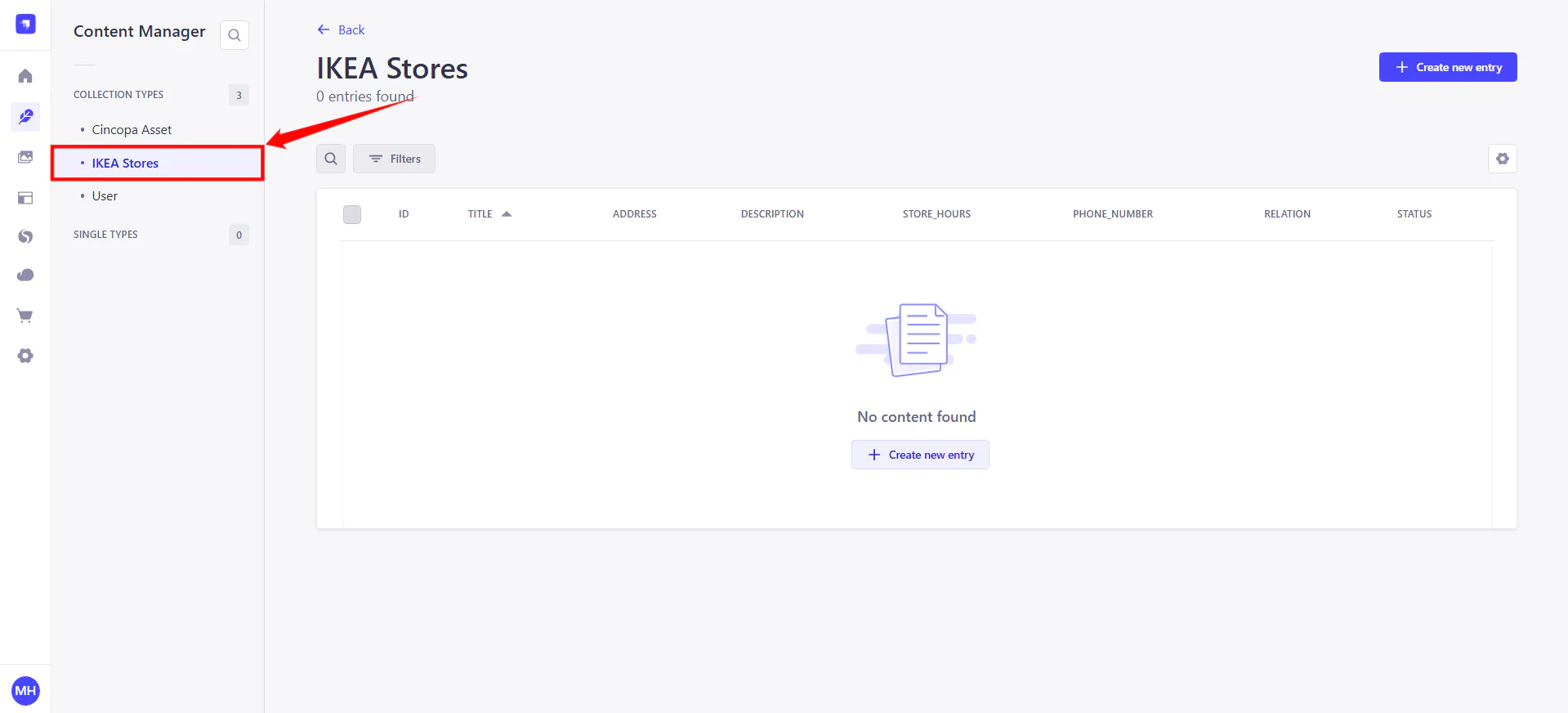
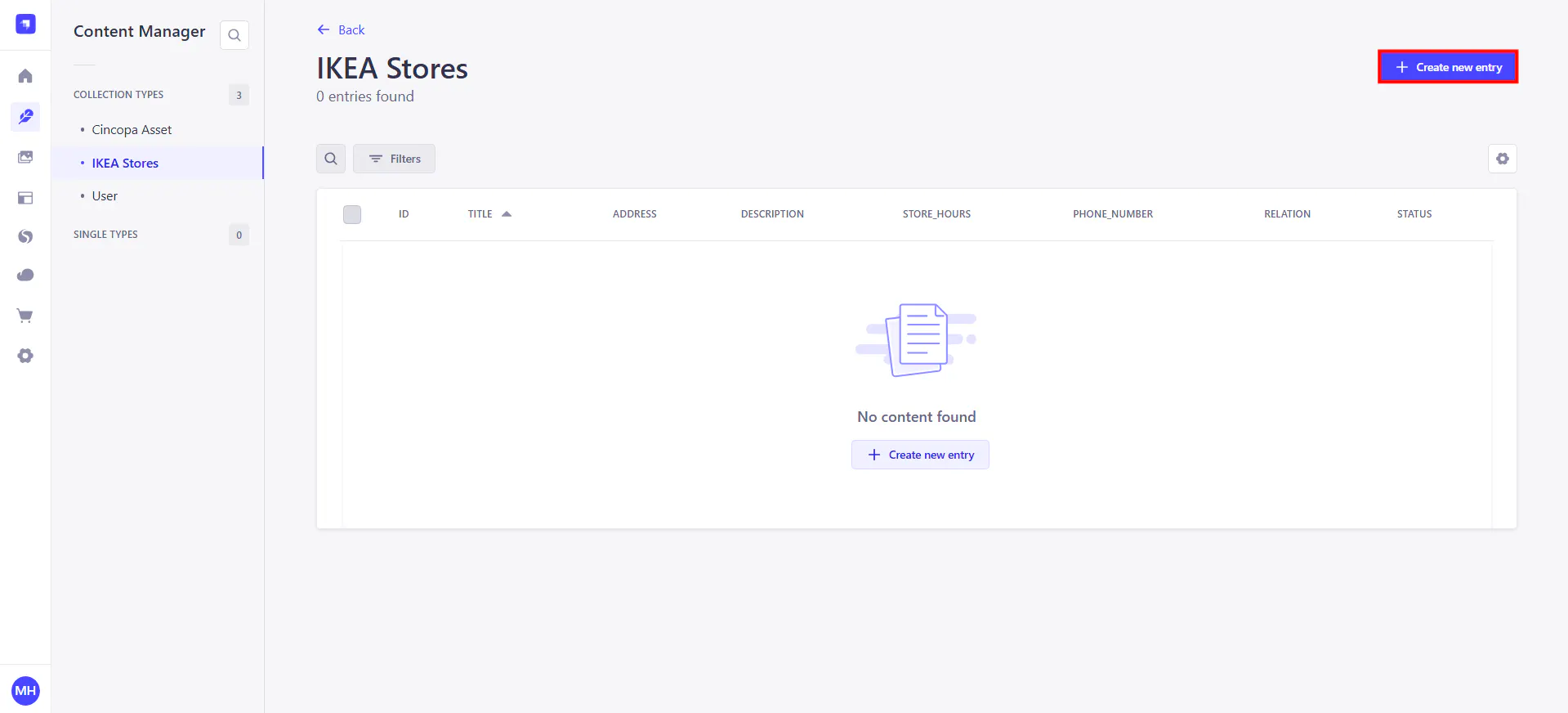
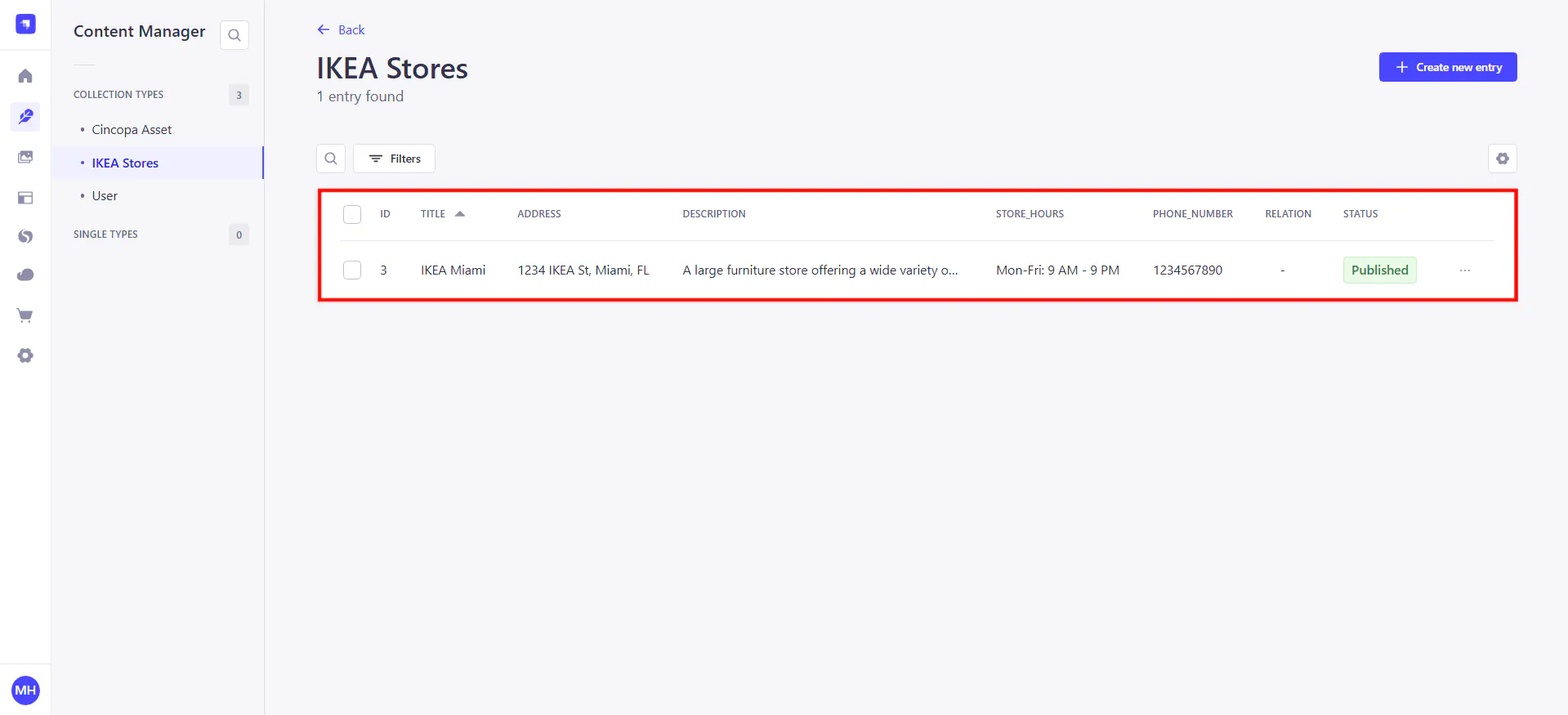
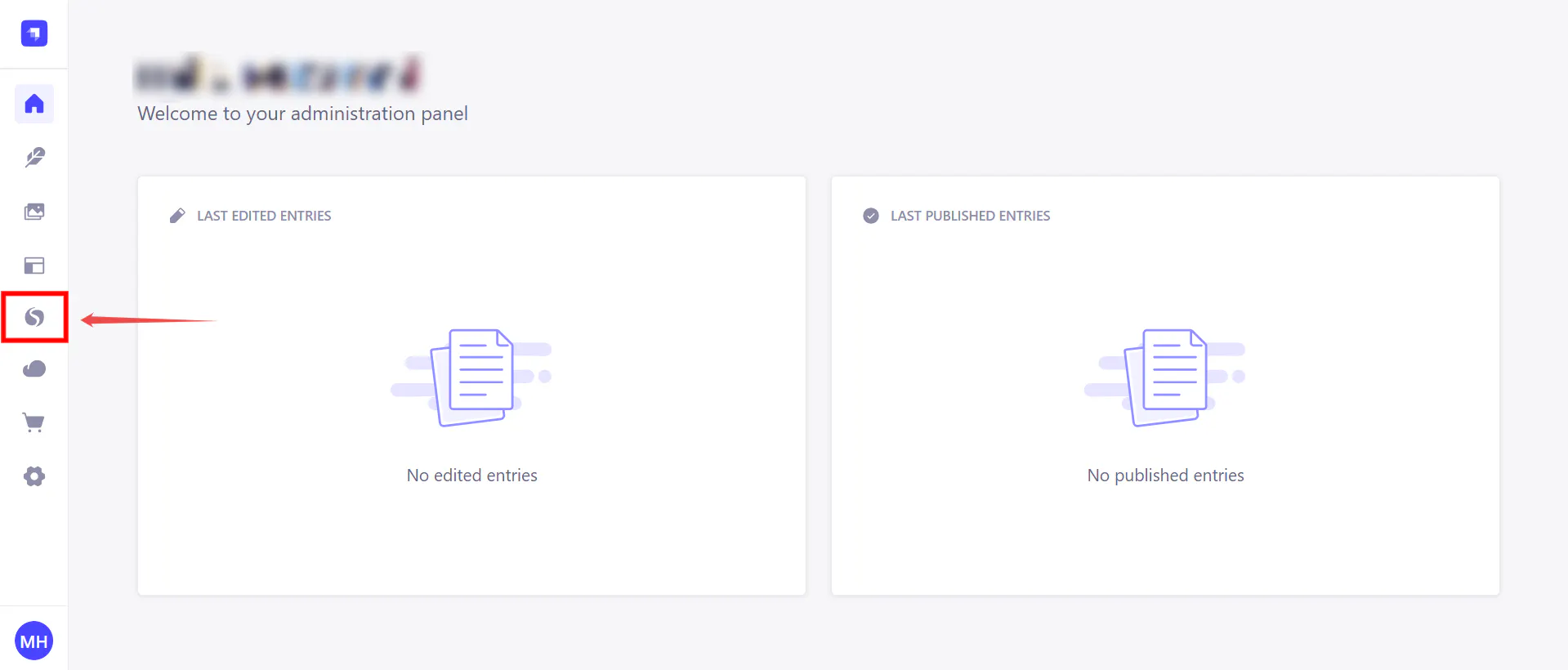
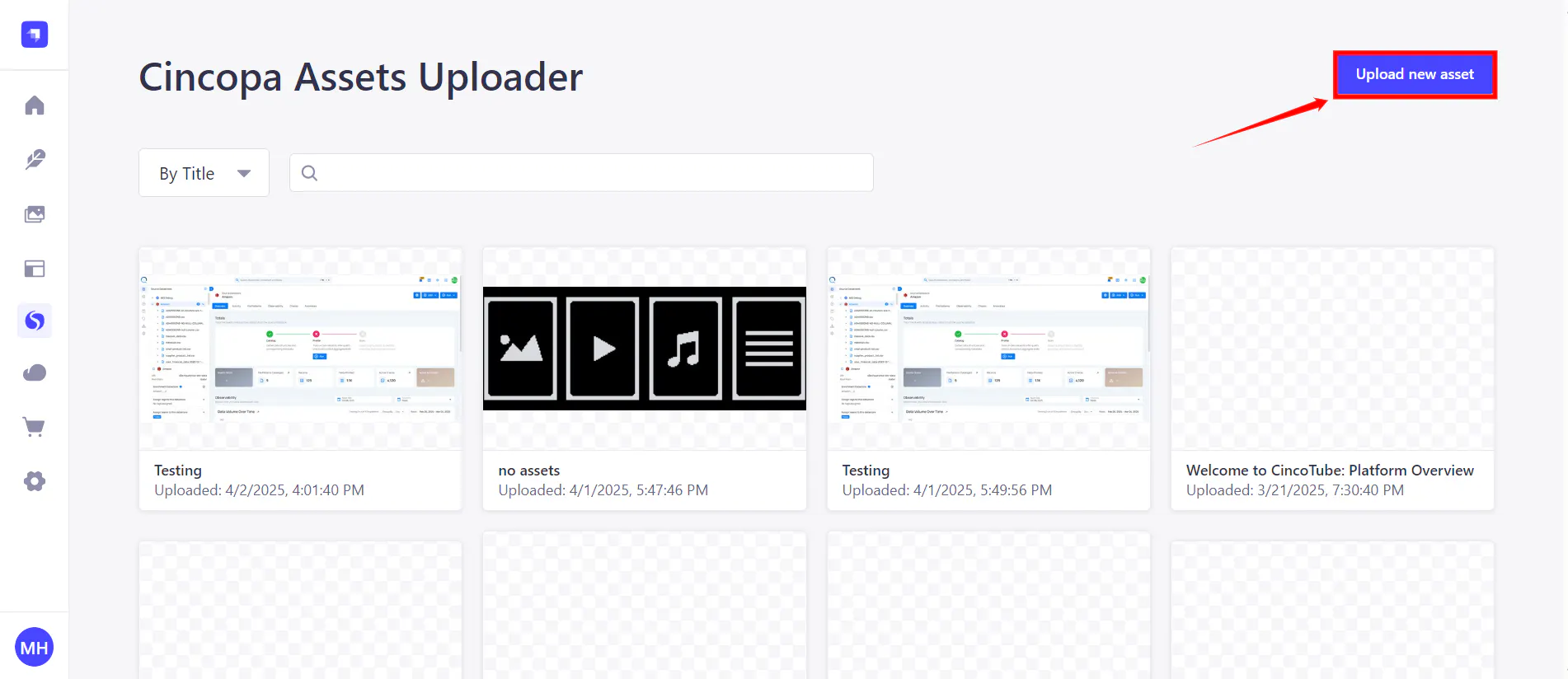
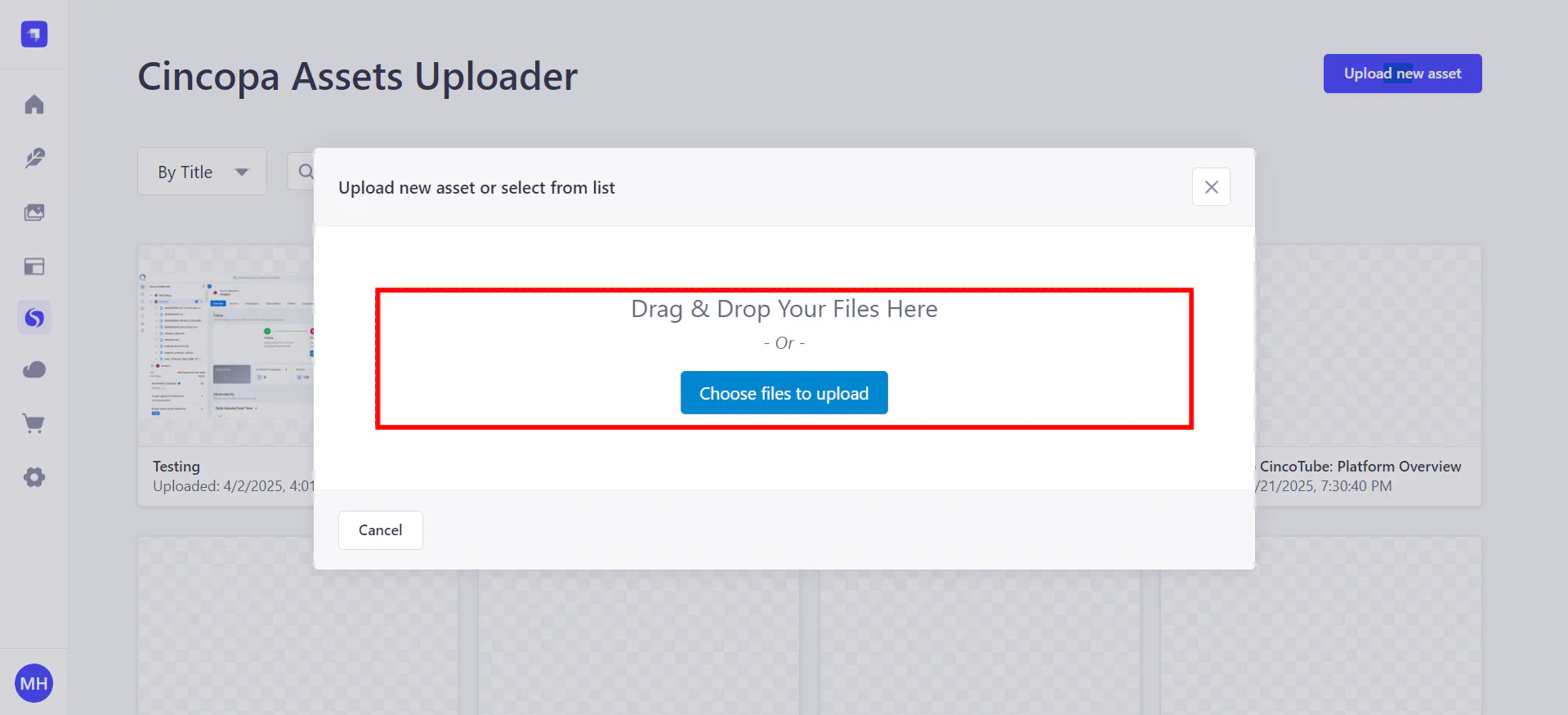
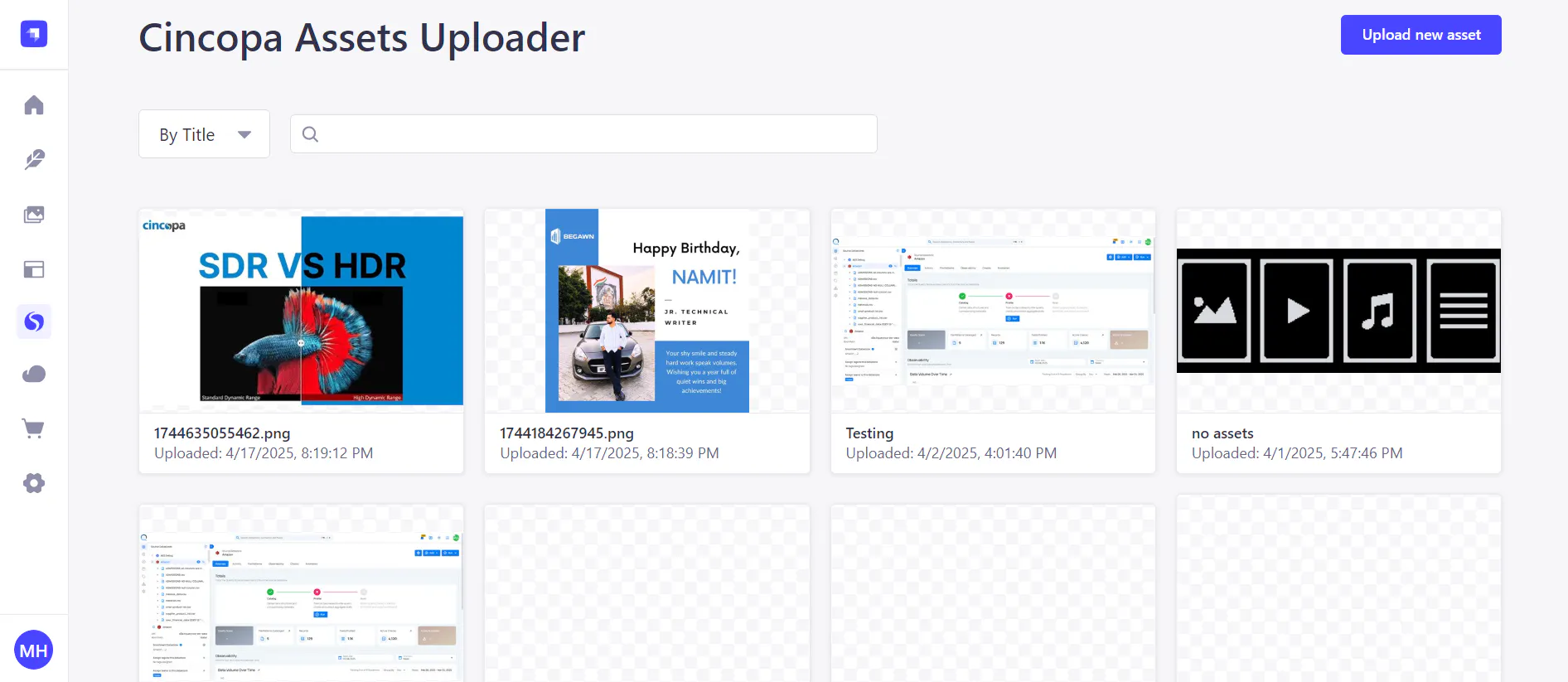
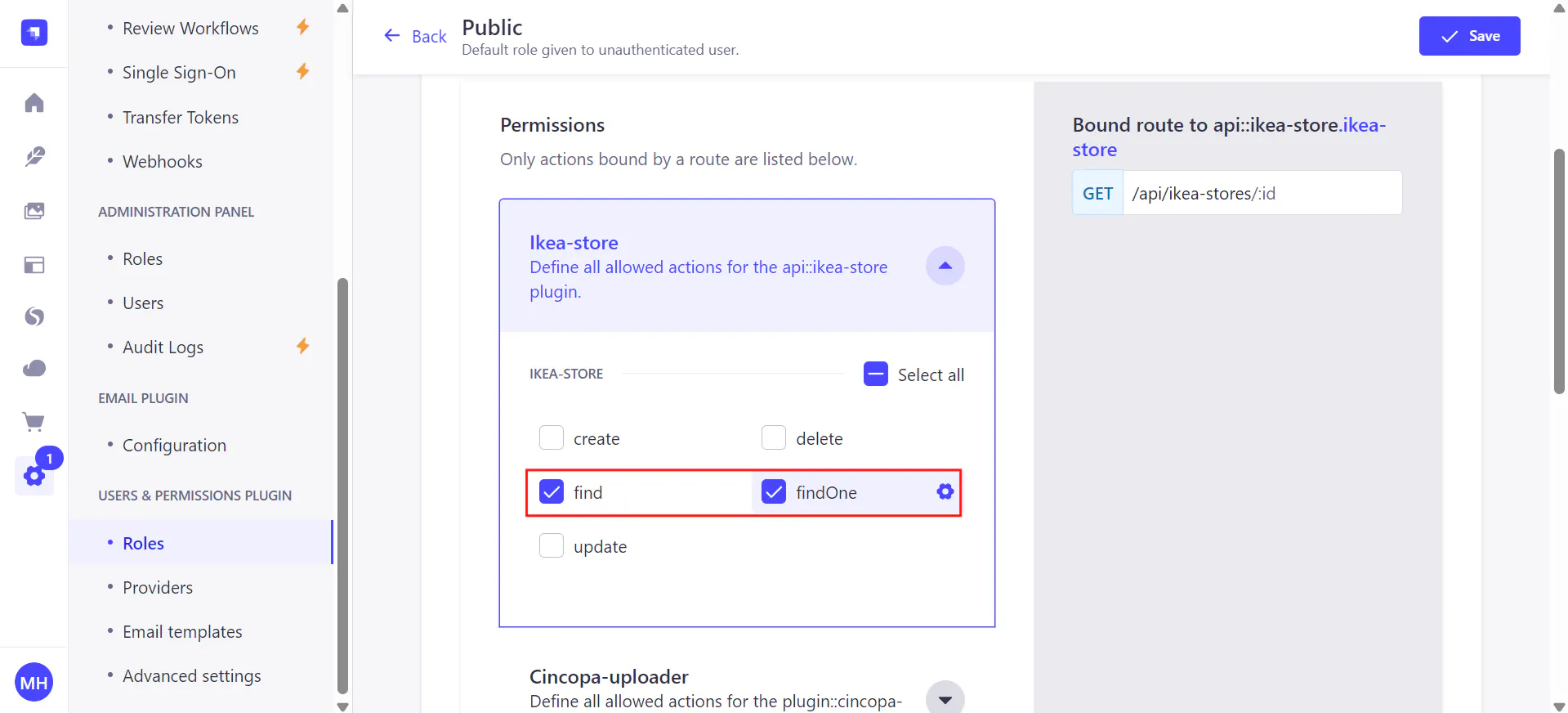
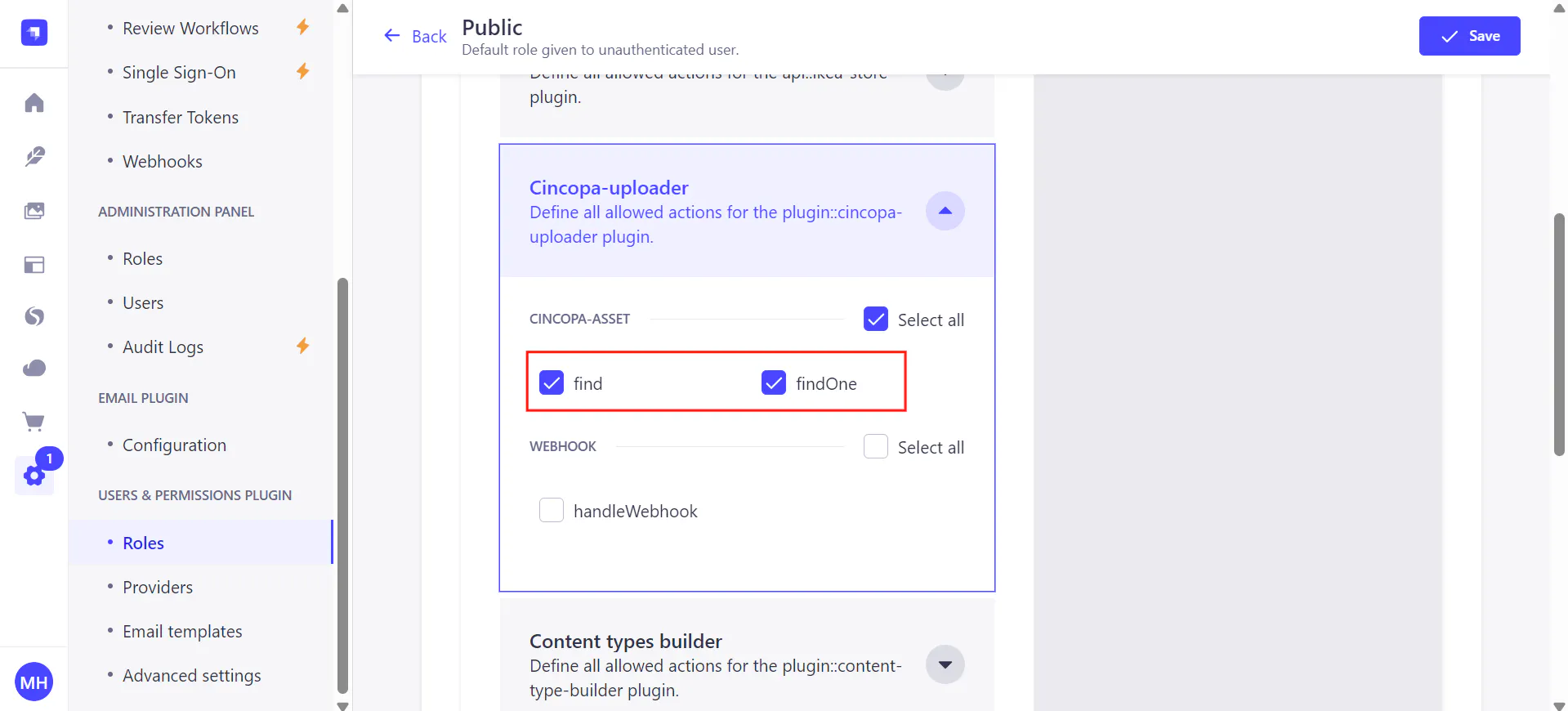
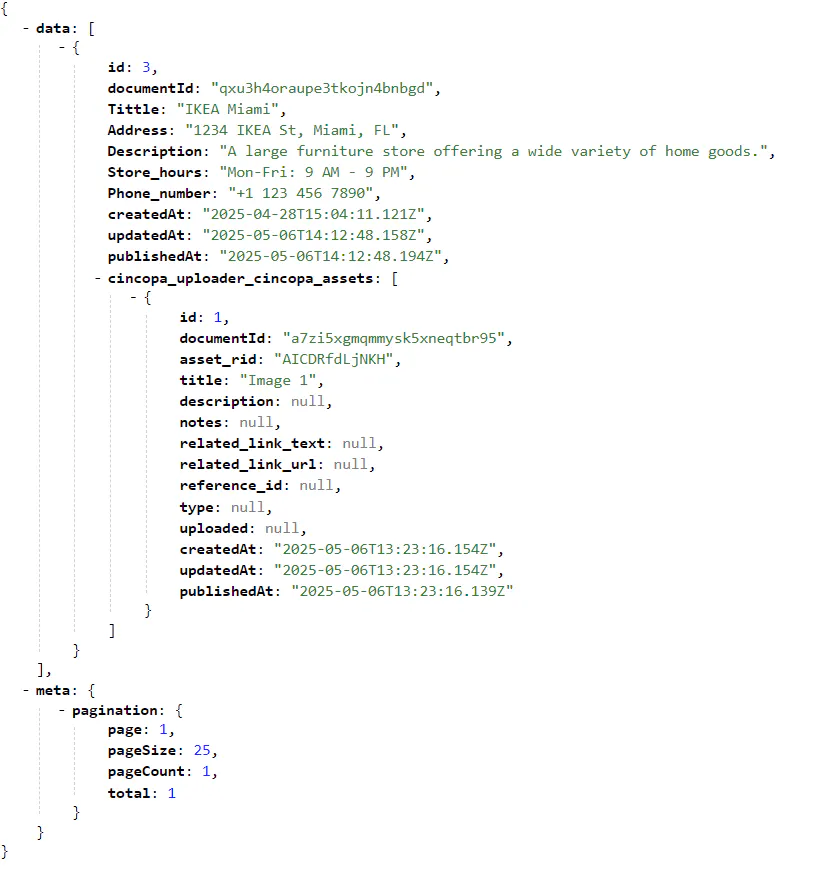
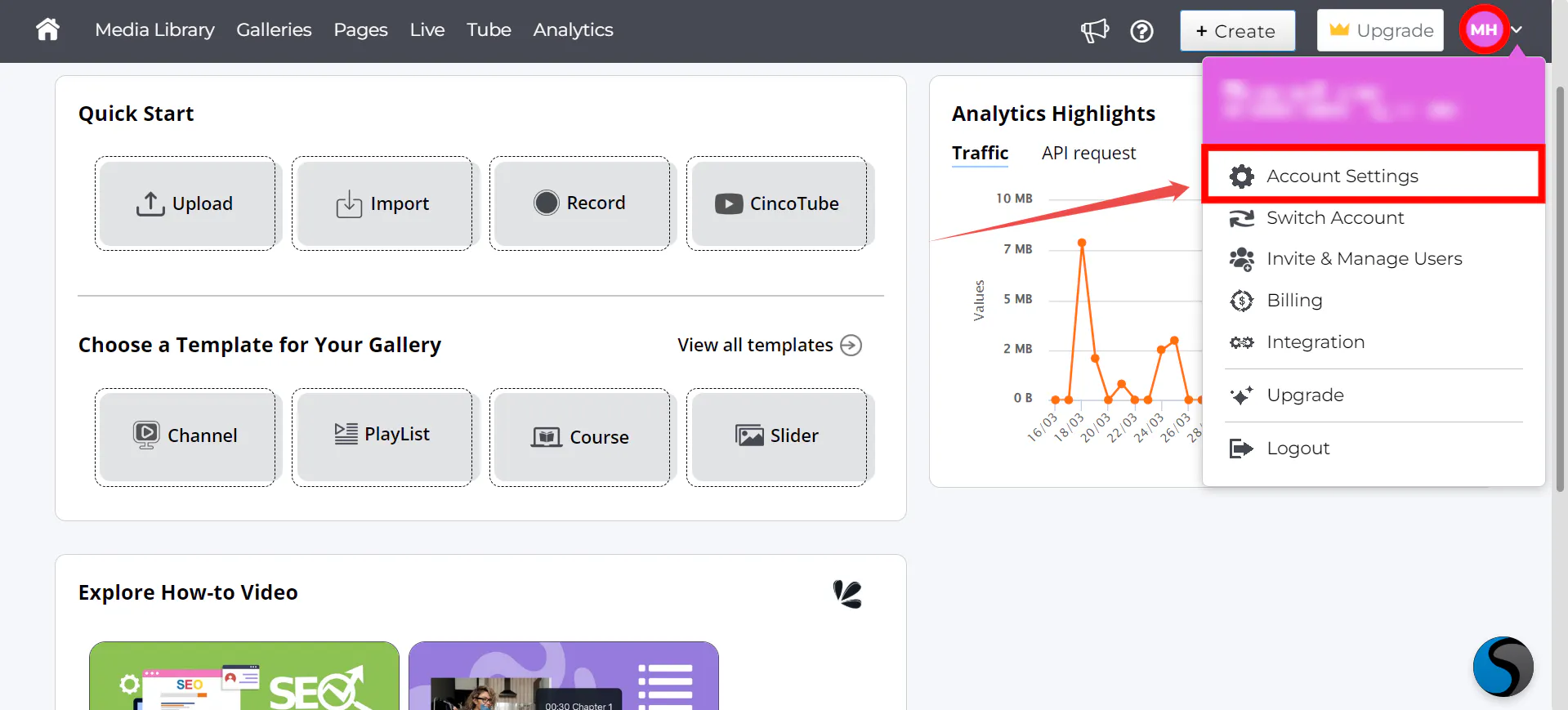
With the Cincopa Uploader plugin, editors can easily upload videos, images, and other media directly to Cincopa from within the Strapi interface and then associate these media files with their custom collection types.
For additional reference, you can also visit the Strapi Welcome Page.
[cincopa AMDAbo__75xq]
Prerequisites
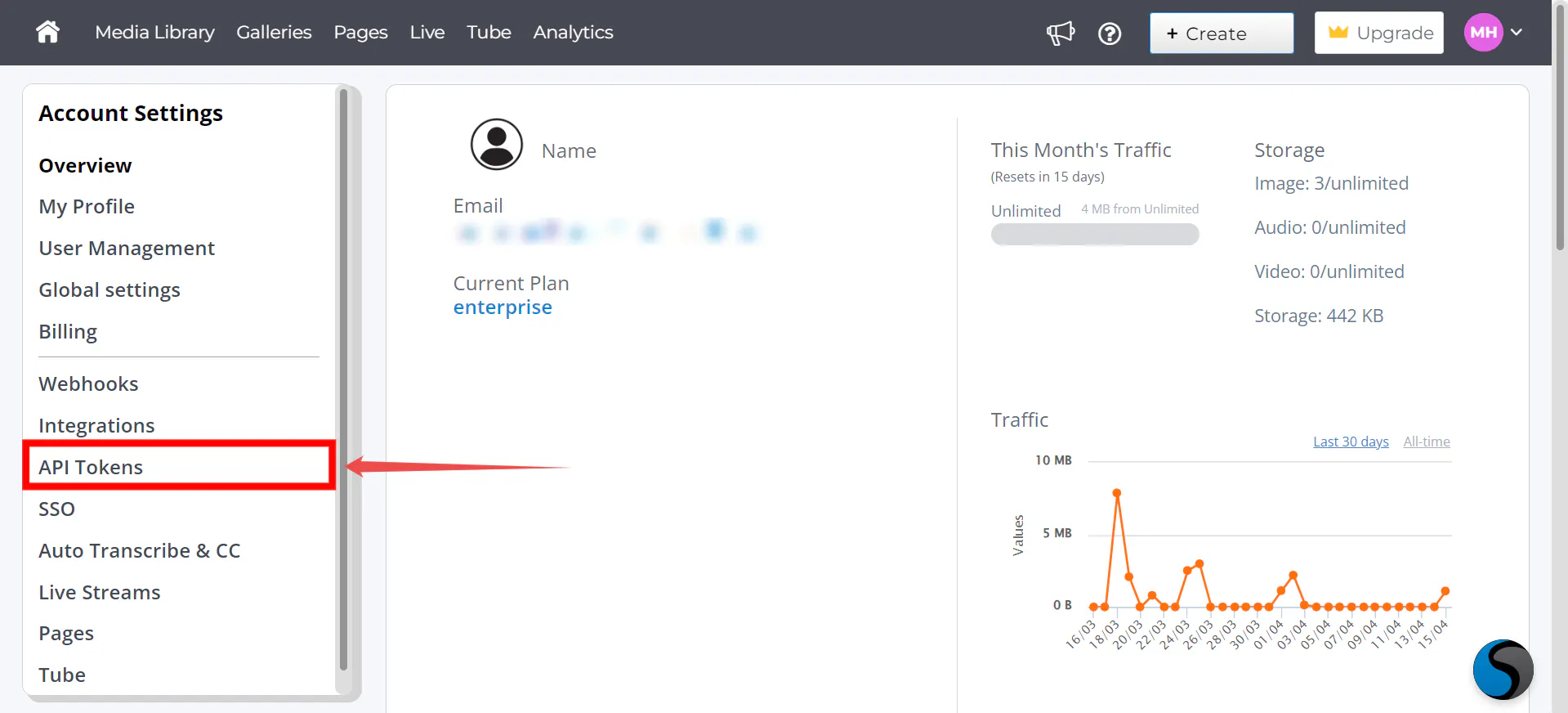
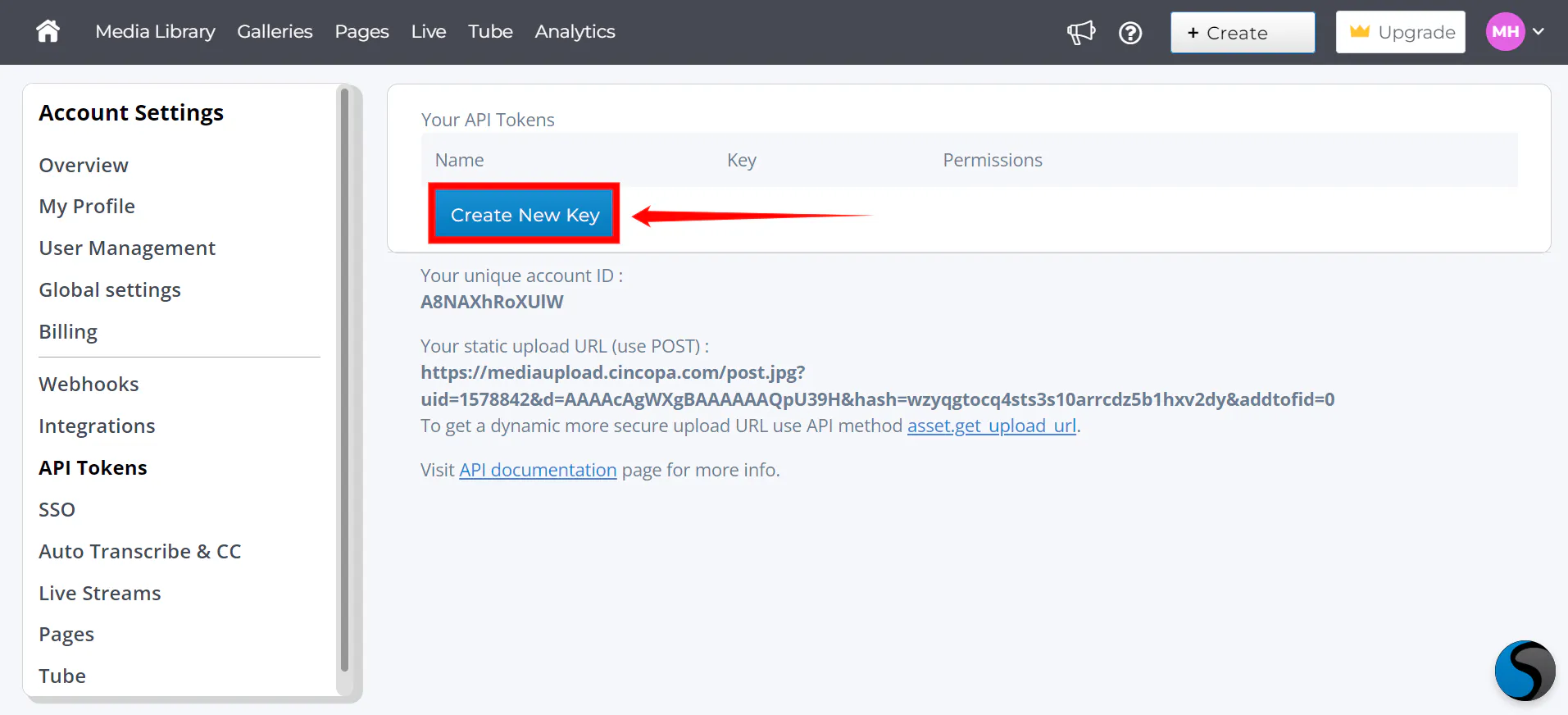
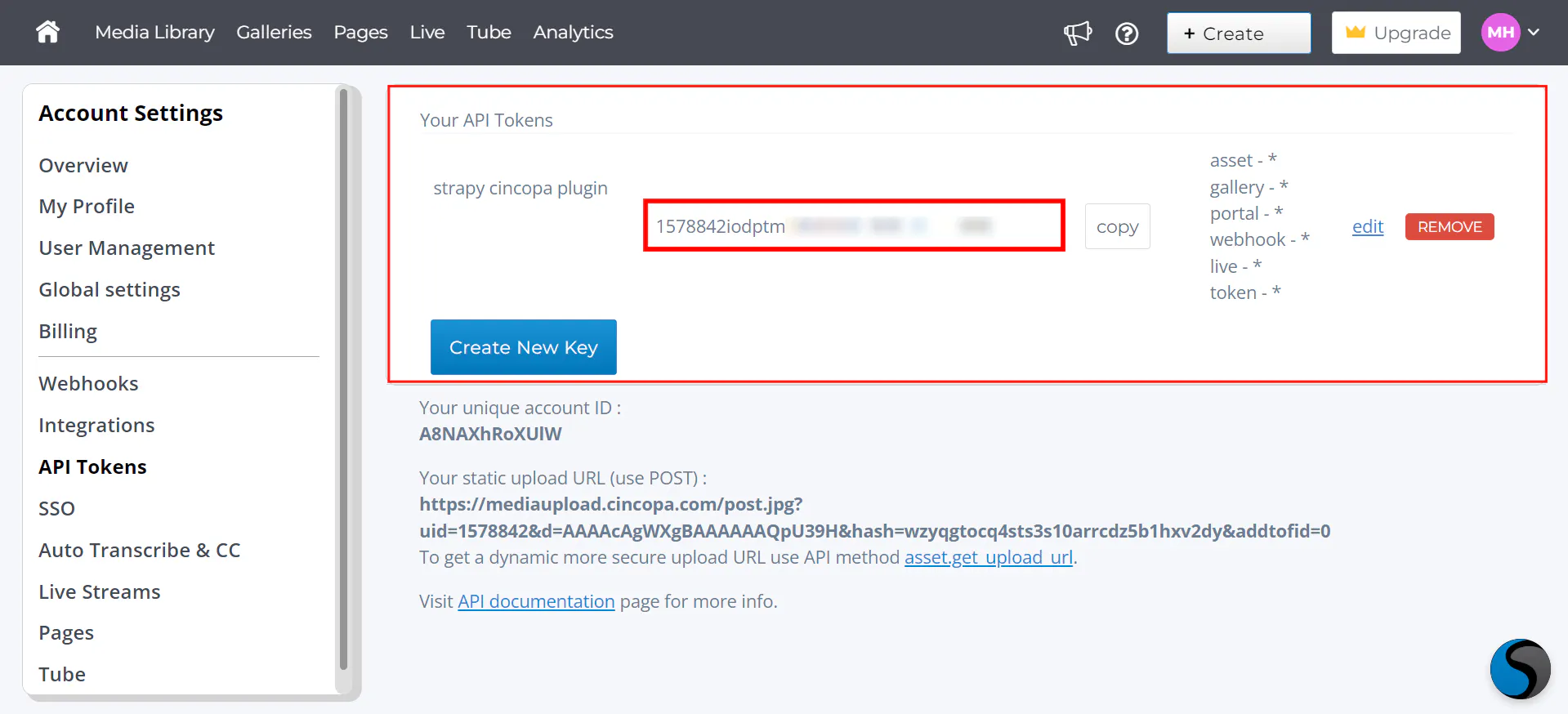
✅ A Cincopa API Token with "Full Access" permissions. Refer to the heading Create an API Token for the steps.
✅ Configure a Webhook within the Cincopa Dashboard to allow Strapi to receive notifications about upload progress.
✅ Node.js: Ensure you have Node.js installed on your system.
✅ npm: This comes with Node.js, so no need to install it separately.
✅ Yarn (optional but recommended): Yarn is an alternative package manager, and Strapi recommends it for faster performance. You can install it via npm by running:
npm install -g yarn
Install instructions for Strapi v5
This plugin is compatible with Strapi v5. Integrate Cincopa with Strapi using these steps:
Step 1. Create a new folder for your project. Open your terminal or command prompt and run the following commands to navigate to the folder:
note
For this demonstration, we are using Visual Studio Code, but you are free to use any code editor of your choice.
mkdir my-folder cd my-folder
Step 2. Run the following command to create a new Strapi project:
npx create-strapi@latest my-project
Replace my-project with the name you want to give your Strapi project. This command will automatically install Strapi and create a new project using the default settings.
Authenticate Strapi with Strapi Cloud
Step 1. Once the project is created, you'll be asked to confirm your device. Strapi will provide a unique code and a URL (e.g., https://auth.cloud.strapi.io/activate?user_code=XXXX-XXXX). Open this URL in your browser to Confirm your device.
Step 2. Now, the terminal will ask you whether you want to log Login or sign up to Strapi Cloud (and start using your free 14-day trial projects) or skip this step. Use the arrow keys and press Enter to make your choice. If you choose to skip this step, you will need to host the project yourself.
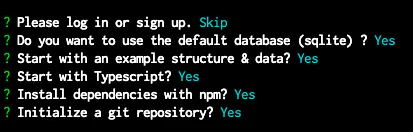
Step 3. The terminal will ask you a few questions. For each of them, if you press Enter instead of typing something, the default answer (Yes) will be used:
- Log in or sign up: If you want to use Strapi Cloud for easy project management, log in or sign up. You can skip this if you don’t want to use Strapi Cloud.
- Use default database (sqlite)?: This question asks whether you want to use SQLite as the default database. If you choose Yes, SQLite will be used. If you prefer a different database, choose No and specify the database you want to use.
- Start with example data?: This option asks if you want to start with sample data and structure. If you choose Yes, Strapi will provide some pre-defined content types and data to help you get started. If you choose No, you will start with a blank Strapi project.
- Start with TypeScript?: This question asks if you want to use TypeScript for your project. If you select Yes, your project will use TypeScript; if you prefer JavaScript, select No.
- Install dependencies with npm?: This asks whether you want to install the project dependencies using npm. Choosing Yes is the standard option, as it ensures all required packages are installed for your project to run.
- Initialize a git repository?: If you select Yes, Strapi will initialize a Git repository in your project directory. This is useful for version control and collaboration, allowing you to manage your project changes with Git.

After you choose the options, Strapi will finish the setup, install the required dependencies, and initialize the project. Once Strapi is set up, navigate to your project directory by running the following command in your terminal:
cd my-project
Replace my-project with the name of your project.
Install Cincopa Uploader Plugin
Now, install the Cincopa Uploader plugin by running the following command:
npm install strapi-plugin-cincopa-uploader@latest
Set up Configuration in Strapi
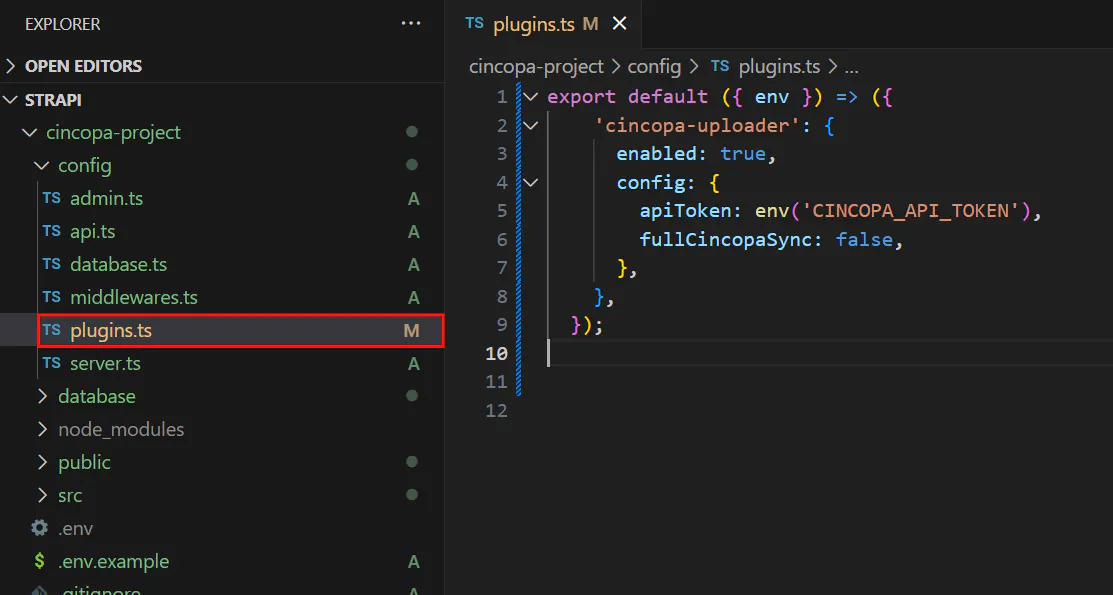
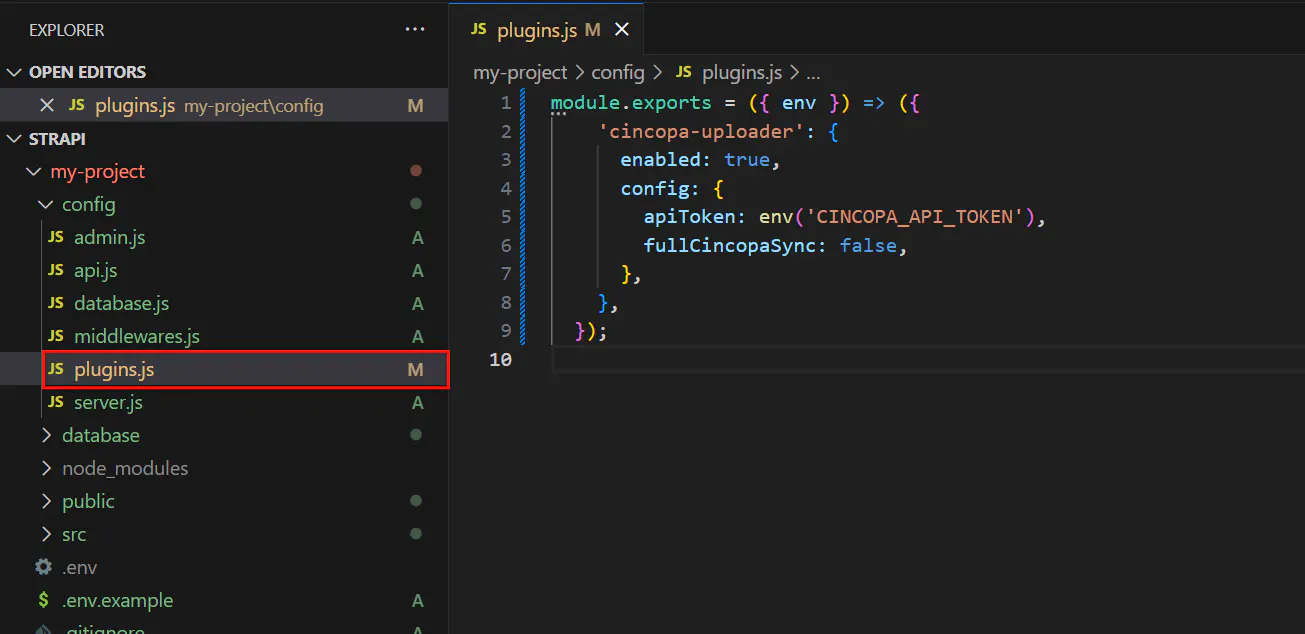
After installing the Cincopa Uploader Plugin in Strapi, configure it based on whether you selected TypeScript or JavaScript during Strapi installation. Edit the plugins.js (for JavaScript) or plugins.ts (for TypeScript) files, along with the .env file, to add your Cincopa API token and configure the plugin settings.
Step 1: Configure the Plugin
Once the Cincopa Uploader Plugin is installed, open the appropriate configuration file based on your setup:
- For JavaScript, edit /config/plugins.js.
- For TypeScript, edit /config/plugins.ts.
Step 2: Add the Configuration
In the selected configuration file, add the following code to configure the Cincopa Uploader plugin:
For TypeScript:
export default ({ env }) => ({
'cincopa-uploader': {
enabled: true,
config: {
apiToken: env('CINCOPA_API_TOKEN'),
fullCincopaSync: false,
},
},
});
For JavaScript:
module.exports = ({ env }) => ({
'cincopa-uploader': {
enabled: true,
config: {
apiToken: env('CINCOPA_API_TOKEN'),
fullCincopaSync: false,
},
},
});
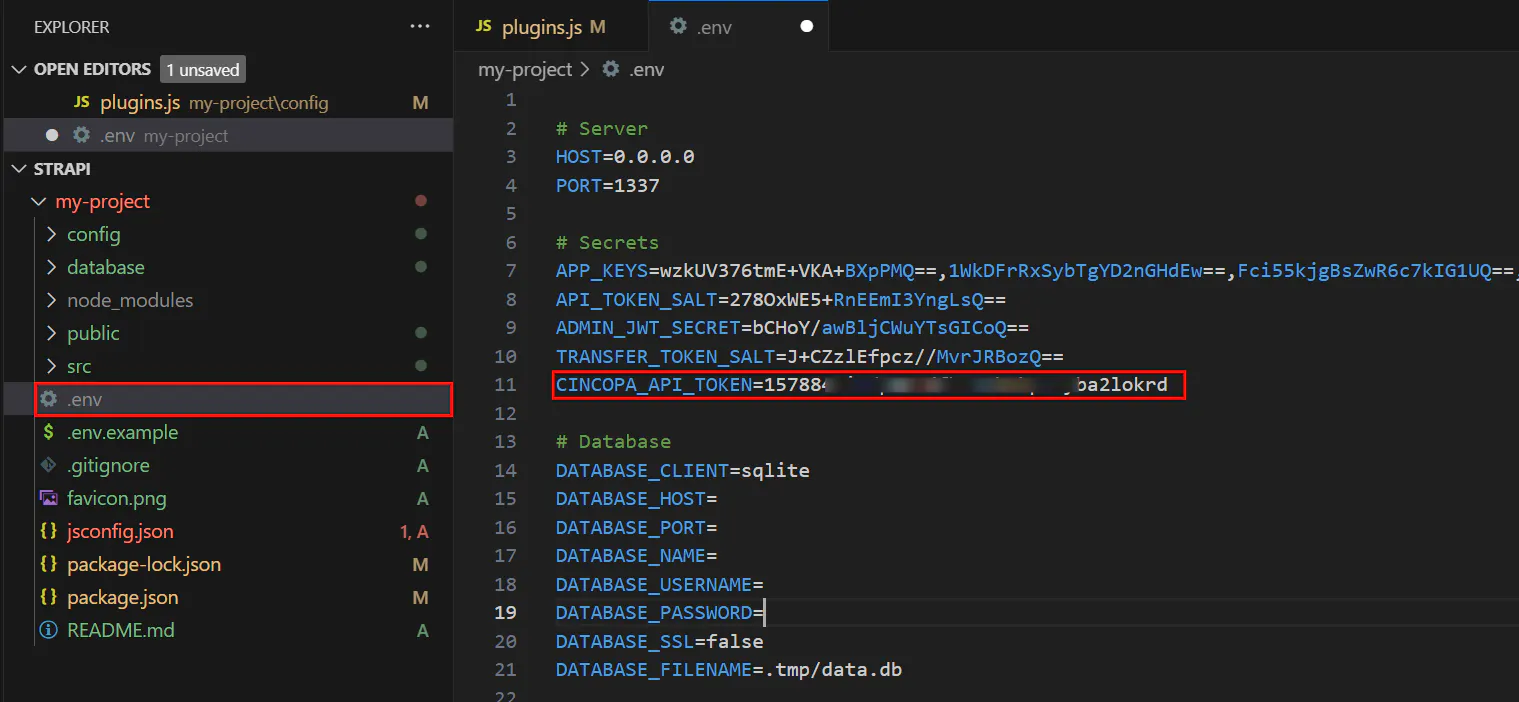
Step 3: Add your Cincopa API token to the .env file located in the root directory of your project and save it.
CINCOPA_API_TOKEN=your_actual_api_token_here
Replace your_actual_api_token_here with the real token you get from your Cincopa account.
note
For more information on how to generate an API Token, refer to the section “Create an API Token”.
Step 4: Save all your files, then restart the Strapi development server to apply the changes.
npm run develop
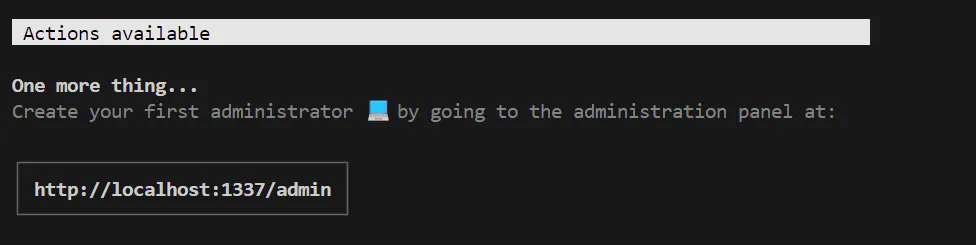
Once the server starts, access the admin panel by the provided link in your terminal to create your first administrator account and begin using Strapi. For example: “http://localhost:1337/admin”
Step 5: Fill out the form to create your admin account and access the Strapi Admin Panel for managing content and settings.
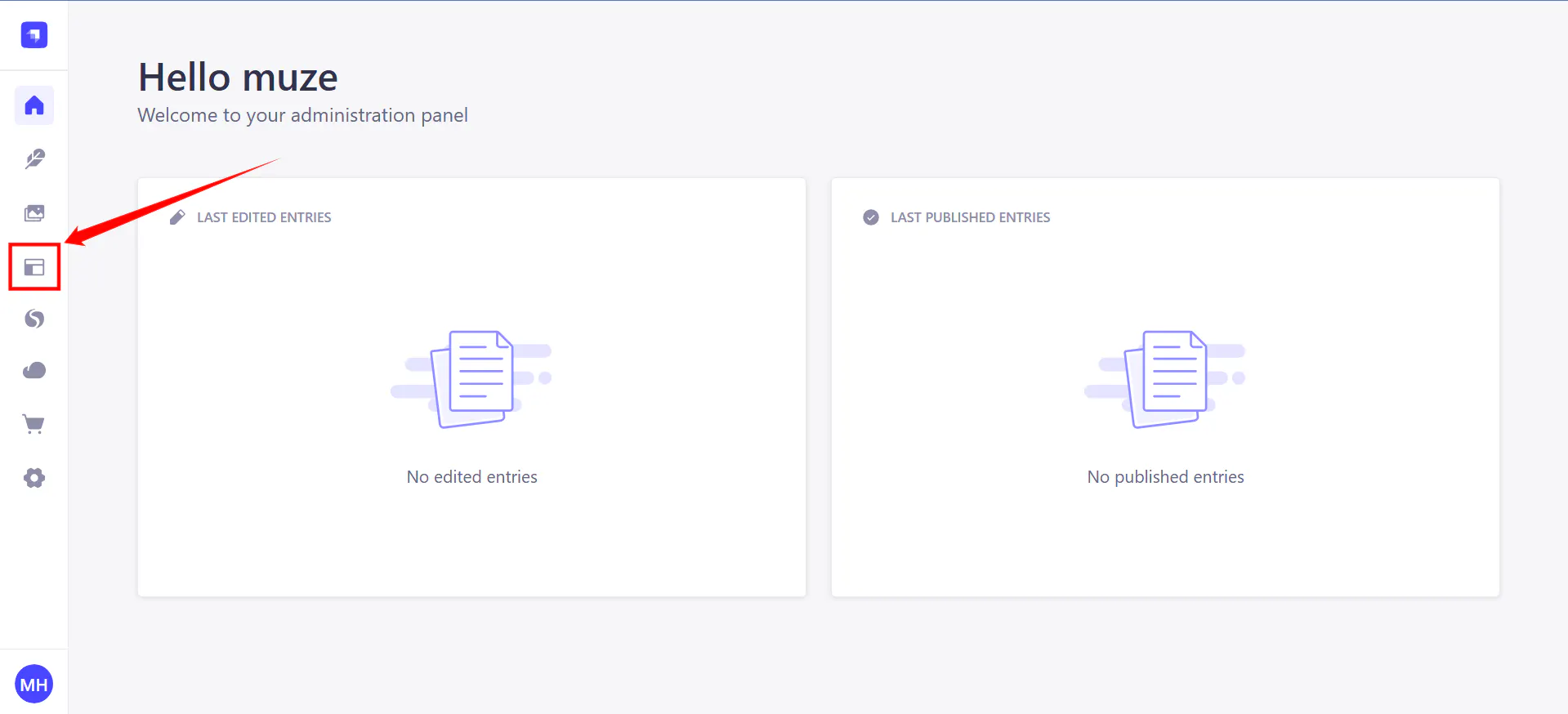
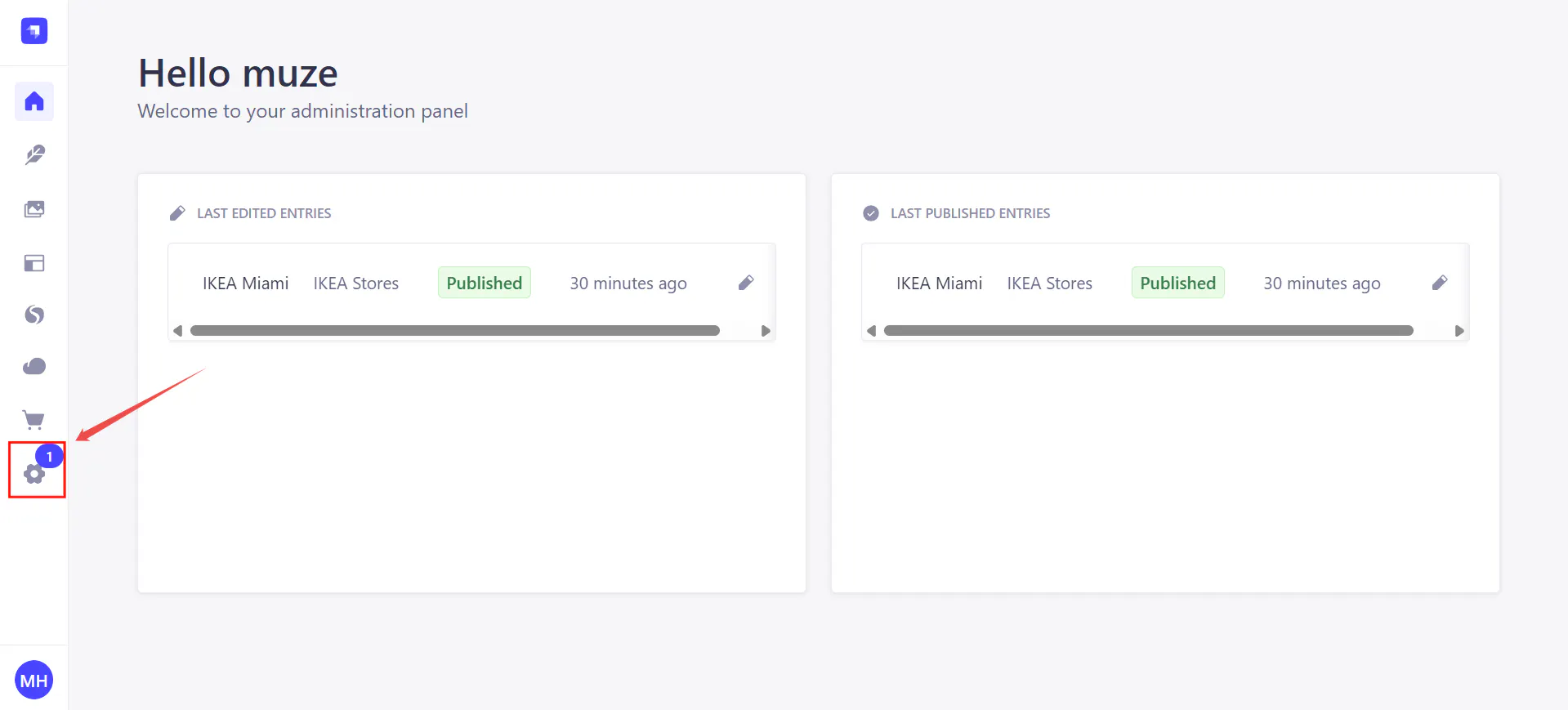
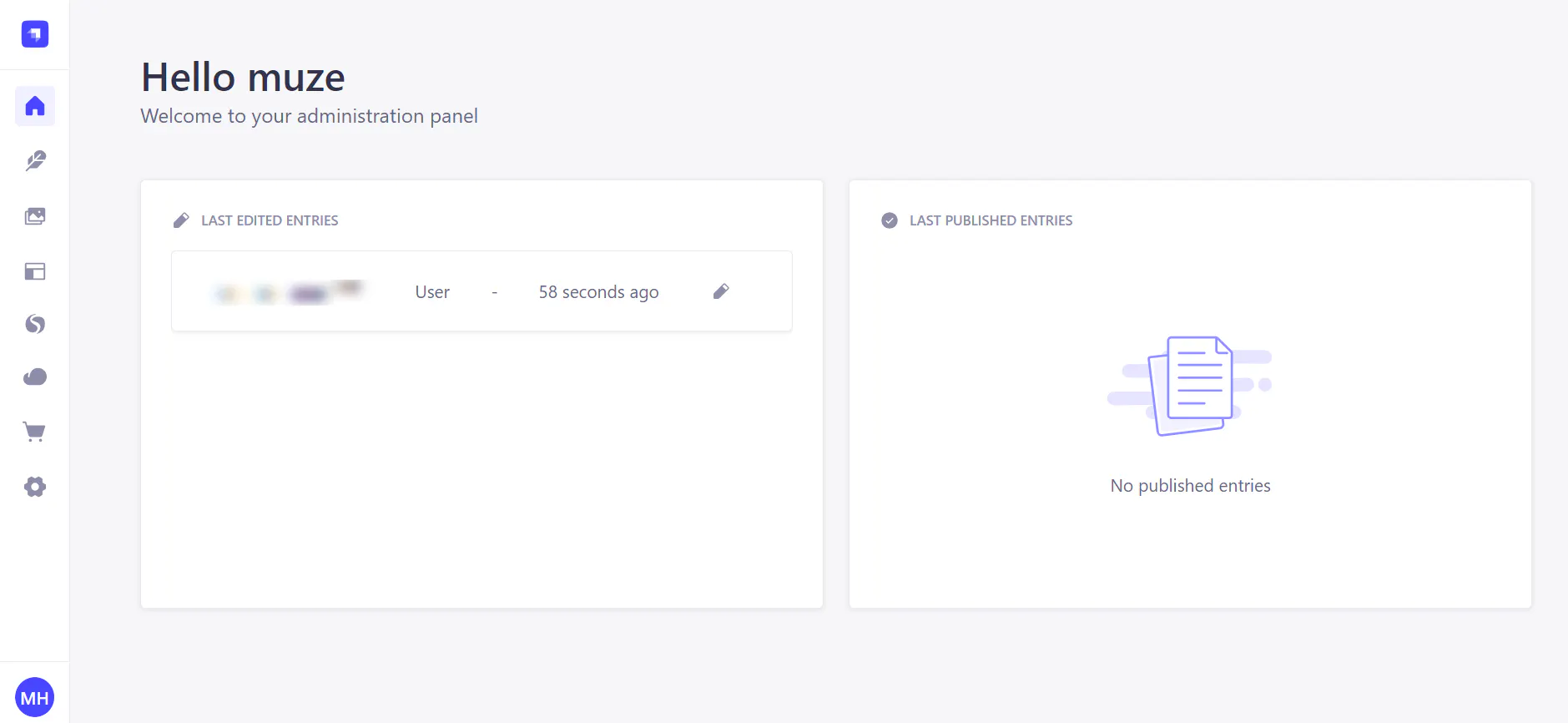
After creating your account, you'll be redirected to the homepage, confirming that your setup was successful.

Here, you'll be able to start managing your content, configure settings, and work with the media assets you’ve uploaded.
- On the main page, you'll see an overview of your Strapi project and available content types, such as articles, posts, and media.
- If you see the Dashboard page with no errors, it means the server is running successfully and you’re ready to begin working with your content and settings.

Full Sync Mode
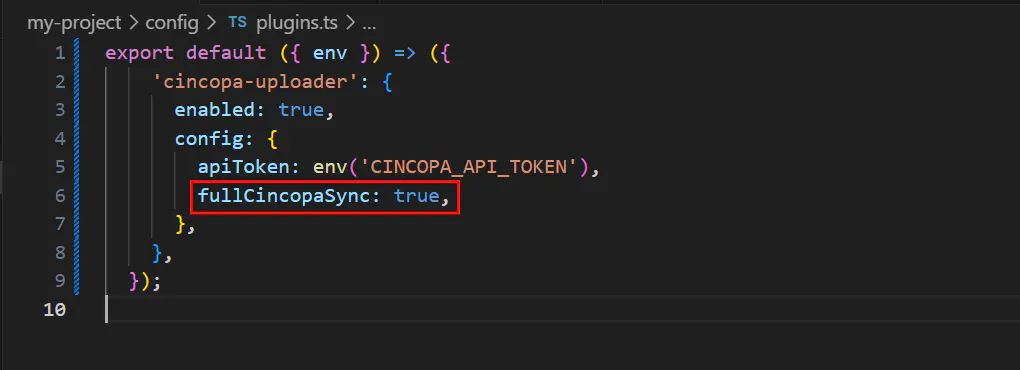
The Cincopa Uploader plugin provides a Full Sync Mode, which ensures that all assets from Cincopa are synced to Strapi. This mode is useful when you want to synchronize your Cincopa assets across multiple environments, ensuring everything is up-to-date.
To enable Full Sync Mode, modify the configuration in plugins.js or plugins.ts:
fullCincopaSync: true
This will synchronize all assets during upload, ensuring all metadata and related information are updated in Strapi.
Configure Webhook
To enable communication between Cincopa and Strapi, a Webhook needs to be configured to send events about the upload and processing completion. Follow these steps to set up the Webhook:
note
Webhook signature verification is currently disabled due to limitations in Koa (used by Strapi), which prevents access to the raw request body. This may be added in a future update.
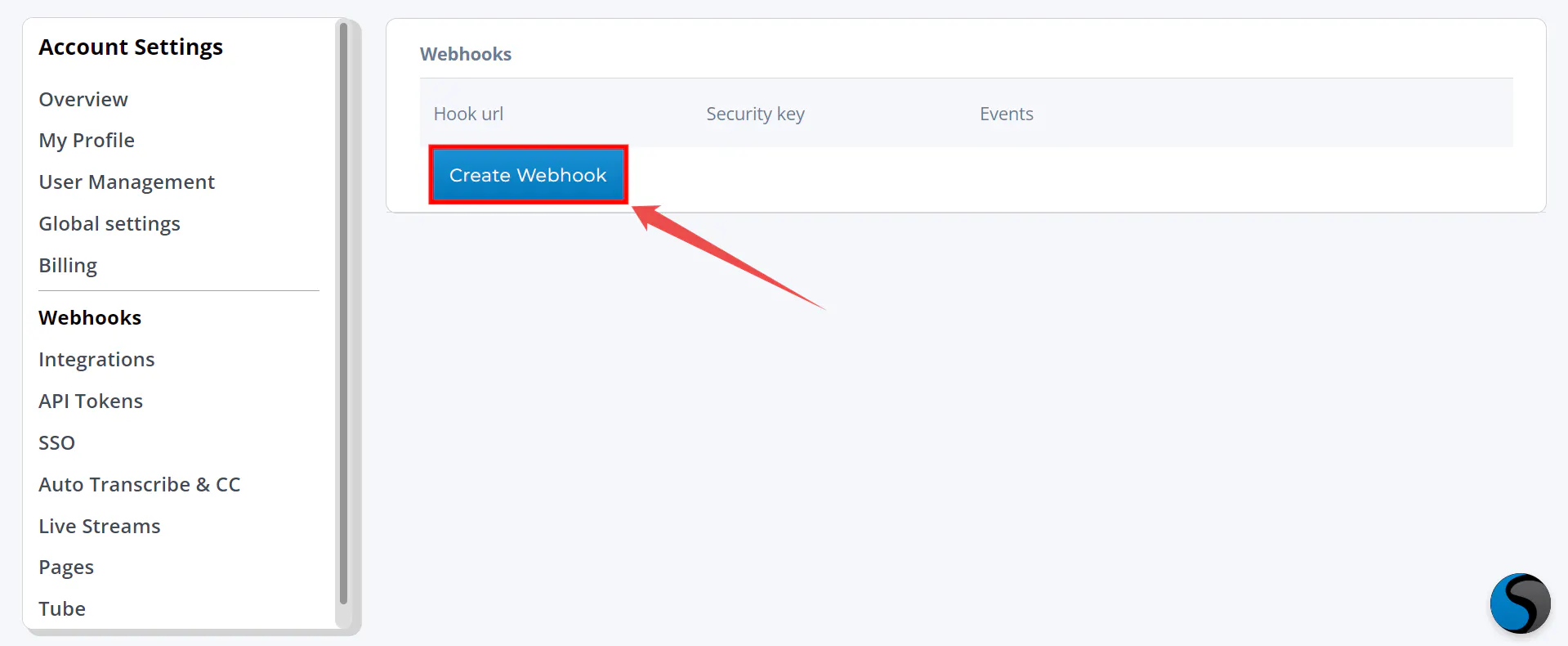
Step 1: Log in to your Cincopa account and navigate to the webhook section.
Step 2: Click on the “Create Webhook” button.

Step 3: When prompted, you'll be asked for the URL to notify. This URL should point to the endpoint where Cincopa will send updates about the upload and processing status. The format for the URL should be:
https://your-strapi-domain.com/api/cincopa-uploader/webhook
Replace your-strapi-domain.com with your actual, publicly accessible Strapi base URL.
After saving the configuration, copy the "Signing Secret," which will be used later for verification.