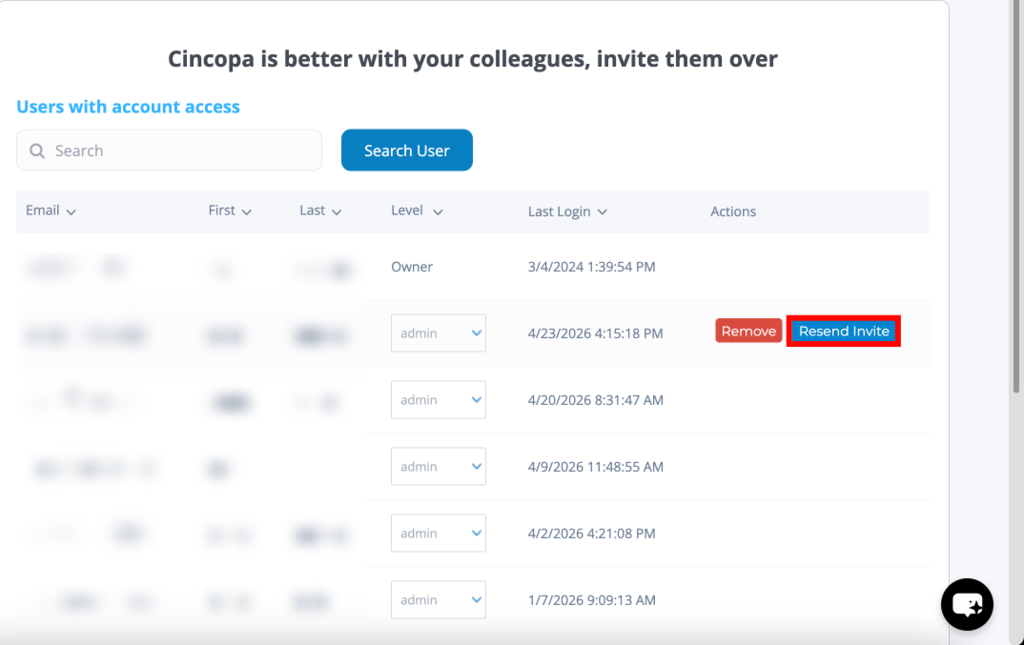
The User Management section allows you to manage access to your account by inviting team members and controlling their permissions. It enables you to assign roles, monitor user activity, and ensure that each user has the appropriate level of access based on their responsibilities.
This section is useful for teams working collaboratively, allowing secure access without sharing account credentials.
How to Access User Management
Method 1
Step 1: From the dashboard, click your profile icon in the top-right corner
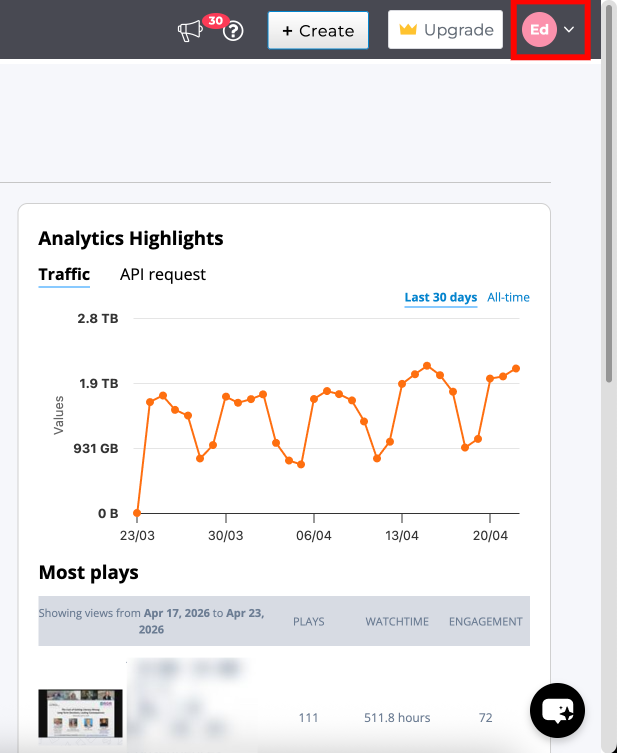
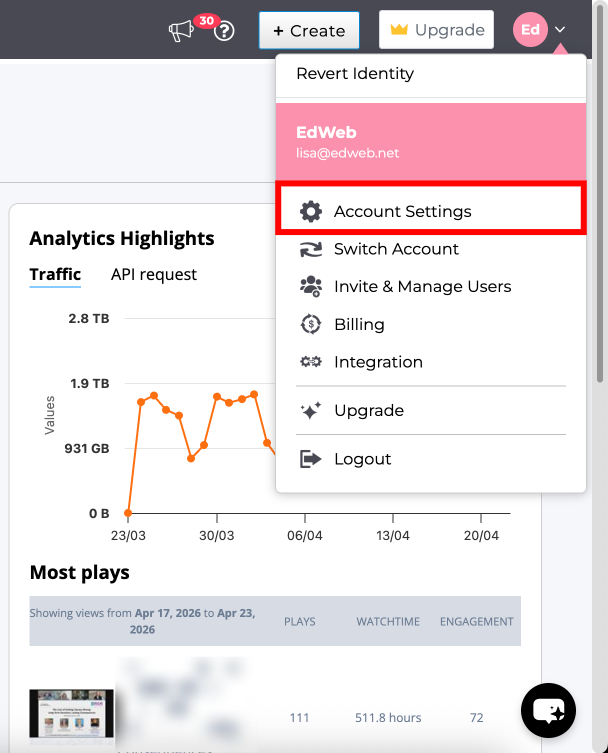
Step 2: Select Invite & Manage Users from the dropdown menu
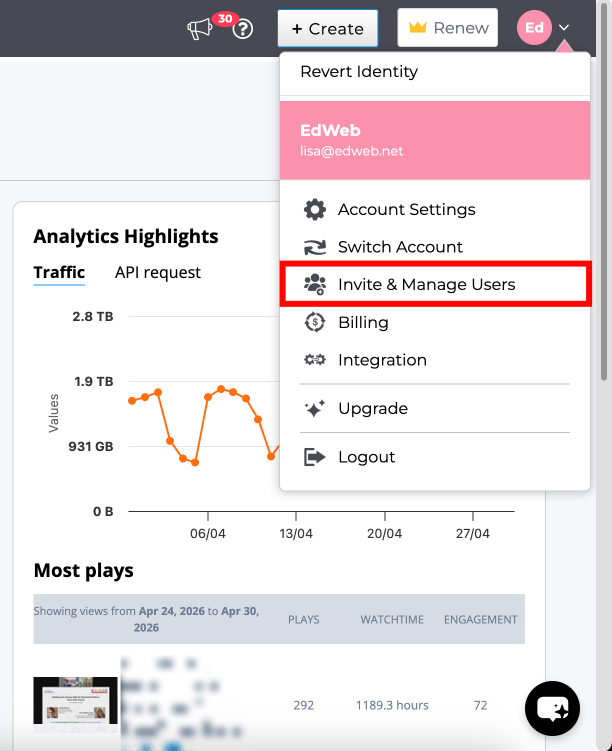
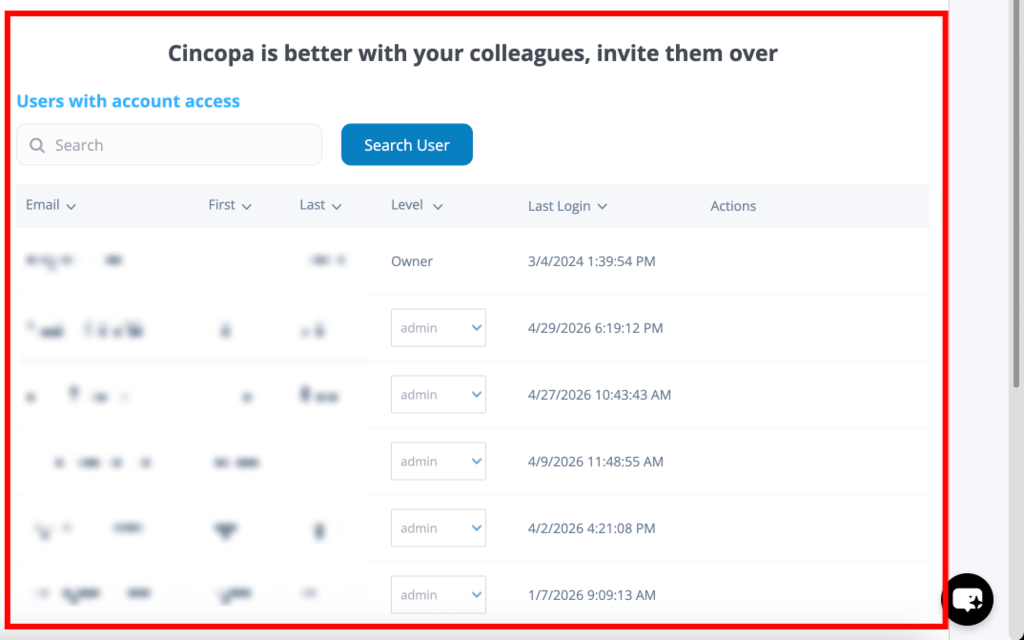
Step 3: The User Management page will open
Method 2
Step 1: From the dashboard, click your profile icon in the top-right corner
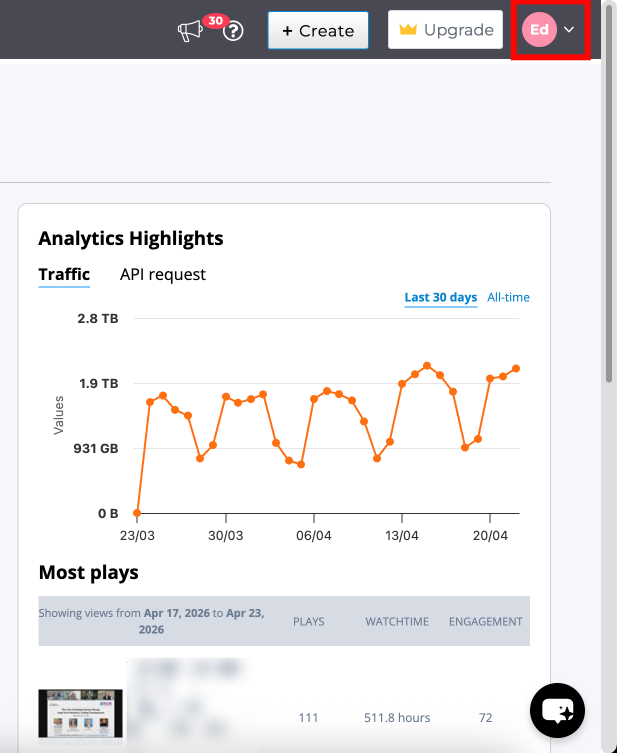
Step 2: Select Account Settings from the dropdown menu
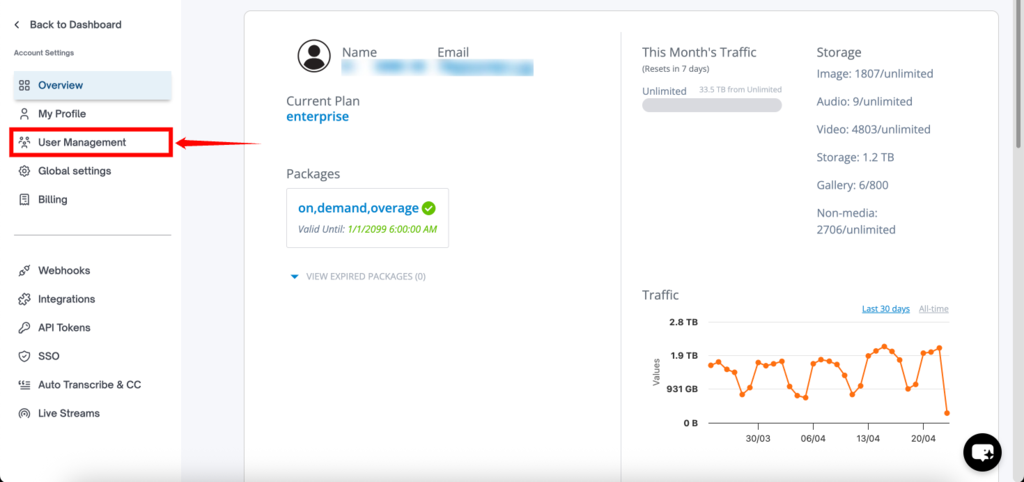
Step 3: From the left-hand menu, click on User Management
Users List Overview
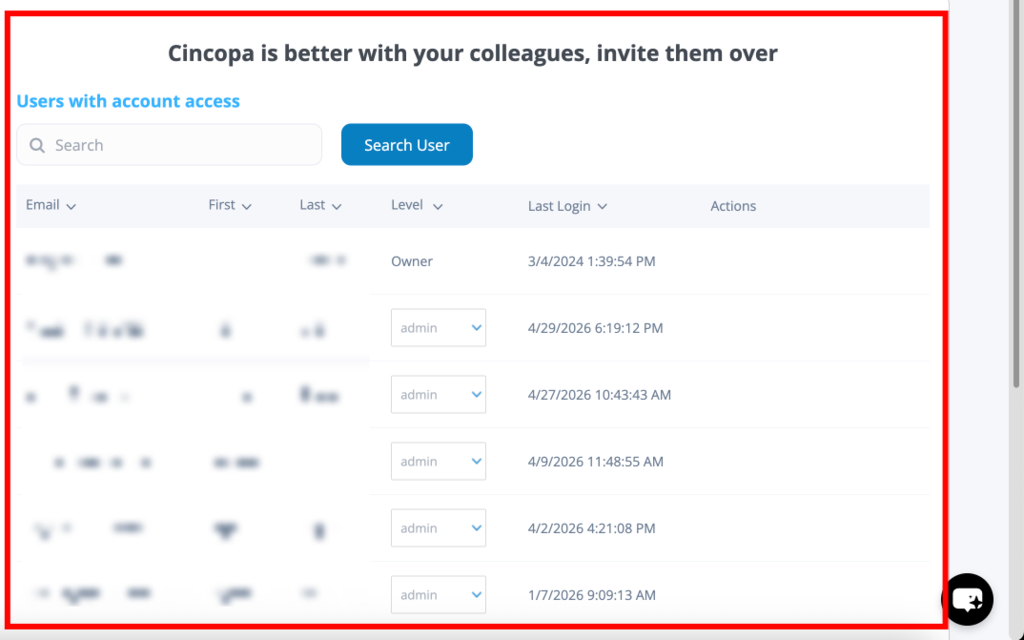
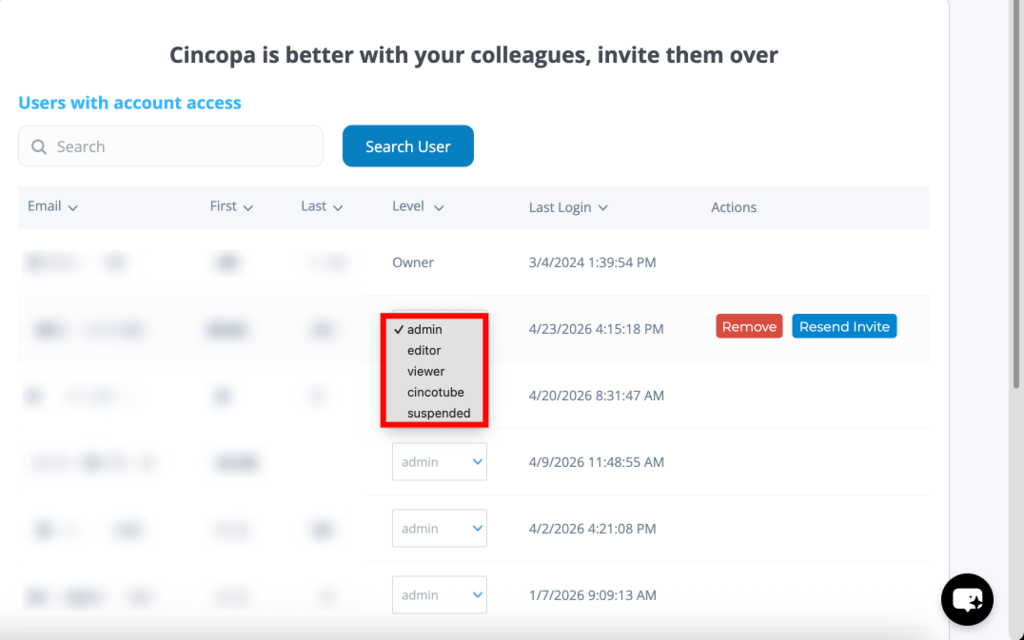
The Users List displays all members who have access to your account in a structured table format. This view allows you to quickly understand who has access and what level of permissions they hold.
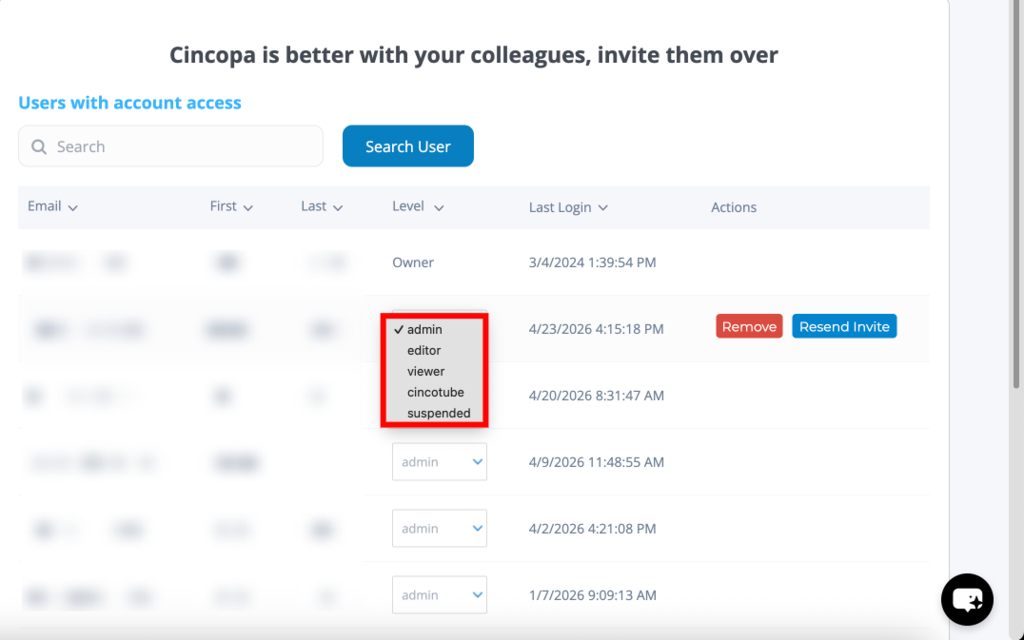
Each row represents a user and includes key details such as their email address, first name, last name, assigned role, and last login activity. The role field is editable directly from the table, allowing you to update user permissions without navigating away from the page.
You can also use the search bar at the top to quickly find specific users within the list.
User Roles & Permissions
User roles define the level of access and actions each member can perform within your account.
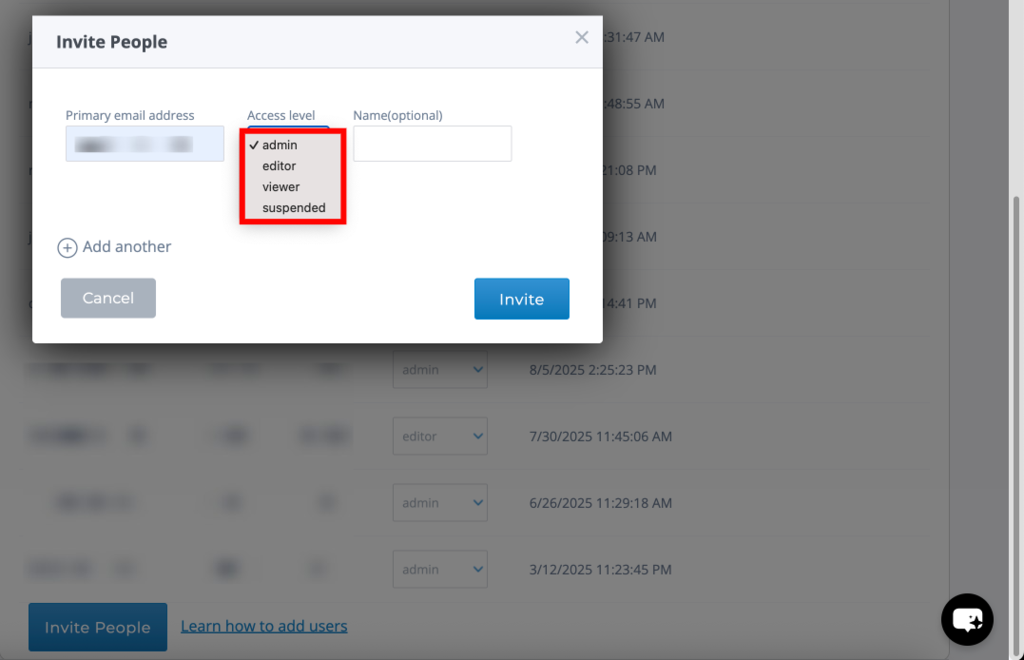
The Owner has full control over the account, including all settings, billing, and user management.
The Admin role provides broad access, allowing users to manage content, settings, and other users.
The Editor can manage and edit content such as galleries and assets but has restricted access to account-level settings.
The Viewer has read-only access and can only view content without making any changes.
The Cincotube role is a specialized access level based on platform-specific functionality.
The Suspended status removes access to the account without deleting the user.
Roles can be updated at any time using the dropdown menu available in the Users List.
Invite Users
To add new members to your account, you can invite users directly from the User Management section. This allows you to grant access without sharing your account credentials.
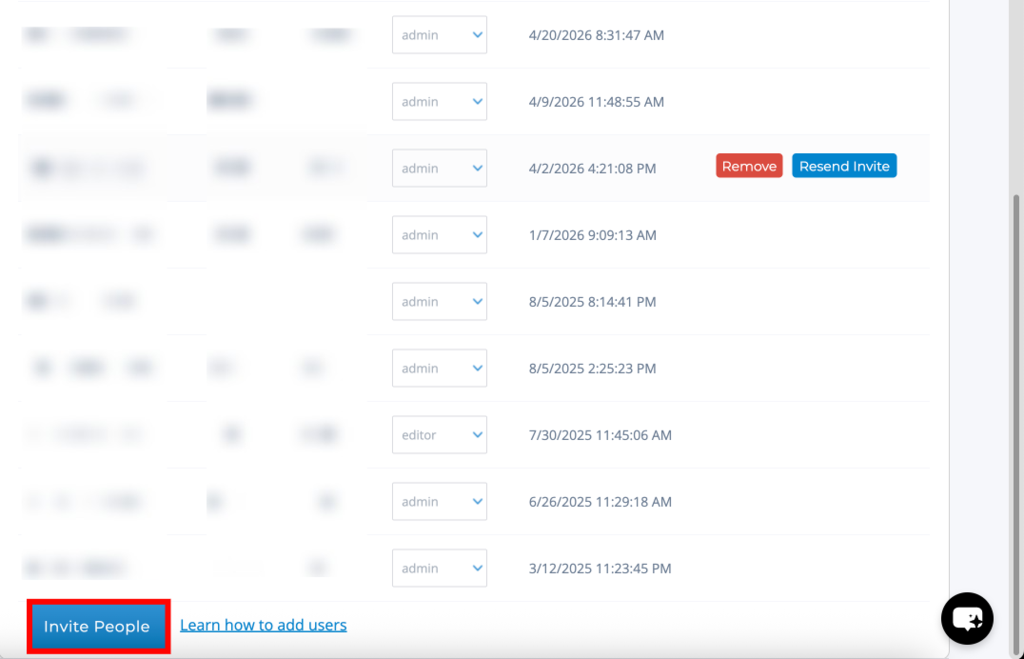
Step 1: Scroll down to the Users List and click on the Invite People button
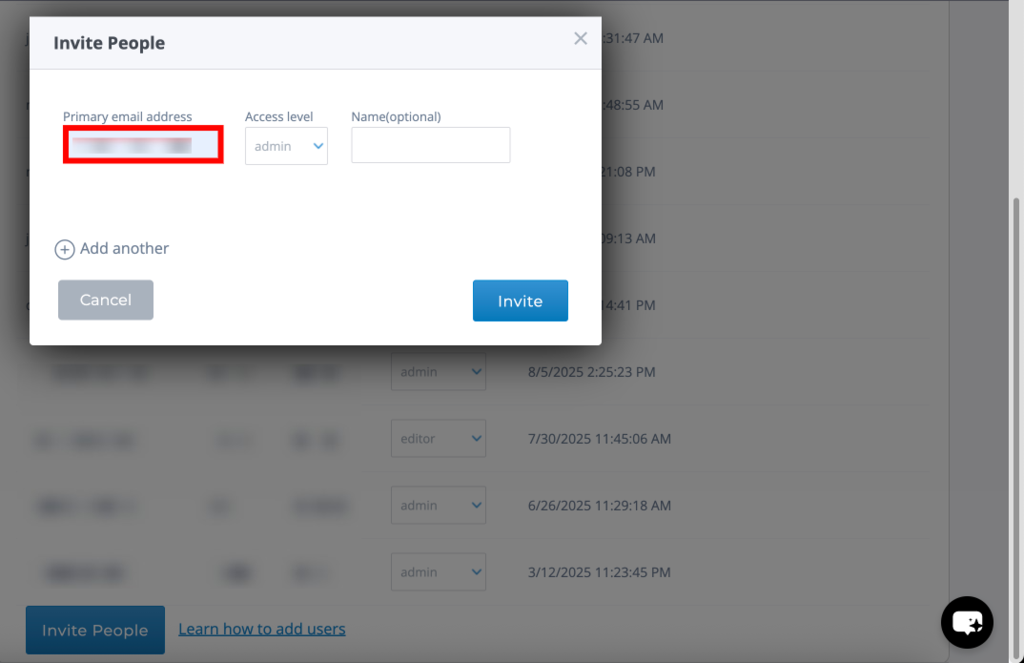
Step 2: Enter the primary email address of the user
 Step 3: Select the access level from the dropdown menu
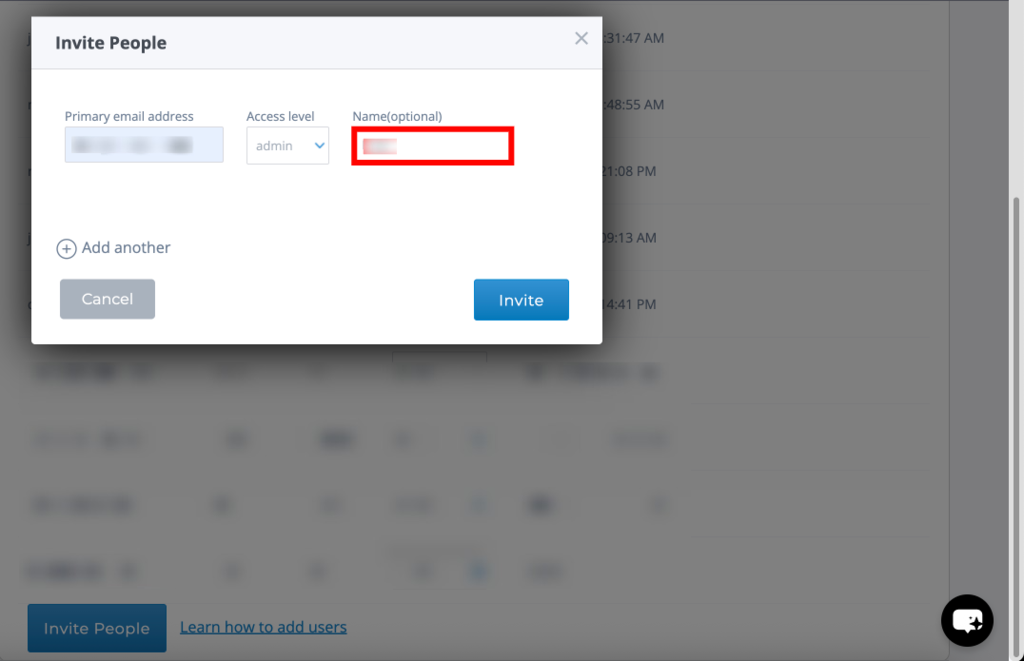
Step 4: (Optional) Enter the user’s name for easier identification
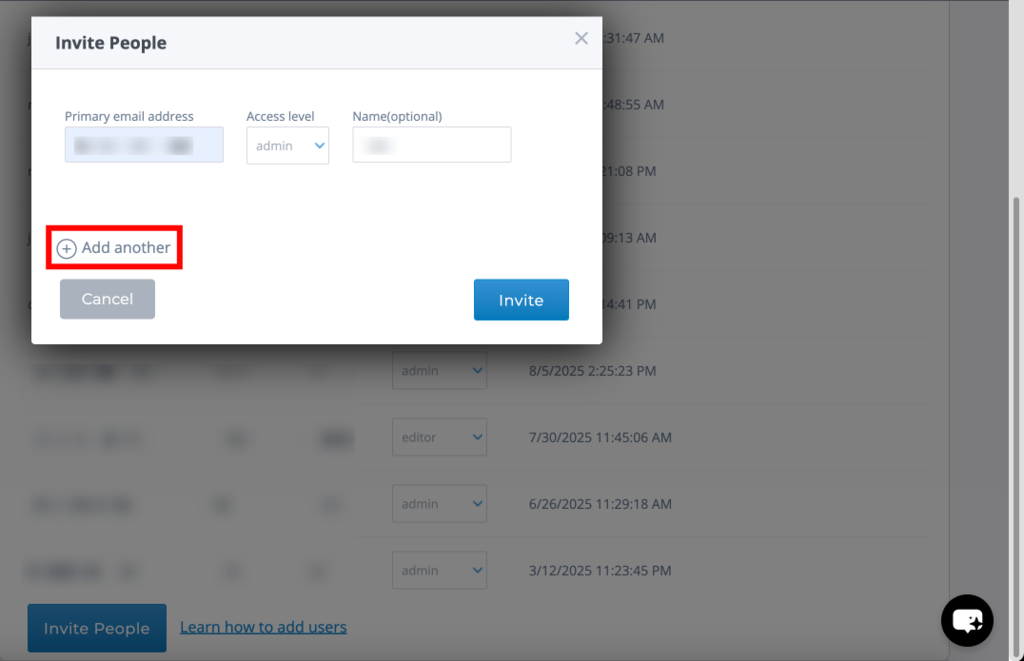
 Step 5: Click on Add another if you want to invite multiple users at once
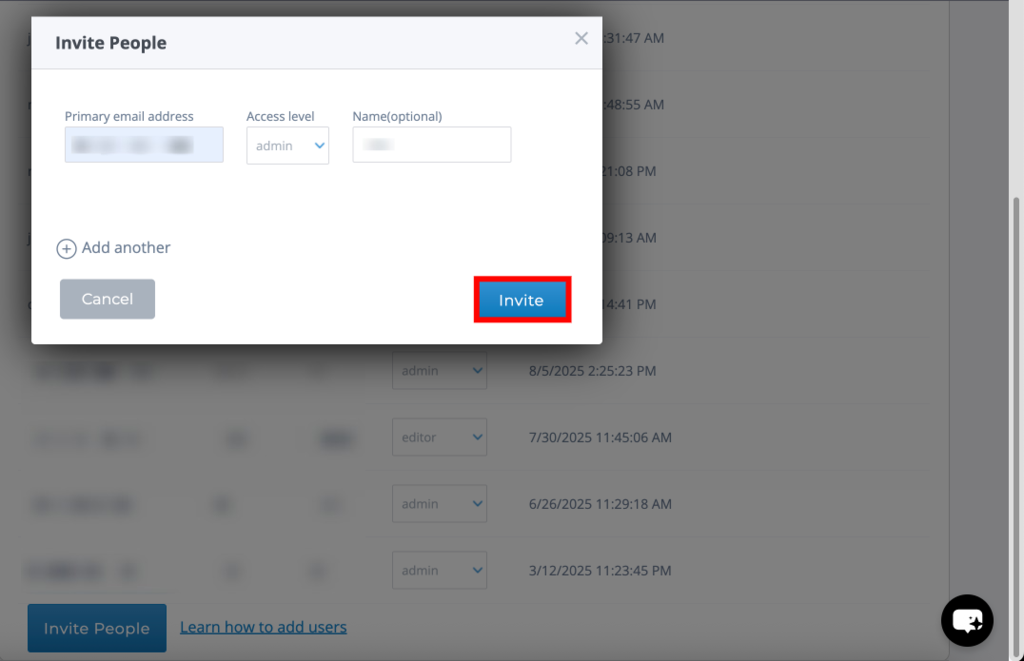
 Step 6: Click on Invite to send the invitation
Manage Users
Step 1: Hover over the user you want to manage in the Users List
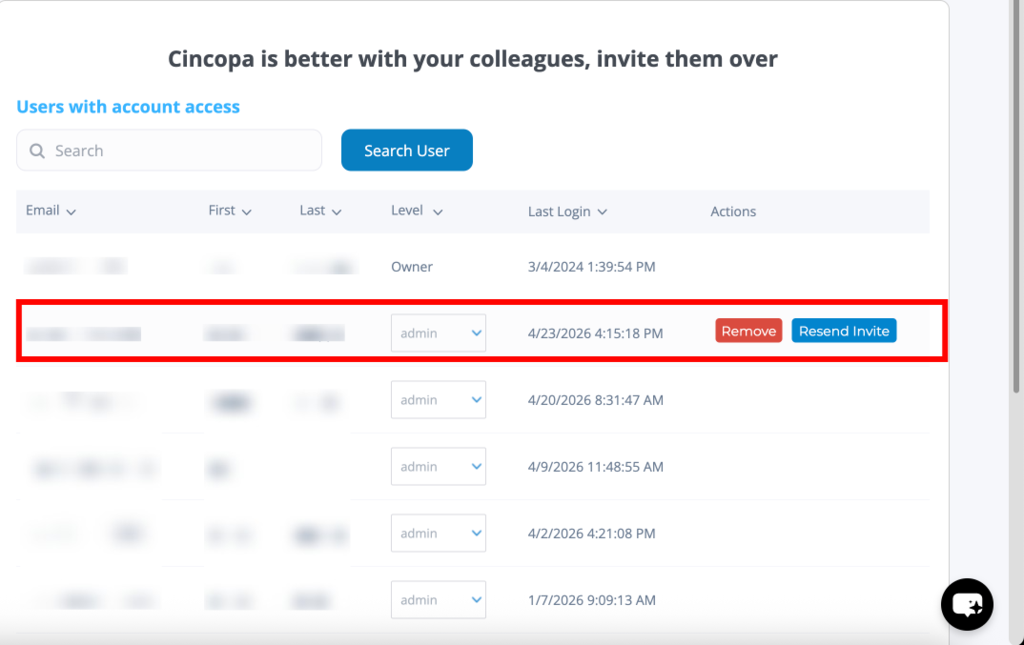
Step 2: Click on the role dropdown under the Level column and select a new access level to update permissions
Step 3: Click on Remove to revoke the user’s access to the account 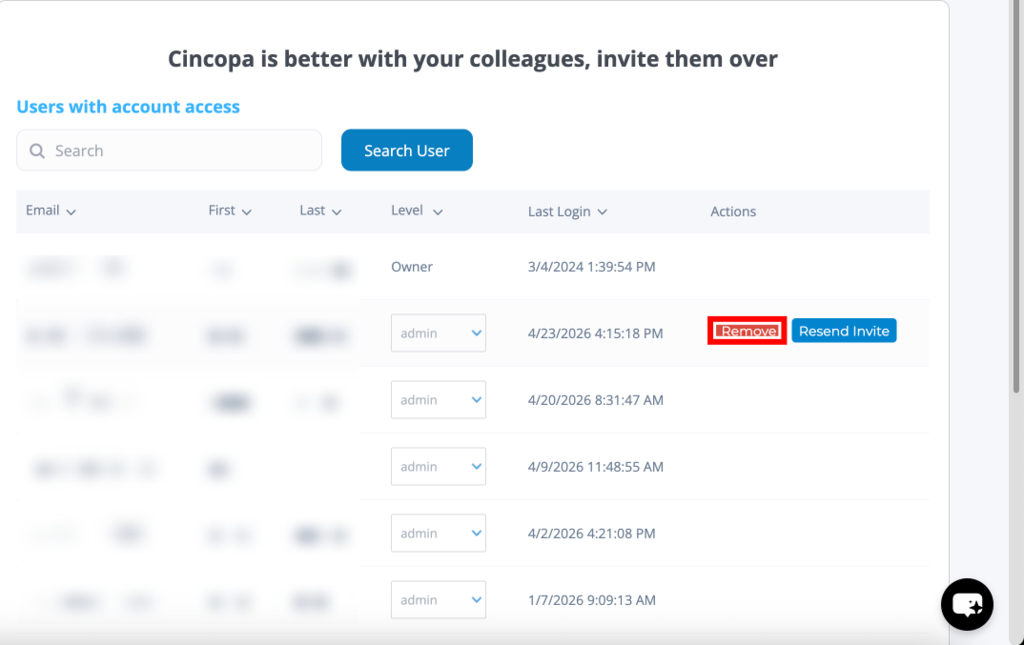 Step 4: Click on Resend Invite to send the invitation again if the user has not accepted it