PLATFORM · ACCESS CONTROL
Video access control for the right audience
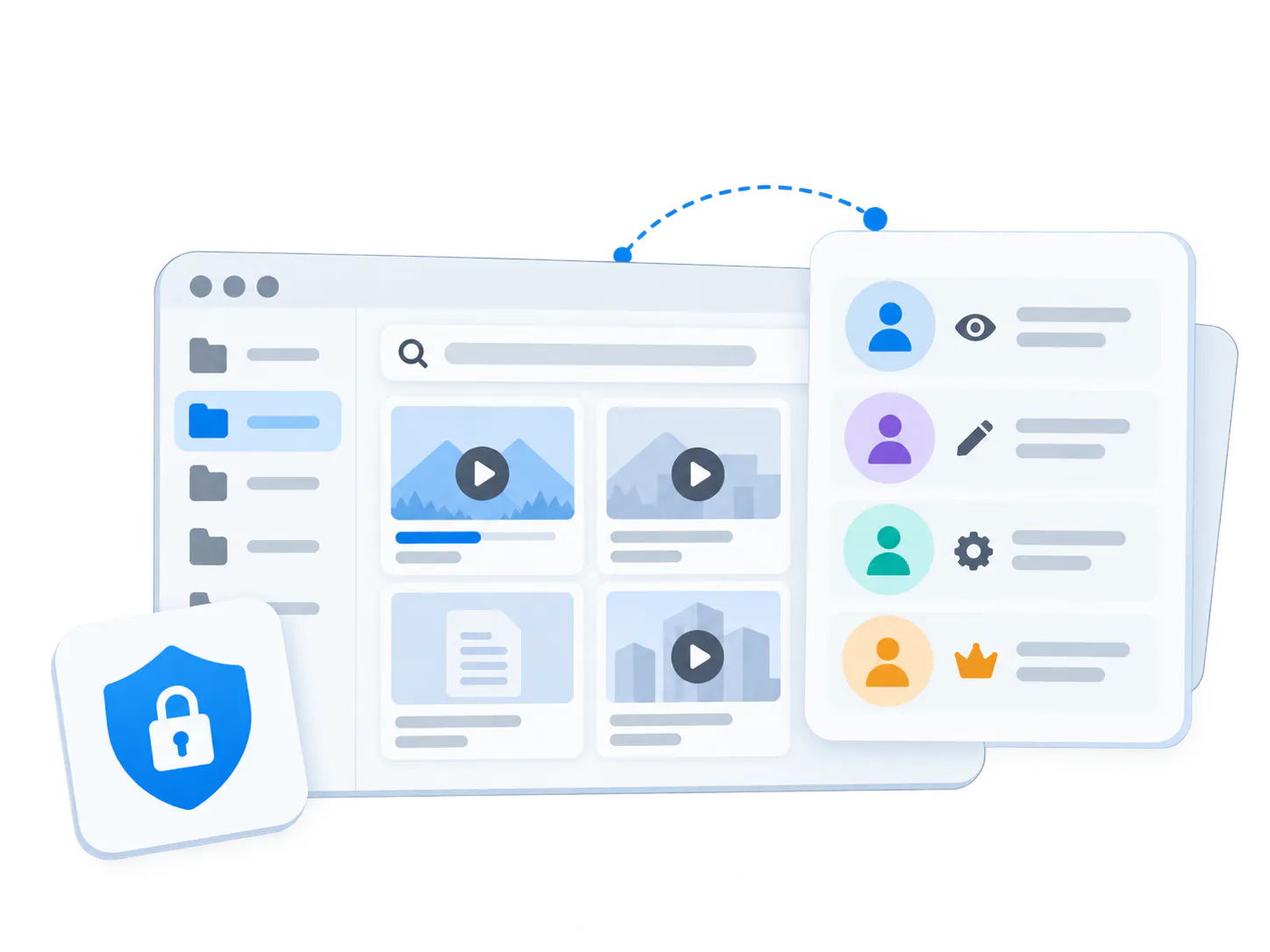
Share video knowledge with employees, partners, and customers using the access model each audience needs. Cincopa combines gallery protection, public or gated Pages, Tube user groups and roles, and server-authenticated playback.
Protect embedded Galleries
Gate a focused Page
Manage Tube audiences
Capabilities
Match protection to the destination
Choose gallery protection, a focused hosted Page or Tube permissions according to who needs access.
01
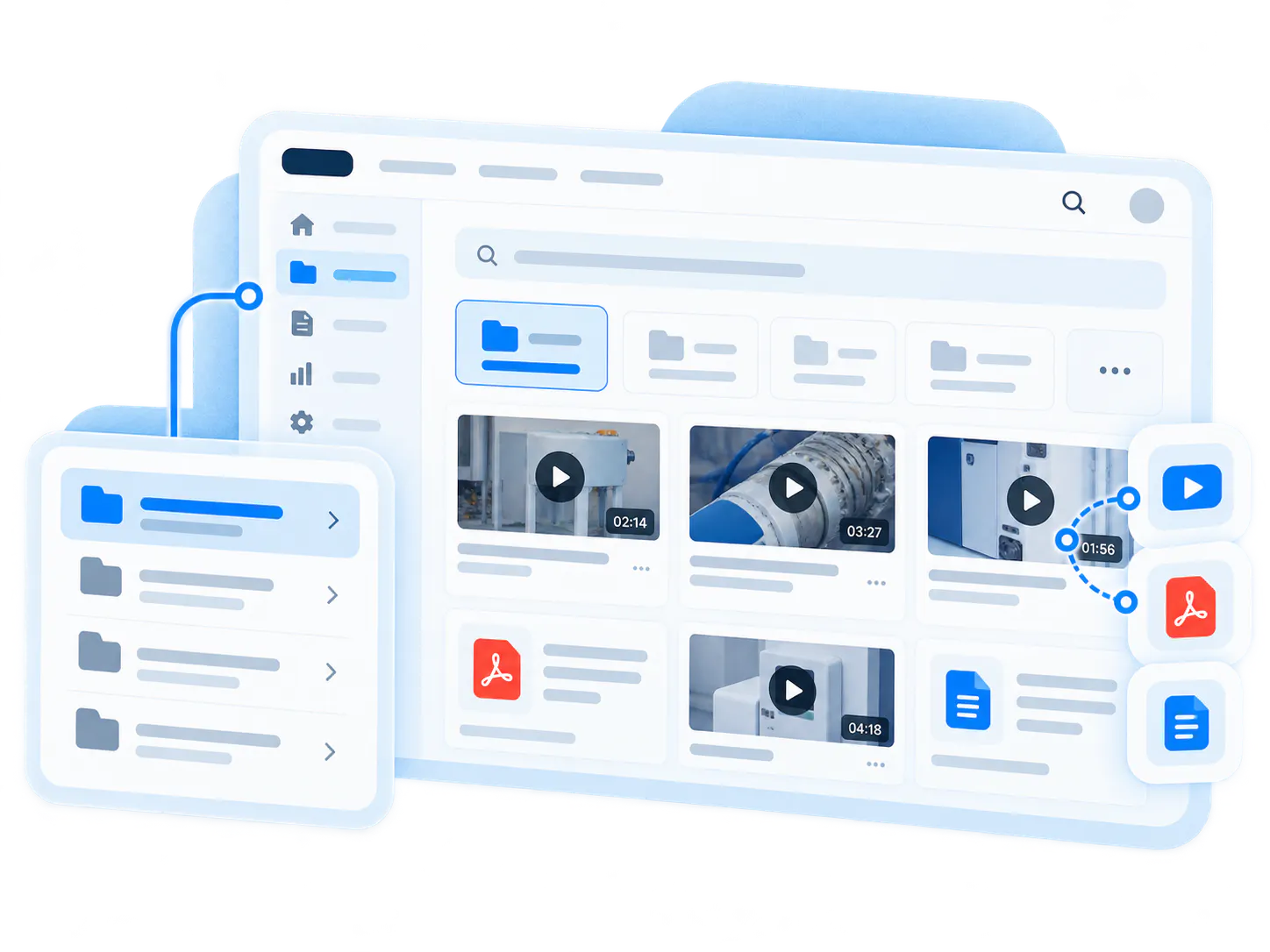
Protect embedded Galleries
Use gallery passwords to control entry and domain locking to restrict approved embed websites. Keep reusable video collections inside your existing site or learning environment.
02
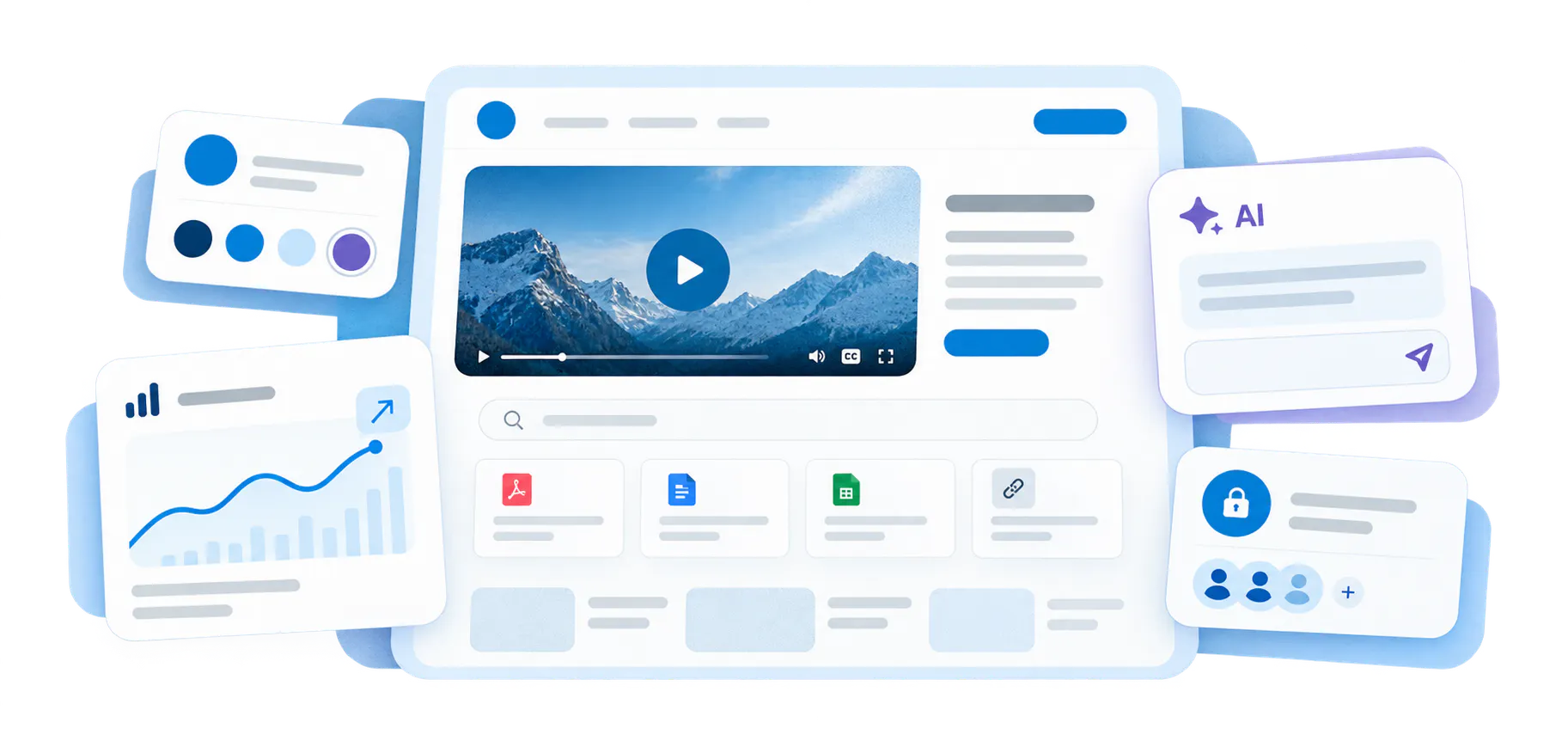
Gate a focused Page
Give one training program or partner audience a branded, hosted destination. Choose public or controlled delivery without building a full workspace-and-channel portal.
03
Manage Tube audiences
Use public or internal sites, registration controls, user groups, and workspace or channel roles to manage who can watch, contribute, or administer content.
Product workflow
Choose the right layer of control
Control what belongs together, how it appears, where it is used, and who can access it.
Control who can register and what they can do
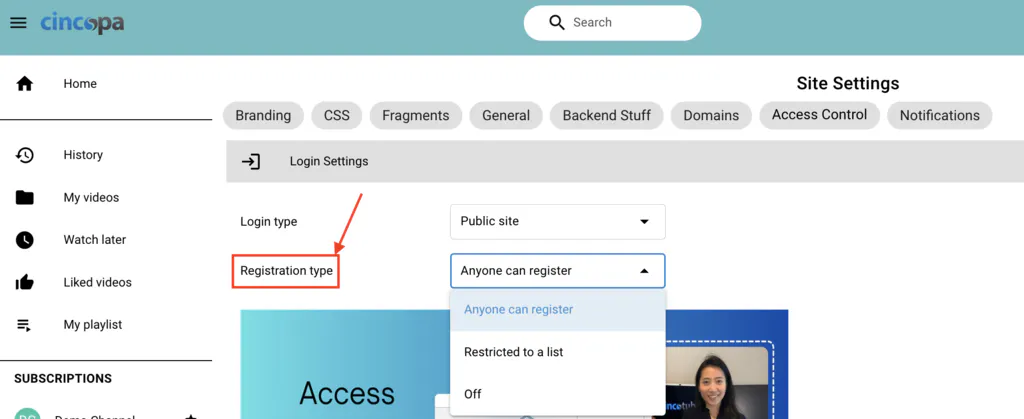
In Tube, allow open registration, restrict it to approved emails or domains, or turn it off. Invite user groups to the relevant workspace or channel, then assign Viewer, Contributor, or Admin responsibilities.
A partner training channel and an internal team workspace can serve different audiences.

Authorize playback from your own server
Secure Player requires a valid server-generated authentication token when enabled. Add expiration and an optional IP restriction to fit your application.
Test with Stage mode before enabling enforcement; keep the credentials used to generate tokens on your server.
How it works
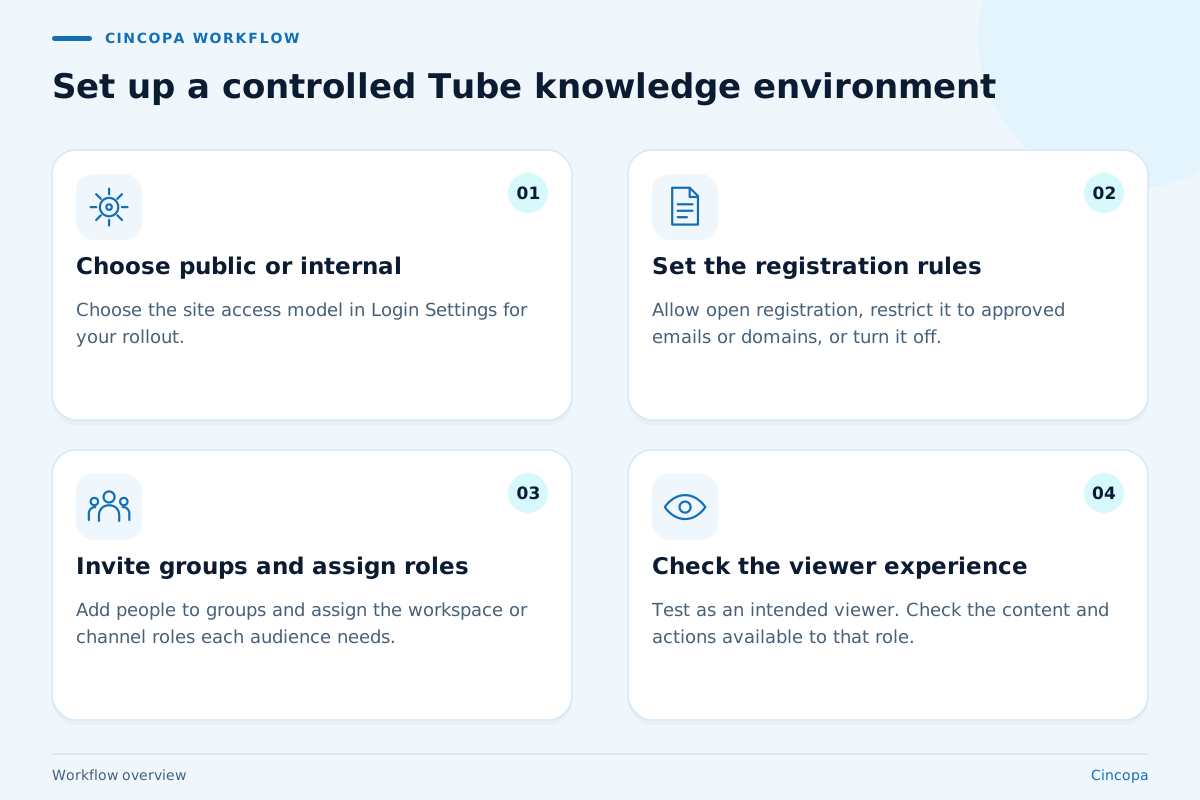
Set up a controlled Tube knowledge environment
Start with the people who need the content, then configure the site, registration, and workspace or channel permissions around them.
-
01
Choose public or internal
Open Settings → Access Control → Login Settings and choose the site access model for your rollout. -
02
Set the registration rules
Allow anyone to register, restrict registration to a list of approved emails or domains, or turn registration off. -
03
Invite groups and assign roles
Create a user group, add its members, and invite it to a workspace or channel with the role each audience needs. -
04
Check the viewer experience
Save the settings and test as an intended viewer. Confirm both access to the right content and the actions that role can perform.
AUDIENCE PLANNING
Make controlled sharing work for everyday learning
A secure rollout starts with a clear picture of the people, content, and responsibilities involved. Use the destination and access controls together to support the way your organization shares knowledge. Plan the audience, the publishing team, and the review process before the first invitation goes out.
Build around each learning audience
Employees, resellers, and customers may need different versions of the same knowledge. A partner might need product demonstrations and installation guidance, while an employee also needs internal operating procedures. Plan those collections around the audience before inviting people, so the destination makes sense from their first visit.
For a partner program, decide whether registration should cover an entire company domain or named contacts. Then use Tube groups and workspace or channel permissions to organize the intended audience. A focused Page can suit a single launch or training program. If the experience already lives inside your website or learning system, a protected Gallery lets you keep that familiar destination.
Give content teams the right responsibilities
Watching a video and managing the library are different responsibilities. A subject expert may need to contribute new demonstrations, while a wider customer audience only needs to watch them. An administrator needs to manage assigned content and access. Map those jobs to roles instead of giving every participant the same level of control.
Tube lets you assign Viewer, Contributor, and Admin responsibilities at the relevant workspace or channel. This helps a department maintain its own learning materials while keeping the audience role appropriate for everyday learners. Decide who will own membership changes, who will update the content, and who will answer access questions before rolling out the program.
Keep access aligned as the program changes
Access decisions need attention after launch. Partners change contacts, employees move teams, and a temporary training project may finish. Give someone responsibility for reviewing group membership, workspace invitations, and assigned roles when those changes happen. Include both the material people should reach and the material outside their remit in your checks.
For a password-protected Gallery, plan who receives the shared password and how you will manage it when the audience changes. For an application using Secure Player, plan token expiration around the viewing session and your own authorization rules. Test representative viewers after changing the setup, so legitimate learners can still reach the knowledge they need while the intended boundaries remain in place.
FAQ
Questions about access control
Practical answers for teams planning a training, product education or support experience.
Video access control determines who can reach content and what they can do with it. Cincopa offers gallery passwords and domain restrictions, controlled hosted Pages, Tube registration and permissions, and Secure Player tokens for server-authorized playback.
Domain locking restricts which websites can embed your Cincopa media. Viewer login controls which people can enter a destination. Use the appropriate viewer or portal controls when access must depend on an individual user.
Yes. Password protection can be configured for an individual Gallery, so separate collections can use different passwords. Viewers enter the password before viewing the protected collection. A shared password controls entry without identifying each viewer individually.
Yes. In Tube Login Settings, choose Restricted to a List and enter the approved email addresses or domains. User groups and workspace or channel permissions then help organize access within the portal. Review registration eligibility and content permissions separately.
Tube supports Owner, Admin, Contributor, and Viewer roles. Owners have full access; admins manage assigned content and access; contributors can add and manage content; viewers have read access. Assign roles at the appropriate workspace or channel.
Yes. Secure Player uses authentication tokens generated by your server. Tokens can expire and can be restricted to an IP address. In Enabled mode, a missing or invalid token prevents the player from loading. Your application decides when to issue a token.
Choose Pages for one focused branded destination with public or controlled access. Choose Tube when you need multiple workspaces, channels, audiences, user groups, and ongoing role-based administration.
Start with your audience, destination, and login requirements. Cincopa can help map them to Galleries, Pages, Tube, and Secure Player. Check the current pricing or discuss enterprise identity and deployment requirements with the team.
Next step
Share the knowledge. Control the audience.
Bring your employee, partner, or customer rollout to Cincopa. We will help you choose the destination and access controls that fit it.