PLATFORM · ATTACHMENTS & DOCUMENTS
Keep video attachments and documents beside the walkthrough
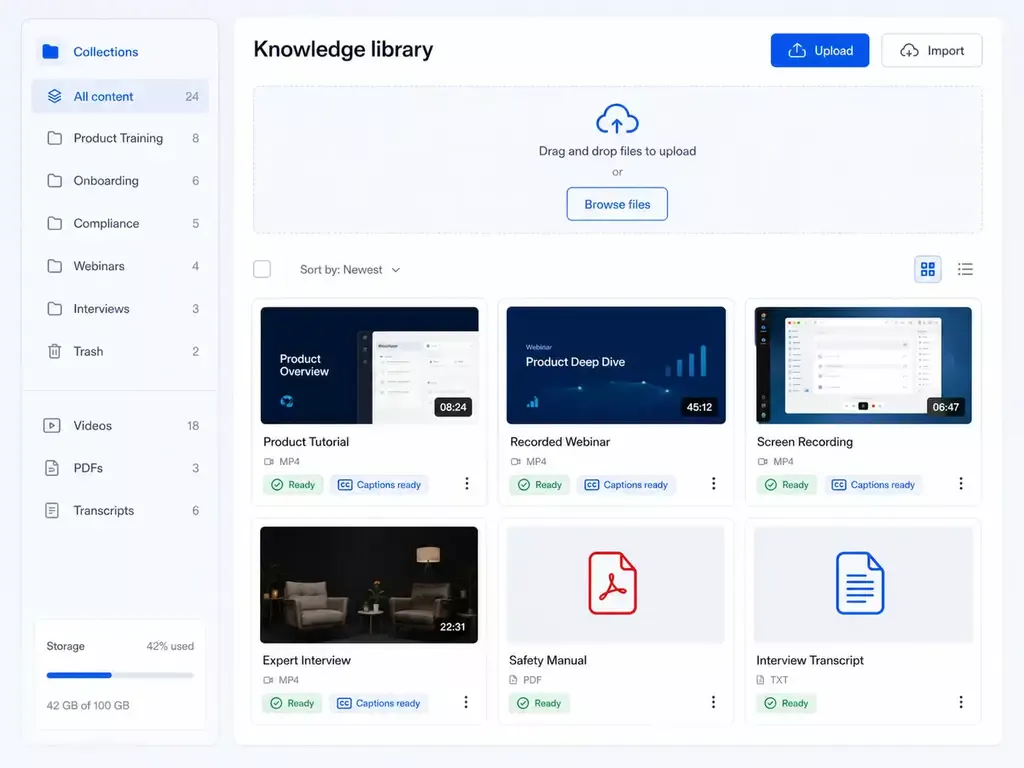
Give viewers the explanation and the reference material in one place. Attach downloadable files and useful links to your videos, then bring supported PDFs and documents into a knowledge collection that VideoGPT can answer from.
Provide the supporting file
Connect the next useful link
Ask across video and documents
Capabilities
Keep the reference close to the explanation
Combine a walkthrough with downloadable files, useful links and supported VideoGPT sources.
01
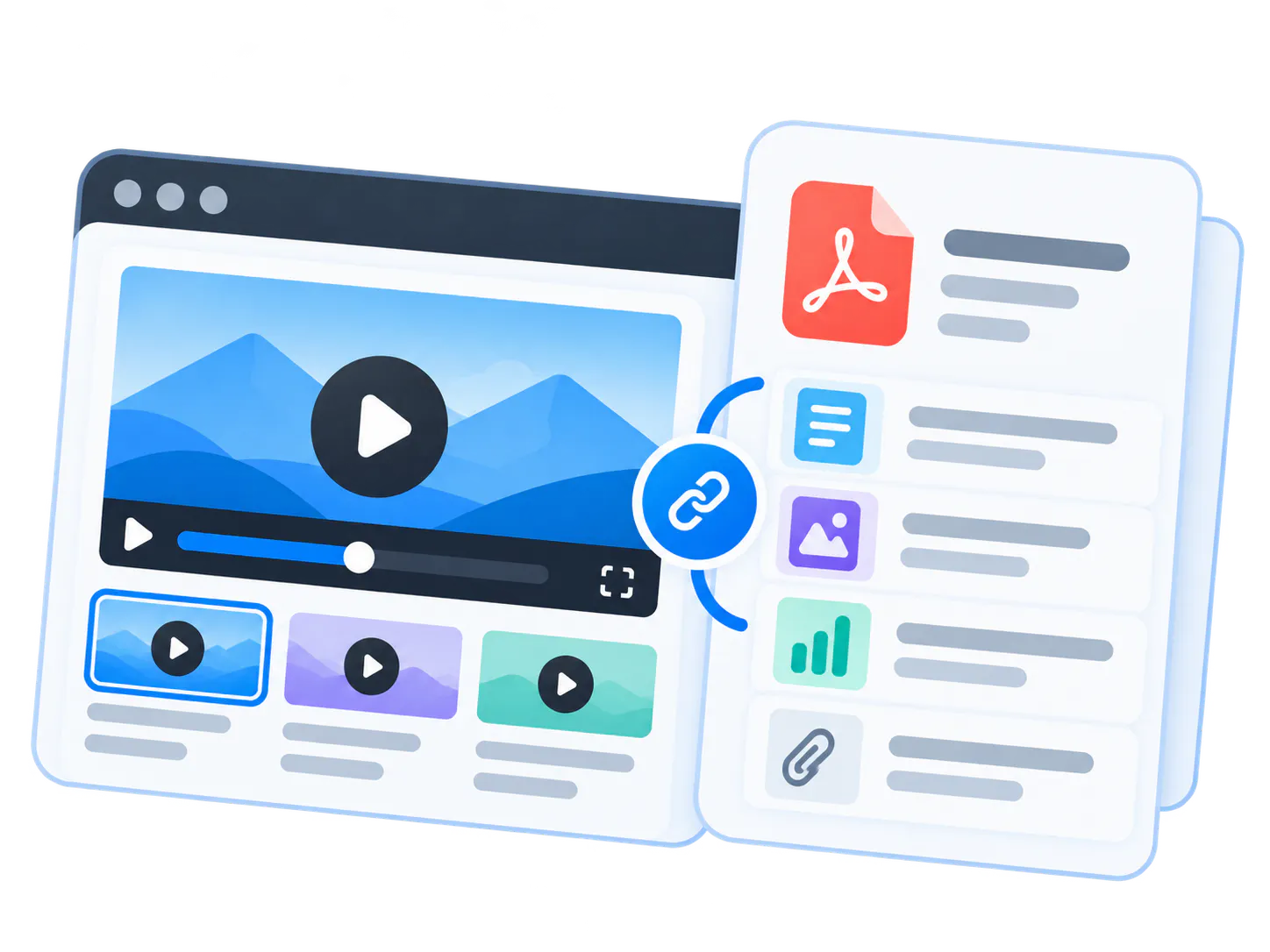
Provide the supporting file
Pair a setup video with a manual, a lesson with a worksheet, or a release briefing with release notes. Viewers can download the reference they need while watching.
02
Connect the next useful link
Add a clearly named link to a help article, related resource, or external reference. Keep the next step attached to the asset instead of hiding it in a separate message.
03
Ask across video and documents
Add supported documents to your VideoGPT knowledge collection so answers can use the written detail alongside the video transcript and point back to the relevant source.
Product workflow
Make supporting resources easy to use
Control what belongs together, how it appears, where it is used, and who can access it.
Manage each asset’s reference material
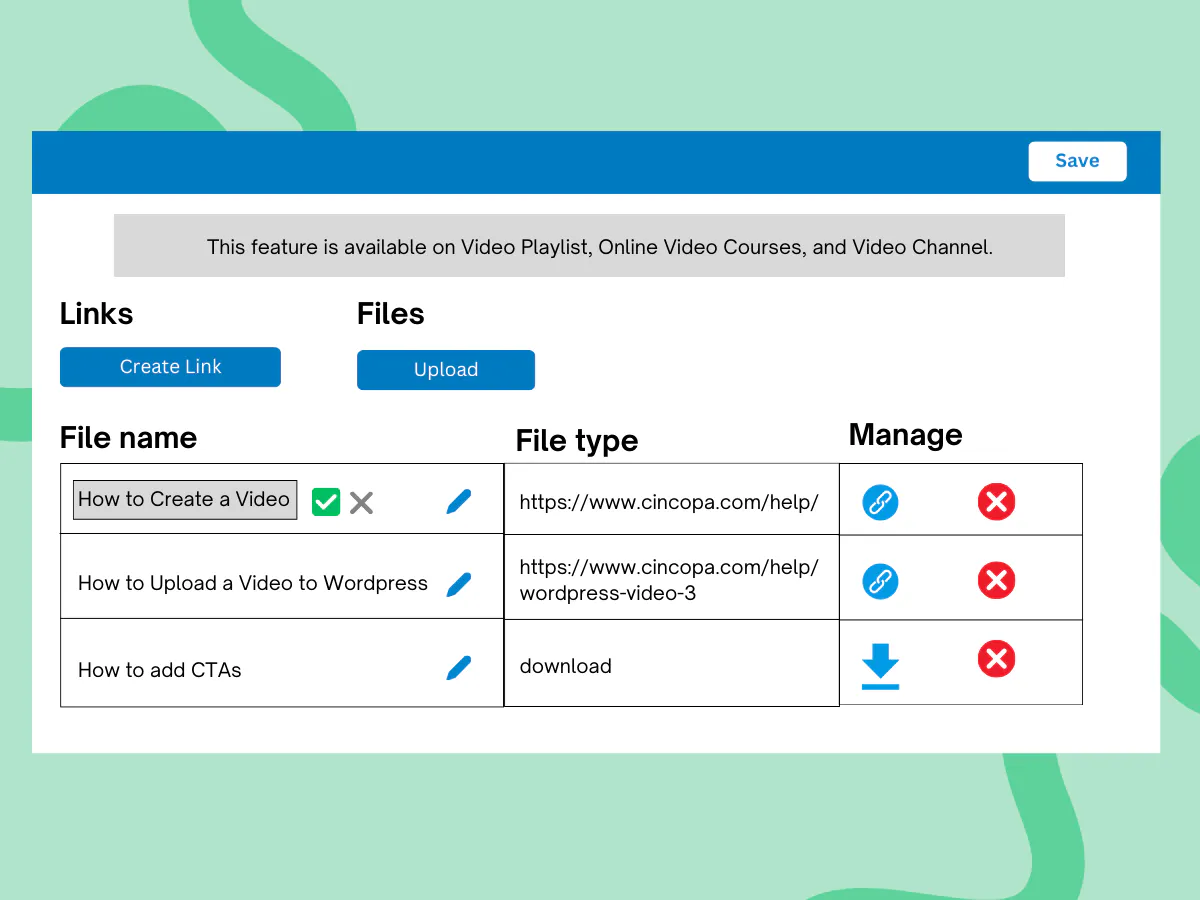
Open Attached Files & Links in the asset settings. Upload files or create links, edit their display names, reorder the list, and remove outdated resources. Give the walkthrough its own clear set of supporting material.
Watch, download, and follow the reference
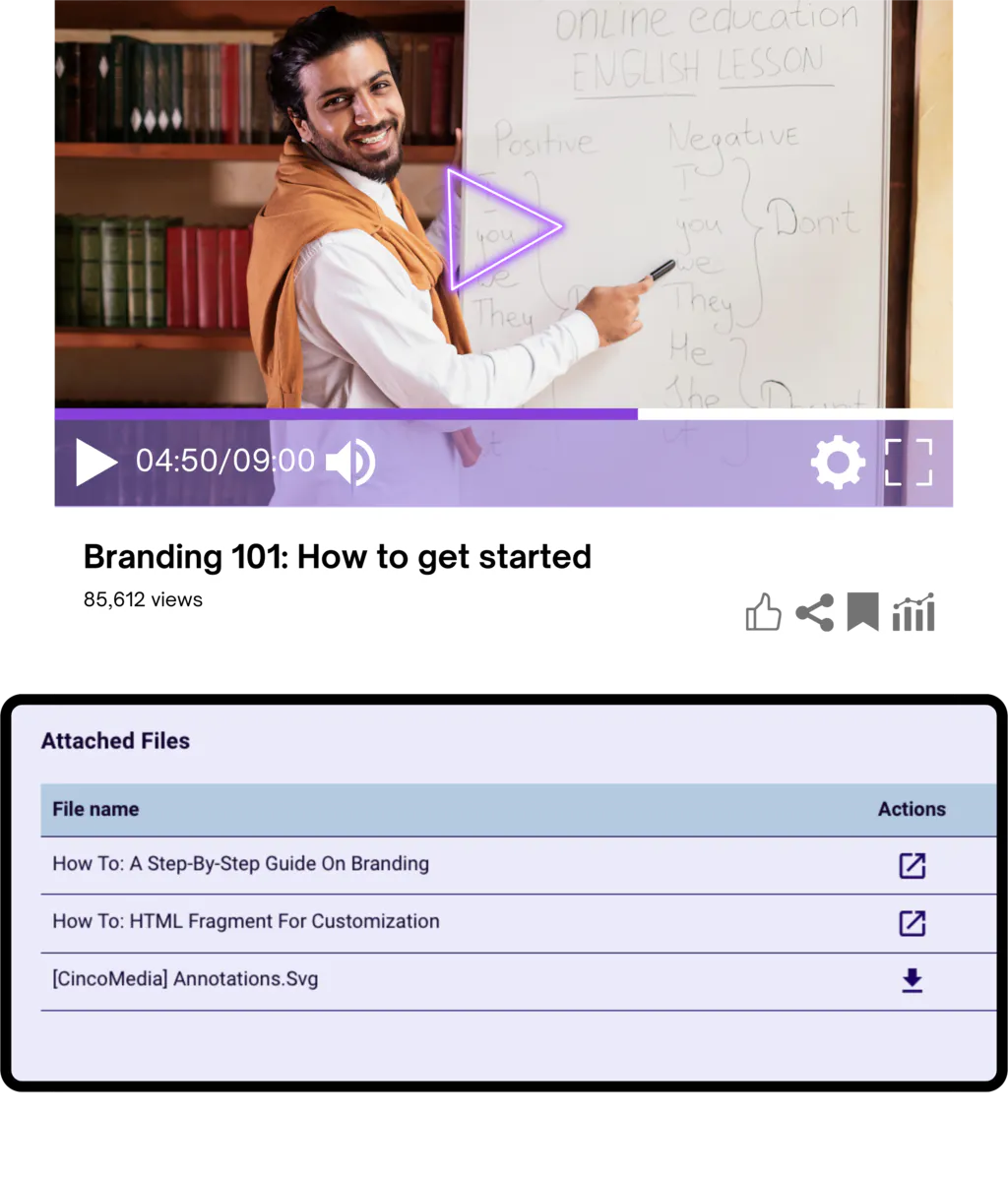
Tube asset pages and supported Gallery layouts display attached files and links beneath the player. Viewers can download a file or open a link in a new tab. For a hosted Page, choose a Gallery layout that supports the attachments your audience needs.
How it works
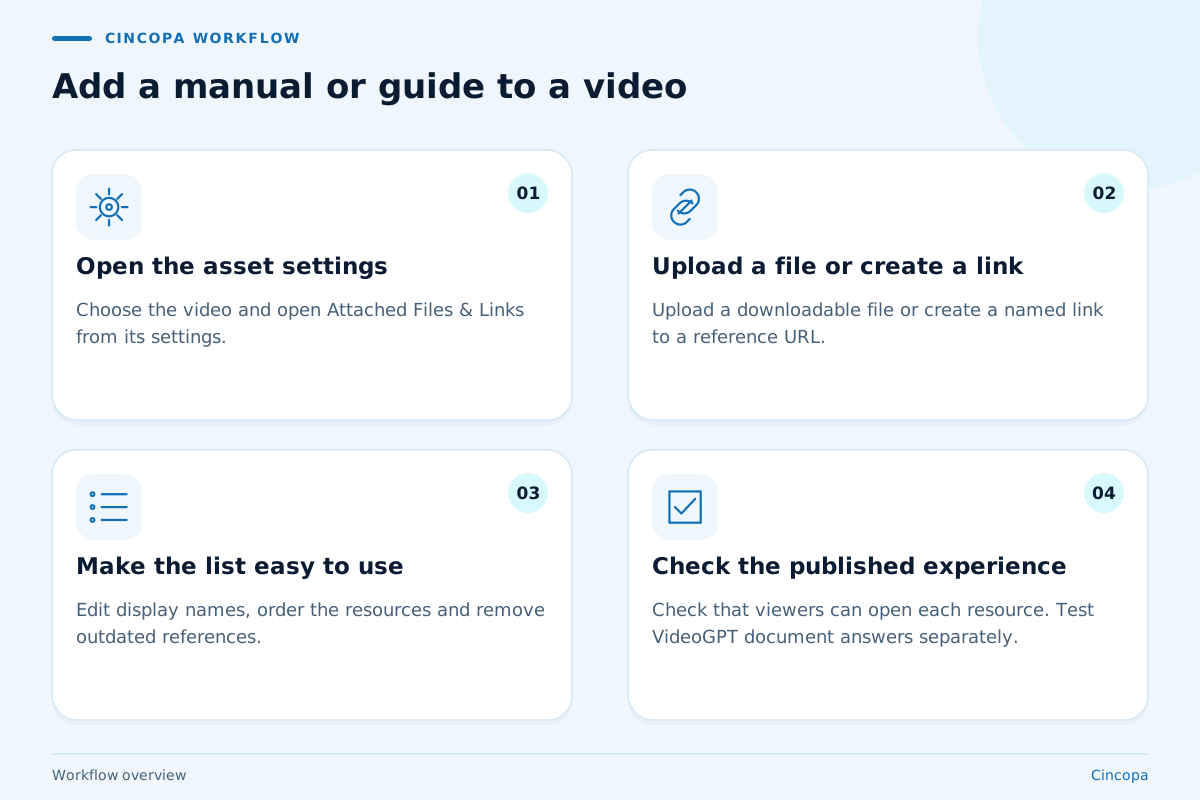
Add a manual or guide to a video
Attach existing reference material first. If you also want AI answers, include supported documents in the relevant VideoGPT source collection and test the questions your viewers will ask.
-
01
Open the asset settings
Choose the video and open Attached Files & Links from its settings. -
02
Upload a file or create a link
Use Upload under Files for a downloadable attachment. Use Create Link for a named link to a reference URL. -
03
Make the list easy to use
Edit the display names and drag resources into a useful order. Remove references that are no longer current. -
04
Check the published experience
Use Tube or a supported Gallery layout, then confirm the viewer can find and open each resource. Test VideoGPT document answers separately when enabled.
Reference planning
Build a useful reference bundle
The right supporting material helps viewers complete the task after the video ends. Choose the resource format, assemble a focused bundle, and give the team a clear way to review it as the subject changes.
Choose a file or a maintained link
A download works well when the viewer needs something to keep, print, fill in, or use away from the video. Think of a worksheet for a lesson, a checklist for an installation, or release notes tied to a particular product update. Label the file for the lesson or product version it supports.
Use a link when the next step belongs in a maintained destination: an online help article, a product specification page, or a registration form. A URL lets the team update that destination without distributing another copy of the file. Decide which action the viewer should take, then choose a resource name that makes the action clear before they open it.
Match the bundle to the task
Give a course lesson a worksheet and a reading link so learners can practise the task after watching. Pair a product setup video with a quick-start checklist and a troubleshooting article so customers have the steps in writing when they begin. A partner briefing might need a presentation, implementation guide, and a link to the next training session.
Keep each bundle focused on the job shown in that video. A long list of general resources can make the useful reference harder to find. Put the material needed during the task first and supporting detail after it. Across learning, onboarding, and support, the video demonstrates the process while the attachments help someone carry it out.
Review the reference and the AI experience
Treat supporting material as part of the video review. When a product workflow or training instruction changes, check whether the attached manual still matches the demonstration, whether each link reaches the intended destination, and whether an old resource should be removed. Assign someone to keep that bundle useful instead of leaving the review to the next viewer.
Plan the AI experience separately. A downloadable file gives people a reference they can open; supported documents in a configured VideoGPT knowledge collection give them material they can ask about. For an AI rollout, confirm the selected sources and test realistic questions alongside the download and link experience.
FAQ
Questions about attachments & documents
Practical answers for teams planning a training, product education or support experience.
Yes. Open the asset settings, choose Attached Files & Links, and upload the file under Files. A manual, guide, worksheet, or release note can accompany the video as a downloadable reference.
Yes. Create a link with the display text and destination URL. In a supported viewing experience, viewers can open that link in a new browser tab.
Attached files appear beneath the player on Tube asset pages and supported Gallery layouts. The documented Gallery layouts include Online Course, Video and Podcast Channel, and Spree Video Playlist. Confirm the layout used in your rollout supports attachments.
Yes. Edit a resource name to make its purpose clear, drag items to change their order, and delete files or links that should no longer accompany the asset.
Yes. VideoGPT can answer across supported documents and videos in its knowledge environment and direct users to relevant sources. Include the documents in the selected source collection and verify the answers against your content.
They serve different purposes. An attachment provides a file or link that a viewer can open. VideoGPT uses supported source content available in its configured knowledge collection. Check document inclusion and answers separately from the attachment download experience.
Assets and their supporting resources can stay connected when the same Gallery is reused. The destination must use a layout that exposes attachments. A branded Page can host that Gallery when the program needs its own destination.
Start with one existing training or support video and its manual, guide, or release note. Publish them together, check that viewers can reach the resources, and add VideoGPT when you want questions answered across the broader collection.
Next step
Make the walkthrough and the reference work together
Bring your existing videos, manuals, and guides. Cincopa can help you publish them in a usable knowledge experience and add answers across the collection.