AI Voiceover for Videos Created by Your Team
Help the people who know your products and processes create useful videos without the pressure of performing on camera. They record their screen and explain it in their own voice. Cincopa turns the transcript into AI narration, so their knowledge reaches viewers in a voice they choose.
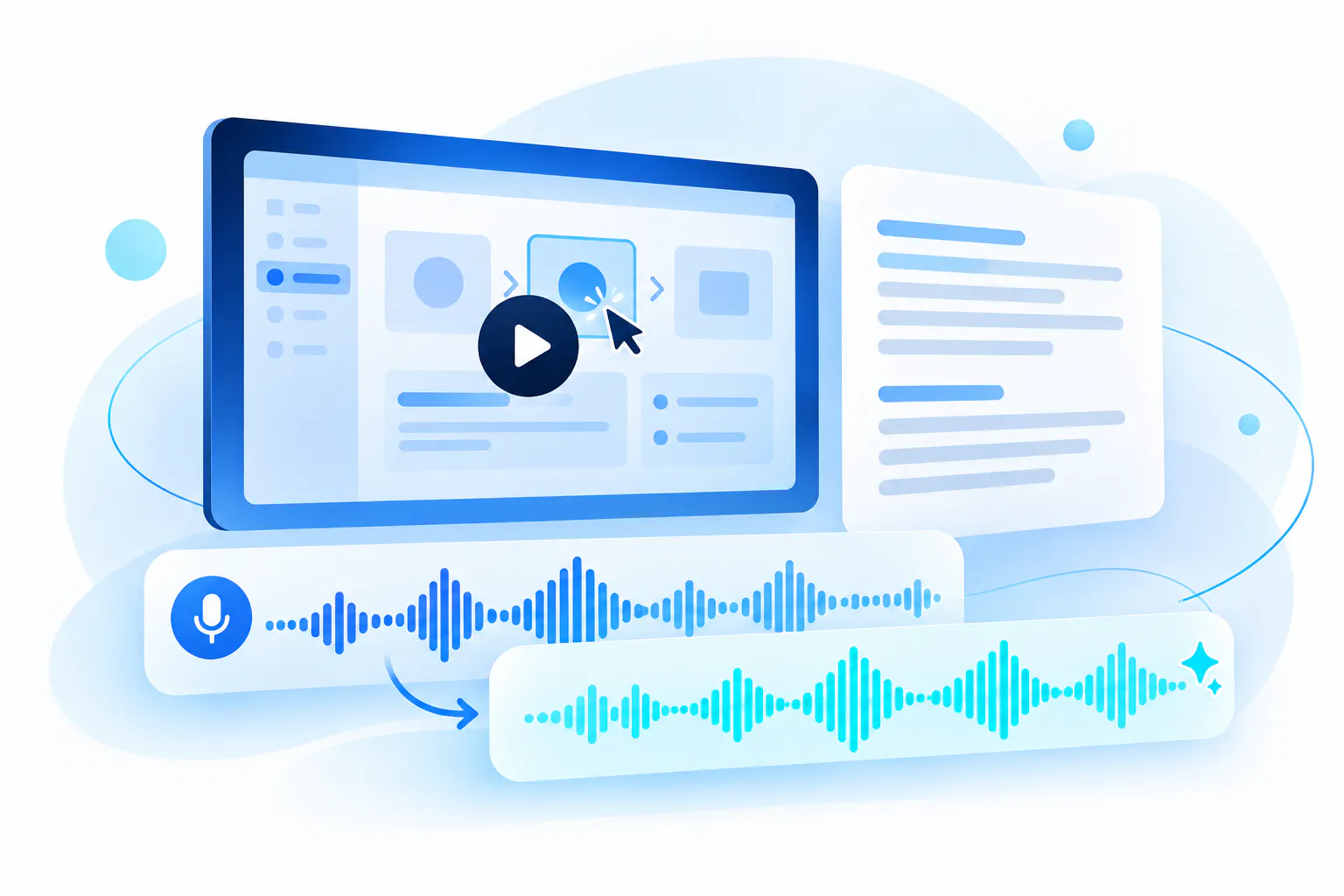
Make video creation part of everyday teamwork
Your best source of training material may be a support specialist, product expert, or colleague who knows a process inside out. AI voiceover gives them a practical way to share that knowledge through screen recordings.
Record a screen walkthrough
Ask the person who knows the work to show it on screen and talk through each step. They can explain naturally, off camera, while their recording captures the knowledge others need.
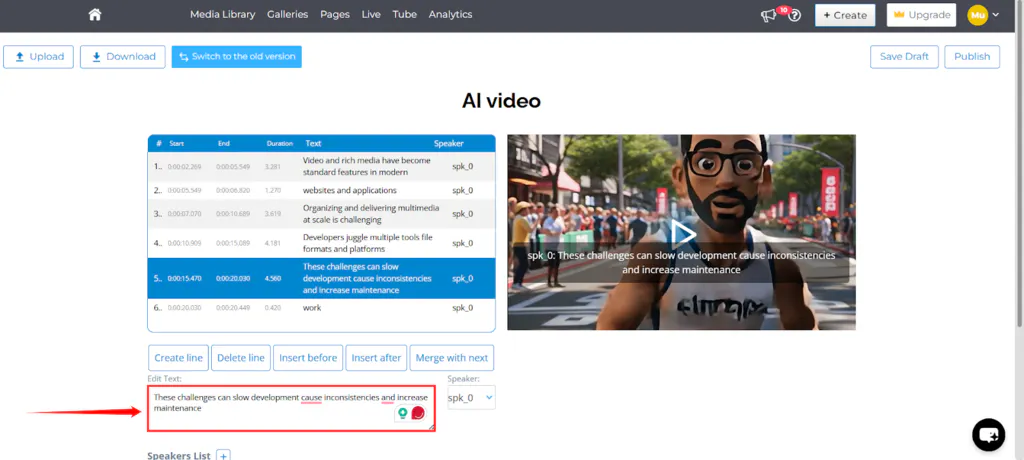
Refine the explanation as text
Review the transcript and correct the wording before generating narration. Your expert can focus on sharing the right explanation during recording, while your team refines names, technical terms, and unclear sentences afterward.
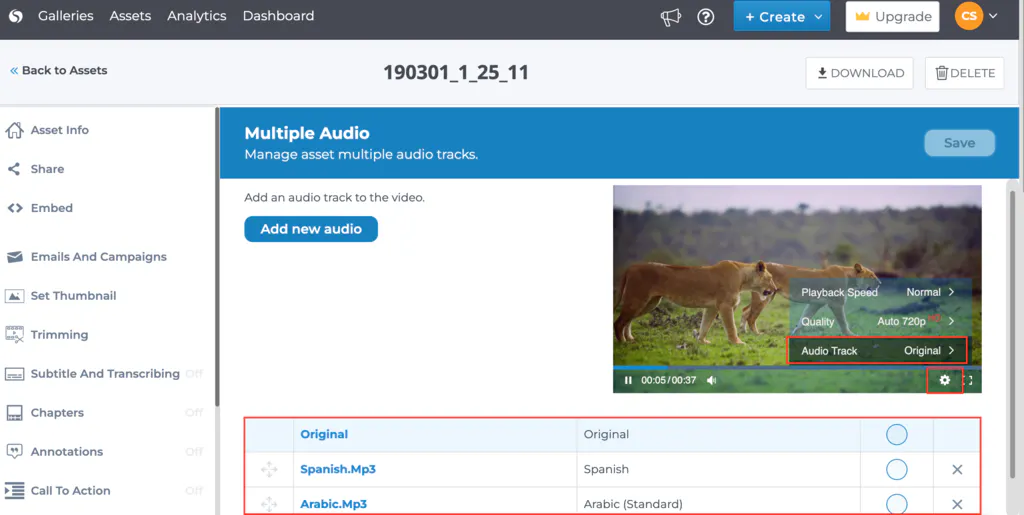
Let AI deliver the narration
Choose an AI voice for the explanation viewers hear, helping teammates who dislike their recorded voice feel more comfortable contributing. Keep the generated narration and original audio together, and select the active track.
Bring more of your team’s knowledge into video
Control what belongs together, how it appears, where it is used, and who can access it.
Turn a colleague’s walkthrough into a reusable explanation
The person who solves a customer problem or runs a process often has the clearest explanation. Asking them to present on camera can turn a simple contribution into a production task. A screen recording lets them demonstrate what they know while talking through it in their own words.
A support specialist can show how to resolve an issue. A product expert can explain a feature, and an operations colleague can demonstrate a routine task. The aim is to make contributing useful video feel like explaining the work to another teammate.
Upload the recording to Cincopa, review its transcript, and generate an AI narration track. The screen demonstration remains the visual guide, while the selected voice delivers the explanation.
Refine the narration while keeping the expert’s meaning
A natural explanation may contain filler words, an unclear sentence, or a product name that needs correction. Review the transcript before generating narration so the final wording reflects what the expert intended. AI-assisted grammar correction can help with the wording, while your team remains responsible for accuracy.
Preview available voices and choose a supported language, accent, tone, or style suited to the audience. Then listen to the generated audio with the video, checking instructions, pronunciation, and timing before sharing it.
Use Audio Tracks to manage the AI narration and original audio on the same video. You can choose the active track without uploading a replacement video, and keep several narration tracks attached to the asset.
From a teammate’s screen recording to AI narration
Start with a screen recording made using your preferred recording tool. Your teammate’s spoken explanation supplies the content; Cincopa provides the transcript and voiceover workflow once the video is uploaded.
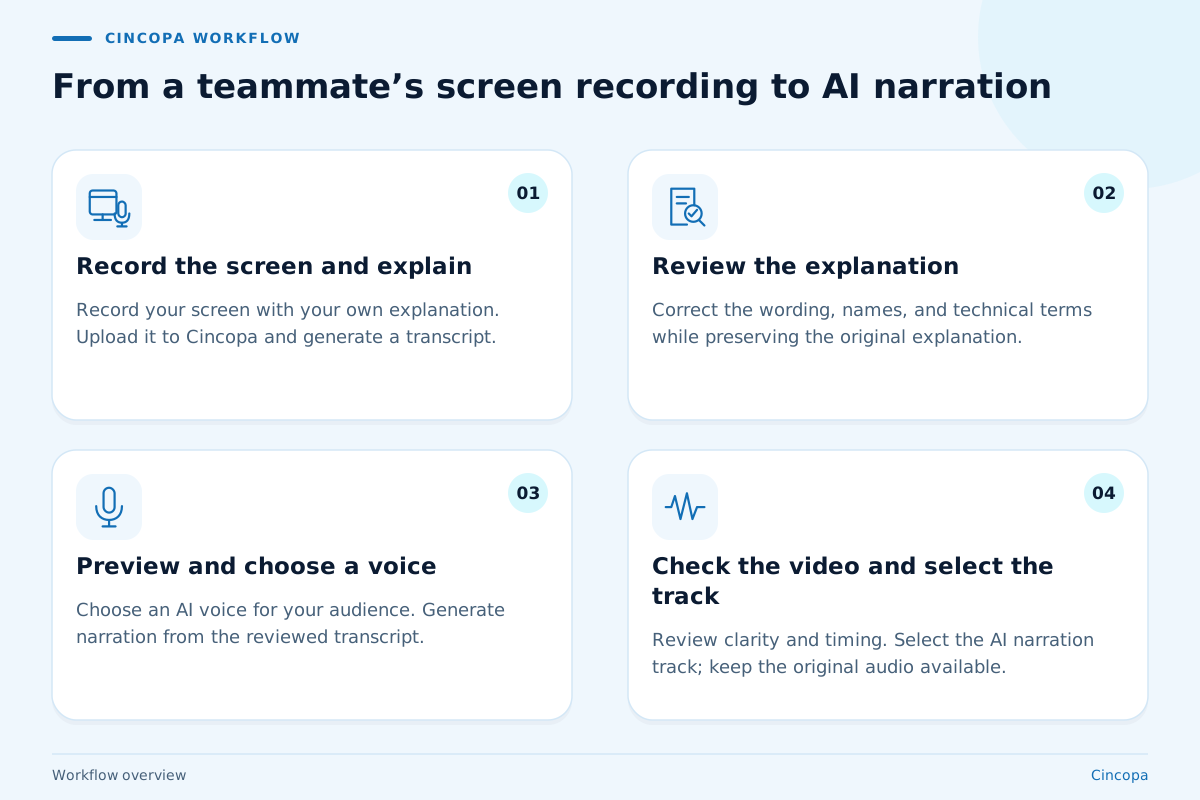
-
01
Record the screen and explain
Show the task, product, or process on screen and describe it in your own voice. Upload the recording to Cincopa and generate a transcript if one is not already available. -
02
Review the explanation
Check the transcript for accurate steps, product names, and technical terms. Refine unclear wording and use AI-assisted grammar correction where helpful, preserving the meaning of the original explanation. -
03
Preview and choose a voice
Listen to the available AI voices and select the supported language, accent, tone, or style that fits your viewers. Generate narration from the reviewed transcript. -
04
Check the video and select the track
Watch the screen recording with its AI narration to check clarity, pronunciation, and timing. Select the new narration in Audio Tracks when it is ready; the original audio remains available.
Make each recording earn its place in the library
AI narration makes contributing easier. Decide what each video should teach, how it should sound alongside other recordings, and when the demonstration needs updating.
Capture the decisions behind the task
Ask experts to explain why they choose a step, including exceptions a new colleague might miss. A screen walkthrough can capture this practical judgment alongside the clicks. Give each recording a clear purpose, such as resolving one support issue or answering one recurring onboarding question.
Create a familiar voice across contributors
Different colleagues can supply different expertise while your team chooses a consistent narration voice for a related collection. Agree on product terminology and a tone suited to the audience. This editorial choice helps the library feel coherent without requiring every contributor to become a confident presenter.
Keep the screen demonstration current
AI narration is especially useful when the screen shows the task being explained. Check existing recordings when a product interface or process changes: clearer speech cannot correct an outdated visual. Review what viewers see as well as what they hear before reusing the video in training or support.
Questions about AI voiceover for team videos
How everyday subject experts can contribute screen recordings, and how your team reviews the narration before sharing them.
AI voiceover generates spoken narration from text. A teammate can record their screen and explain a task in their own voice. Cincopa uses the transcript to generate narration that viewers can hear instead of the recorded speech.
No. A teammate can demonstrate the task on screen and explain it off camera. Their speech supplies the content, while AI delivers the final narration. This reduces the pressure to present or use their own recorded voice.
Yes. Edit the transcript before generating audio. Correct words, clarify sentences, and check names and technical terms. AI-assisted grammar correction can help. Keep the expert involved so the edited narration remains faithful to the task shown on screen.
Yes. Preview available voices and choose among supported languages, accents, tones, and styles. Confirm the options available for your account with Cincopa. Listen to the completed narration with the video, checking specialist terminology and timing before sharing.
No. Generated narration is an additional audio track; the original remains available. Use Audio Tracks to compare recordings and select the active narration. Several tracks can stay connected to one video without uploading a replacement video.
Support specialists, product experts, trainers, and operations colleagues can explain work they know. Record a customer fix, feature walkthrough, or internal process. AI narration lets their expertise become reusable video even when they prefer not to perform on camera.
Yes, when the visuals and instructions remain useful. Review the transcript, generate narration, and check it against the recording. If the process or interface has changed, update the visual demonstration so viewers see the task being described.
AI voiceover creates spoken narration. Captions display text, and VideoGPT answers questions using knowledge from videos and supporting documents. These capabilities can work together, helping a teammate’s explanation become narrated content and a source of answers for viewers.
Help more teammates share what they know
Bring a screen recording of a task your team knows well. We’ll show how its spoken explanation becomes a reviewed transcript and AI narration, so subject experts can contribute useful videos with less pressure to perform.