Transcription & Captions
Video transcription and captions that make knowledge usable
Turn recorded explanations into text people can read, search and ask about. Generate transcripts, review captions and choose how they appear in the player, search and VideoGPT.
Automate new uploads
Keep control of accuracy
Support more viewers
Capabilities
Generate, review and publish with control
Set up generation, review important details and choose how transcripts support playback and retrieval.
01
Automate new uploads
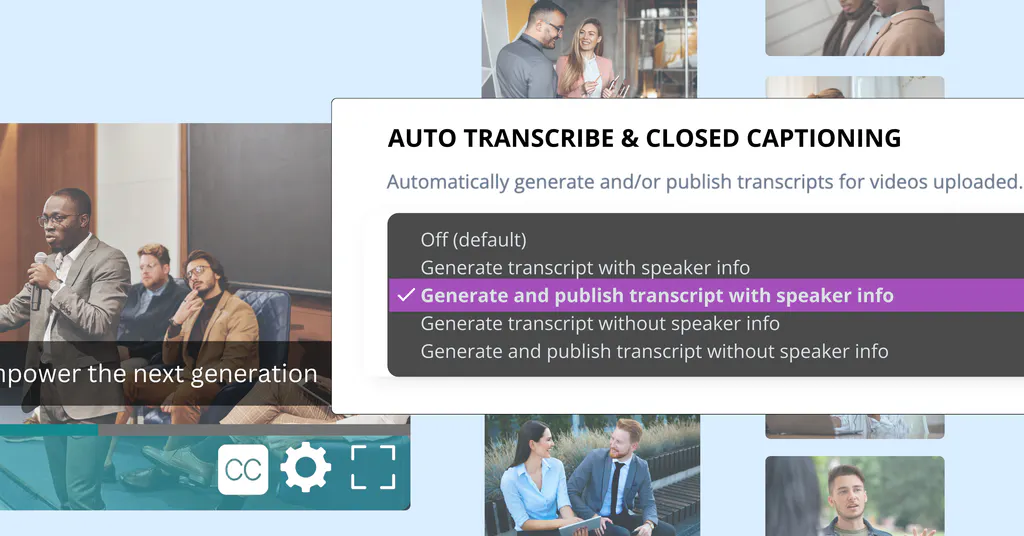
Enable Auto Transcribe & CC in Global Settings to generate transcripts for future uploads. Use individual video controls for selected recordings already in your library.
02
Keep control of accuracy
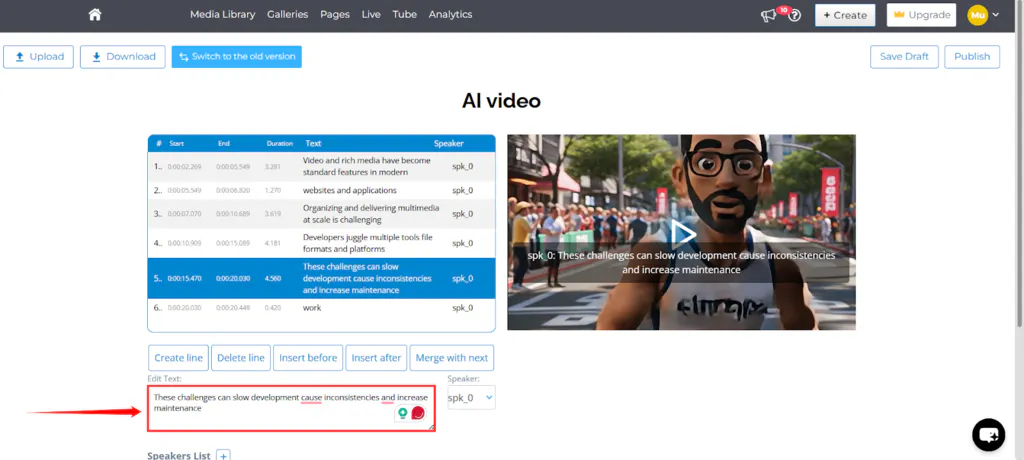
Review text, timing and speaker labels in the SRT editor. Save a draft, publish your corrections or upload a prepared caption file.
03
Support more viewers
Publish captions for sound-off viewing and add caption files in multiple languages. Give learners, customers and partners another way to follow the same recorded explanation.
Product workflow
Control accuracy, visibility and retrieval
Control what belongs together, how it appears, where it is used, and who can access it.
Review the transcript alongside the video
Open Edit & Publish from Auto Transcribe & CC. Correct names and technical terms, adjust segment timing and assign speakers while checking the video preview.
Add, remove or merge lines, then save a draft or publish. Manage transcripts centrally from Account Settings as the library grows.
Choose where the spoken knowledge is used
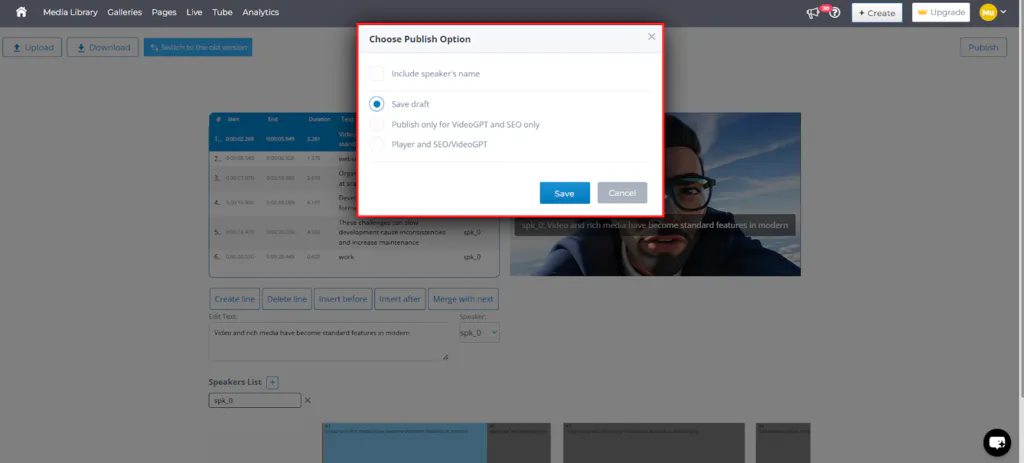
Publish to the player and SEO/VideoGPT, or make the transcript available to SEO and VideoGPT without on-screen captions. Published transcripts supply text for JSON-LD video metadata and AI answers.
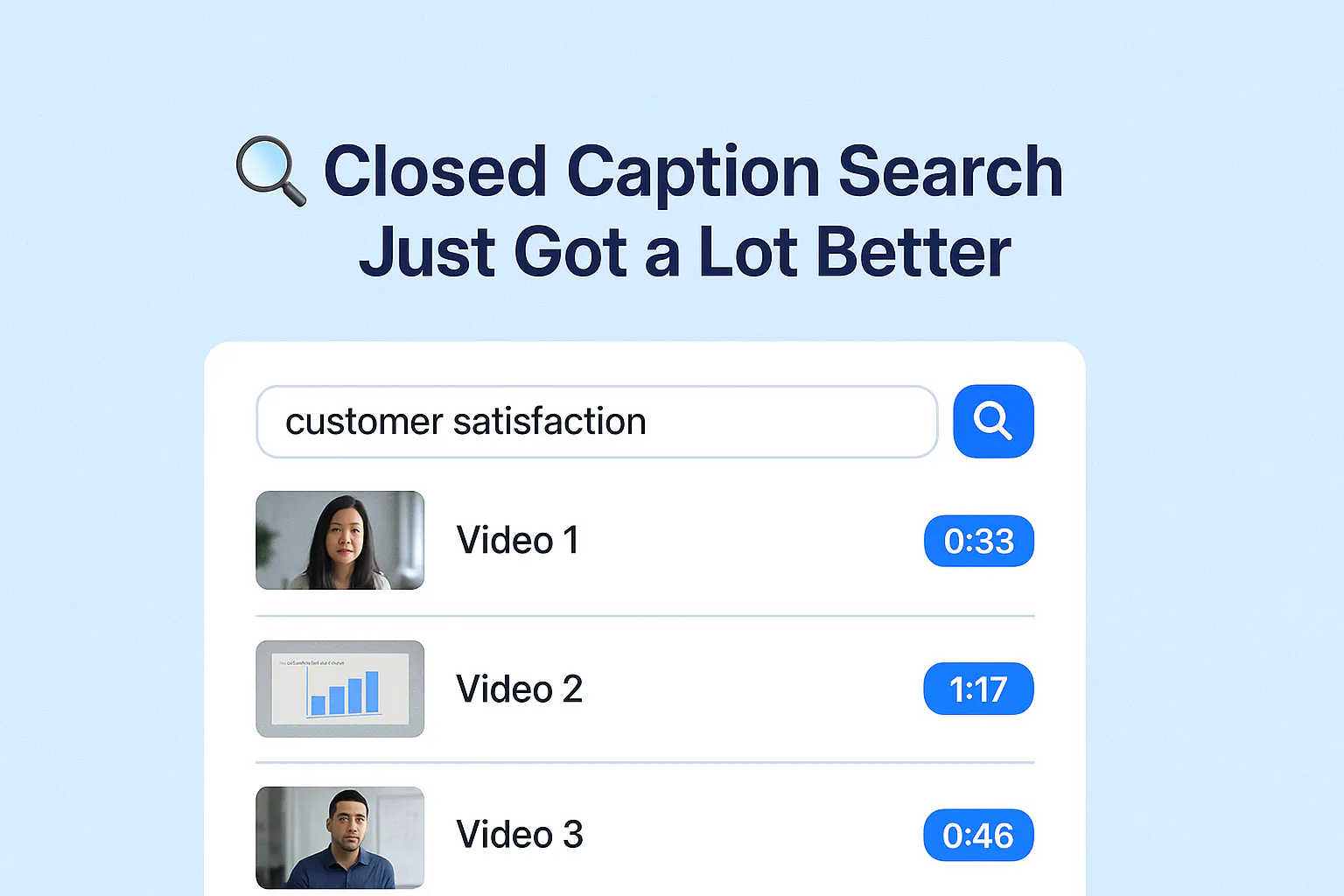
Closed-caption search in the Media Library finds spoken phrases and returns clickable timestamps so teams can revisit the relevant moment.
How it works
From recording to searchable knowledge
Start with one product walkthrough, training session or support recording. Set up a repeatable review and publishing workflow before expanding across the library.
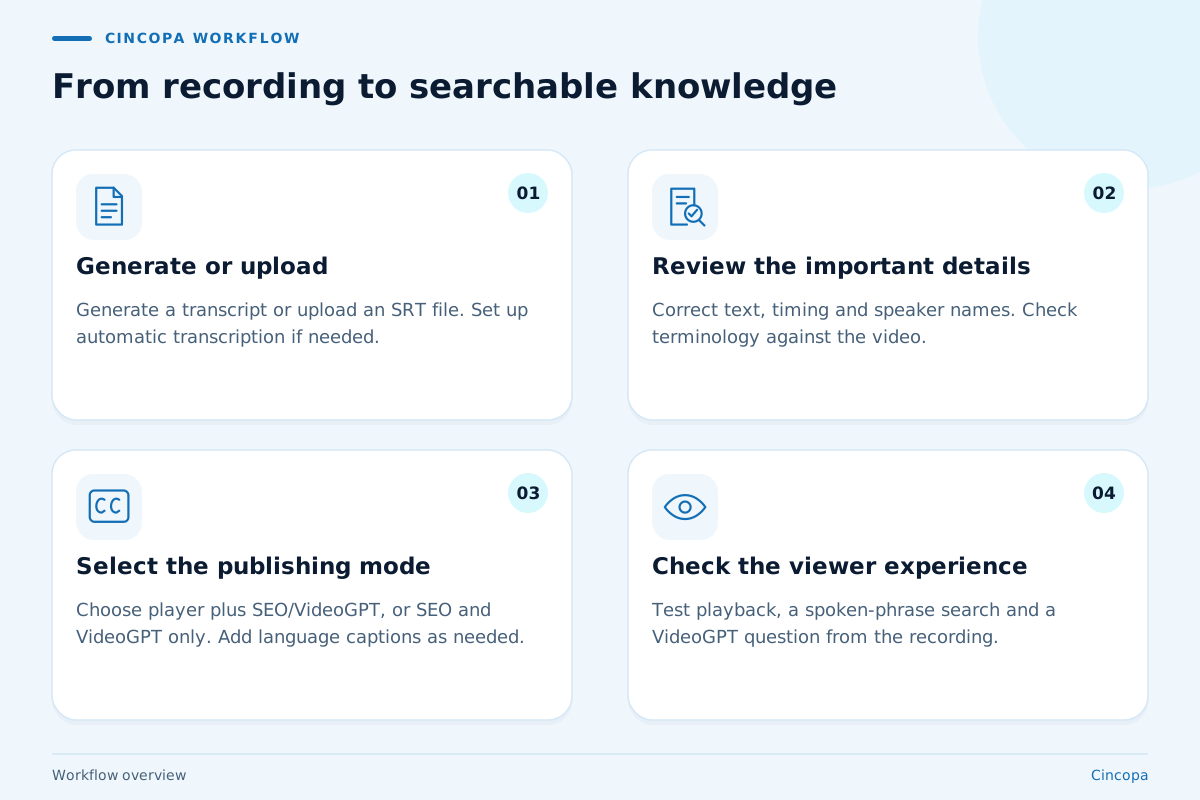
-
01
Generate or upload
Generate a transcript from the video's Auto Transcribe & CC tab, or upload an existing SRT file. Enable Global Settings when you want future uploads transcribed automatically. -
02
Review the important details
Use the SRT editor to correct text, timing and speaker names. Check product terminology and instructions against the video, and save a draft if review is incomplete. -
03
Select the publishing mode
Publish to the player and SEO/VideoGPT, or to SEO and VideoGPT only. Add additional language caption files where your audience needs them. -
04
Check the viewer experience
Test captions in playback, search a spoken phrase in the Media Library and ask VideoGPT a question answered in the recording. Refine the transcript when a correction changes the meaning.
Caption planning
Make the same recording useful in more situations
Transcription is the starting point. Plan how people will follow, understand and return to the content, from sound-off viewing to translated training and precise retrieval inside longer recordings. These choices turn a caption task into a repeatable knowledge workflow.
Help people follow the video in their setting
Not every viewer can rely on sound. A learner may be watching in a shared workspace, a customer may be checking a tutorial on a train, or a colleague may need written support to follow speech. Closed captions keep the explanation available while the original video supplies the visual context.
Plan captions around the task: preserve important instructions, use readable segments and check that text appears with the action being demonstrated. For training, this helps people revisit unfamiliar terminology without stopping to take every word down. Captions also support viewers with hearing access needs. Review the complete experience, including visual instructions and player usability, when planning accessible learning.
Build a consistent multilingual caption library
A translated caption track lets teams adapt the written explanation for another audience while keeping the same video. Cincopa supports multiple language caption files, so a product demonstration can serve customer groups or learners who work in different languages. Upload the prepared SRT or VTT file and select its language.
Start with a reviewed source transcript before translating. Keep product names, interface labels and technical terms consistent, then check each language against the screen recording. A correct sentence can still be confusing if its timing does not match the relevant step. When the demonstration changes, include caption review in the update so translated instructions continue to describe the version people see.
Match the retrieval method to the question
Different questions call for different ways into a recording. Captions help someone follow it as it plays. A summary gives an overview of the subject. Transcript search is useful when a support agent remembers a product term but needs the precise passage inside a long webinar or training session.
In the Media Library, closed-caption search returns clickable timestamps for matching spoken phrases. VideoGPT uses the transcript as source material for answers, offering another route into the recorded explanation. Use the video to check the surrounding context when detail matters. Reviewing the source transcript improves the foundation for all these uses: a wrong name, missing condition or mistranscribed instruction can make the information harder to retrieve or understand.
FAQ
Questions about transcription & captions
Practical answers for teams planning a training, product education or support experience.
Yes. Enable Auto Transcribe & CC in Global Settings for future uploads. Choose whether transcripts remain unpublished, support SEO and VideoGPT, or also appear as player captions. For selected existing videos, generate a transcript from the video's Auto Transcribe & CC tab.
Yes. The SRT editor lets you correct text, adjust timestamps, add or merge lines, and manage speaker names while reviewing a video preview. Save a draft or publish the corrected transcript. You can revise and republish captions later.
Yes. Upload a prepared SRT or VTT caption file and select its language. Cincopa supports multiple language caption files for the same video. You can download transcripts for offline review or translation and upload the updated files.
Cincopa can detect the spoken language and supports speaker detection for recordings with multiple speakers. Detected speakers are separated, but their real names are not known automatically. Review the speaker list in the SRT editor and supply the names you want published.
Yes. Choose Publish to SEO and VideoGPT to use the transcript for search metadata and VideoGPT responses without displaying subtitles in the player. Choose Publish to Player and SEO/VideoGPT when you also want viewers to see captions.
Yes. Closed-caption search in the Media Library searches transcript text, identifies recordings containing the phrase and returns clickable timestamps for the matching moments. This helps teams locate an explanation inside a long meeting, webinar or training video.
Cincopa can include published transcript text with video metadata through JSON-LD, giving search engines text describing the spoken content. Transcripts also supply source material for VideoGPT. Search visibility still depends on the page's accessibility and indexing settings.
Treat automatic transcription as a starting point. Check names, technical terms, timing and any statement where an error could change an instruction. Accurate captions make playback easier to follow and give search and VideoGPT better source material.
Next step
Make your recorded expertise easier to find
Show us a product walkthrough, training session or support library. We will help you connect transcription, captions and VideoGPT to the experience your audience needs.