February 9, 2026 · CincopaUI · Player · Video

📣 Update: AI Transcribe & Subtitles- Global and Individual Controls

As we began with Automatic Video Transcription (closed-captions), the goal was simple - make videos more accessible and easier to understand. With one click, captions could be generated automatically, helping viewers follow along without sound and improving overall usability.

But as video libraries grew, so did the need for more control.

Organizations weren’t just uploading one or two videos. They were managing hundreds - training sessions, product demos, internal meetings, webinars, and knowledge libraries. What started as a captioning feature naturally evolved into something much bigger: a transcription system that powers accessibility, search, SEO/GEO, smart indexing, and AI experiences like VideoGPT.
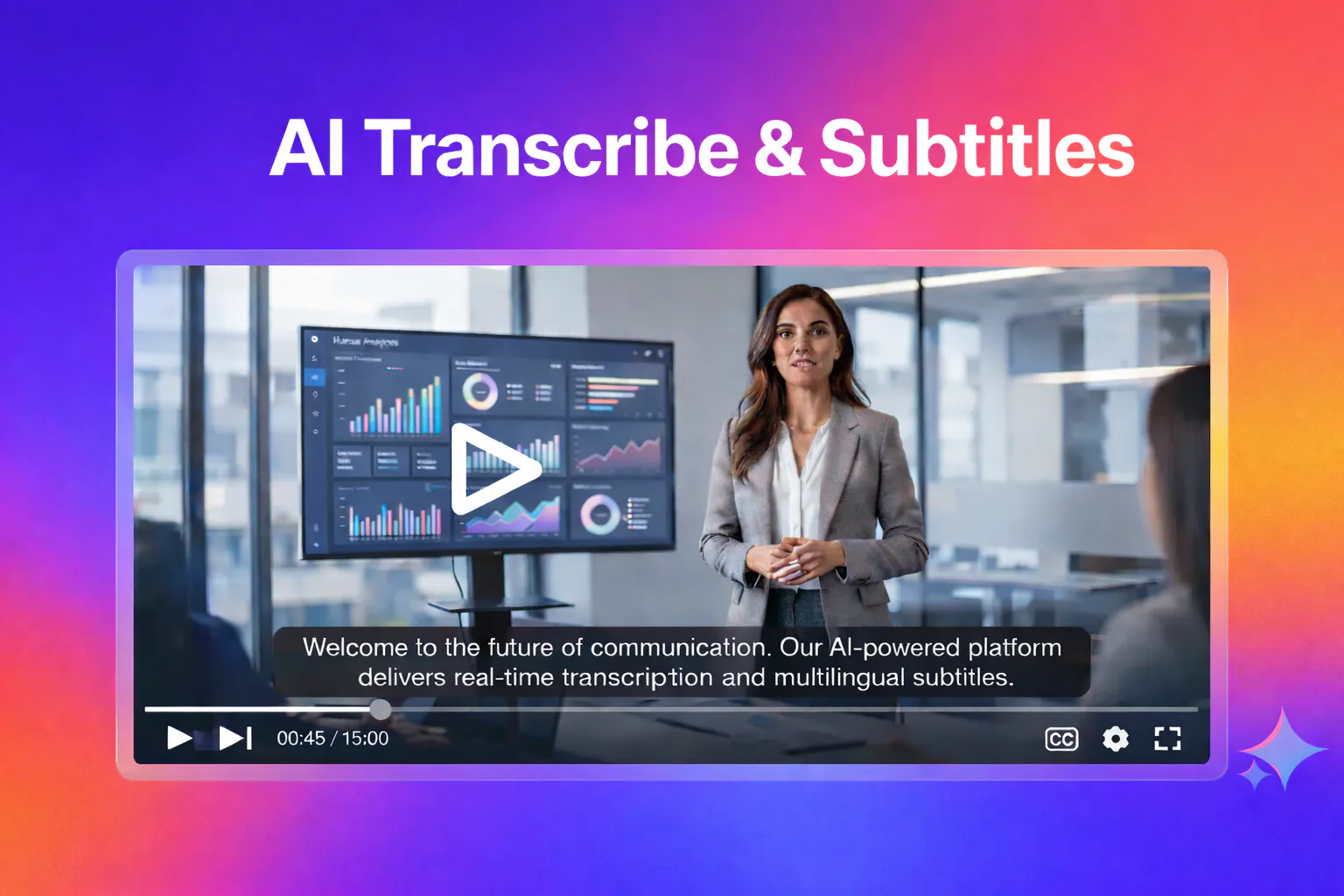
AI Transcribe and Subtitles video player with generated captions

Today, AI Transcriptions and Subtitles are no longer just about adding captions. They are a foundational layer for intelligent video management.

This update introduces two powerful ways to manage transcription: Global Settings and Individual Video Controls - each designed for different workflows and different levels of control.

What’s New

AI Transcriptions and Subtitles now offer both Global and Individual transcription controls, giving you complete flexibility over how transcripts are generated and published across your account. You can automate transcription for all future uploads using global settings or generate transcripts selectively for specific videos.

In addition, you can choose how transcripts are used - whether for player captions, SEO indexing, VideoGPT responses, or internal storage only. Speaker detection is now available for multi-speaker videos, and once transcripts are published, VideoGPT and smart in-video search are automatically enabled.

This update transforms transcription from a simple captioning feature into a scalable, AI-powered system for accessibility, search, and intelligent video experiences.

Global Transcription Settings

Global settings allow transcripts and subtitles to be automatically generated for all videos uploaded after activation. This ensures consistency, reduces manual effort, and standardizes how transcripts are handled across your account.

Key Capabilities

1. Automatically generate transcripts for all new uploads

2. Apply consistent publishing rules across your entire account

3. Enable speaker detection for multi-speaker videos

4. Maintain a standardized transcription workflow without manual setup

5. Control whether transcripts are used for:

  • Only Generate without publishing
  • Generate and Publish to Player and SEO/VideoGPT
  • Search in Video Library

Once enabled, transcripts are generated automatically based on your selected publishing preferences.

Note: To learn more about how Global Transcription Settings work and how to configure them step-by-step, refer to the AI Transcriptions and Subtitles (Global Settings) Guide.

Individual Video Transcription

In addition to global automation, you can generate AI transcriptions for individual videos. This is useful when:

  • Global transcription is disabled
  • You want to generate captions only for selected videos
  • You need to create transcripts for older videos uploaded before global settings were enabled
  • You want per-video control over speaker detection or language selection

Key Capabilities

1. Generate transcripts on-demand

2. Enable or disable speaker identification

3. Enable speaker detection for multi-speaker videos

4. Choose publishing behavior per video:

  • Only Generate without publishing
  • Generate and Publish to Player and SEO/GEO/VideoGPT
  • Search in Video Library

Note: To understand how Individual Video Transcription works, including language selection, speaker detection, and publishing options, refer to the AI Transcriptions and Subtitles for Individual Videos Guide.

Learn more about this: Auto Transcribe & Subtitles Overview

See how these controls relate to VideoGPT gallery support. After rollout, use VideoGPT Insights to review questions that may need clearer transcripts or other source material.

Published February 25, 2026

NEXT STEP

Continue Exploring

Start with one product area, one documentation surface, one support library, one internal portal, or one embedded training flow. Get that collection working well, help viewers understand what is inside, then reuse the same gallery across adjacent destinations without duplicating the library.